Webhooks
Webhooks let Dead Simple Chat notify your server when something happens in your account: a message is posted, a user joins a chat room, a channel is deleted, and so on.
When an enabled event occurs, Dead Simple Chat sends an HTTP POST request to a single URL that
you configure in the dashboard. The request body is JSON and always has the same two top-level
keys, event and data:
{
  "event": "user_joined_chatroom",
  "data": {
    "user": {
      "_id": "648e211a81cea20bd8b1581d",
      "username": "alice",
      "lastChatRoomId": "bbNiVFoXm"
    }
  }
}
Webhooks are outbound and one-way. Dead Simple Chat does not read your response body, and nothing you return changes what happens in the chat room. To act on an event — send a message, ban a user, update a room — call the REST API from your own server.
Webhooks are not available on every plan. If Settings -> Webhooks shows an upgrade prompt instead of the webhook settings, your current plan does not include them — see pricing or contact support.
Enabling webhooks
- Go to the Dead Simple Chat dashboard and open Settings -> Webhooks.
- Turn on the Webhooks switch at the top of the page.
- Enter the URL that should receive the requests in the Webhook URL field and press Save.
- Turn on a switch for each event you want to receive.
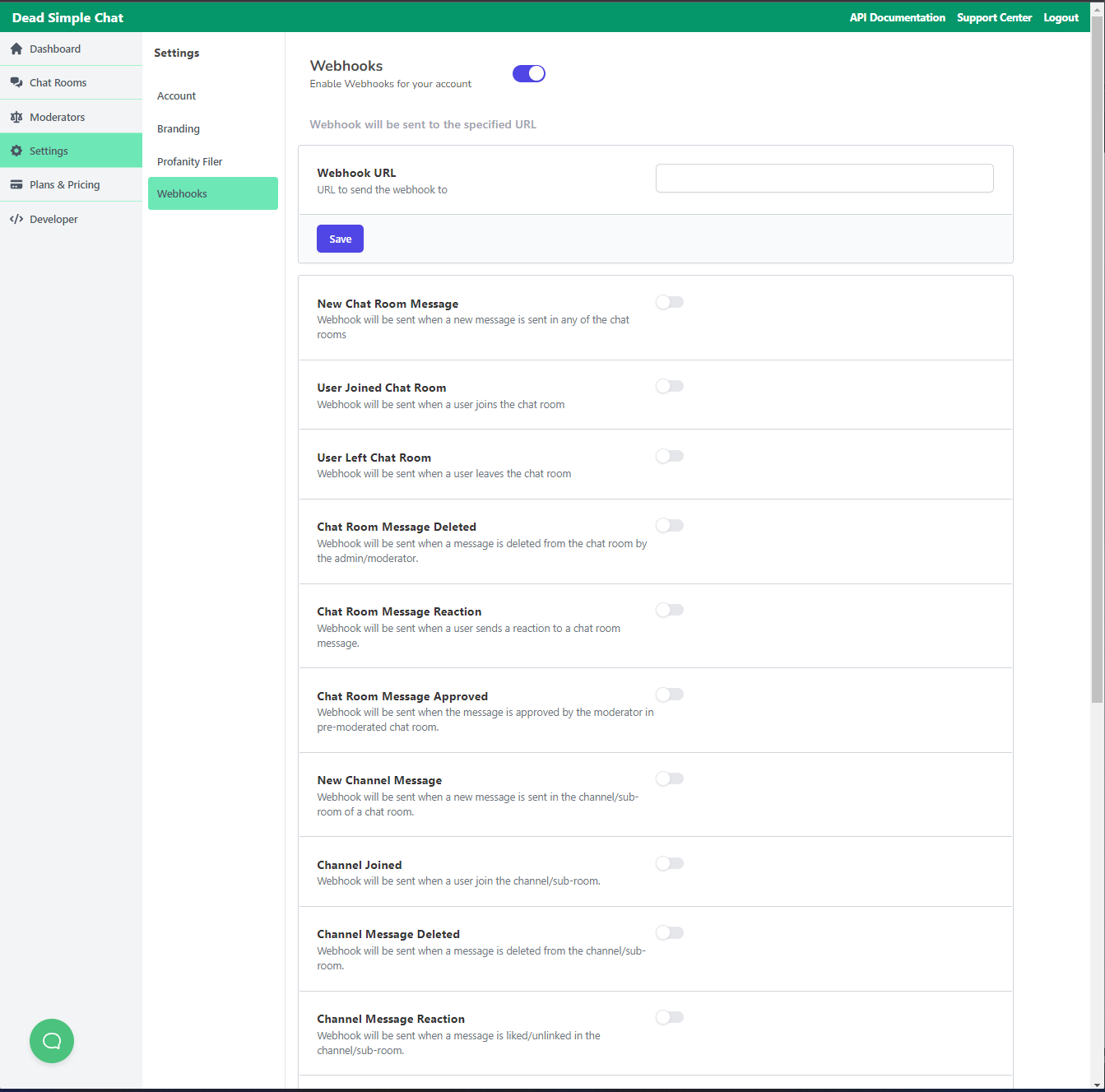 Settings -> Webhooks in the Dead Simple Chat dashboard
The Webhook URL must be an absolute http or https URL of up to 1000 characters, for example
https://example.com/hooks/deadsimplechat. Anything that is not a valid http or https URL is
rejected with "Please enter a valid webhook URL".
There is one webhook URL for the whole account. It applies to every chat room, every channel and every event you switch on. There is no per-room or per-event URL. If you need to route events to different services, send them all to one endpoint of yours and fan them out from there.
Nothing is delivered until a Webhook URL is saved. Turning the Webhooks switch off clears the URL, which stops all deliveries.
Choosing which events to send
Every event has its own switch, and all of them are off by default — saving a URL on its own does not send anything. Switches take effect immediately; there is no separate save step for them.
The switch names in the dashboard do not always match the event string in the payload, so this
table maps one to the other:
| Switch in Settings -> Webhooks | event string it controls |
|---|---|
| New Chat Room Message | new_chatroom_message |
| User Joined Chat Room | user_joined_chatroom |
| User Left Chat Room | user_left_chatroom |
| Chat Room Message Deleted | chatroom_message_deleted |
| Chat Room Message Reaction | chatroom_message_like_toggle |
| Chat Room Message Approved | chatroom_message_approved |
| New Channel Message | new_channel_message |
| Channel Joined | nothing — see Known limitations |
| Channel Message Deleted | channel_message_deleted |
| Channel Message Reaction | channel_message_like_toggle |
| Channel Message Approved | channel_message_approved |
| Chat Room Created | chatroom_created |
| Chat Room Updated | chatroom_updated |
| Channel Created | channel_created and private_message_initiated |
| Channel Updated | channel_updated |
| Channel Deleted | channel_deleted |
| Private Message Initiated | nothing — see Known limitations |
| New Private Message | new_private_message |
| (no switch on the page) | chatroom_deleted |
Two switches on this page do not do what their labels suggest, and one event has no switch at all.
Read Known limitations before you rely on Channel
Joined, Private Message Initiated, Channel Created, or chatroom_deleted.
Trying it out
The quickest way to see a real payload is to point the webhook at a request inspector before you point it at your own server:
- Open webhook.site and copy the unique URL it gives you.
- Paste that URL into Settings -> Webhooks -> Webhook URL and press Save.
- Turn on User Joined Chat Room.
- Open one of your chat rooms and join it.
A user_joined_chatroom request appears in the inspector within a second or two. Once you are
happy with the shape of the data, replace the inspector URL with your own endpoint.
Deliveries are unsigned and are never retried. Read Delivery and limitations before you build on top of them.
In this section
- Event reference — all 18 event types, what each one means and when it fires.
- Payloads — the request envelope, every object that appears in
data, and full JSON examples. - Delivery and limitations — how requests are sent, what is guaranteed, and what is not.