Basic SSO
Basic SSO is switched off by default on every account created from September 2023 onwards, and it
cannot be switched back on from the dashboard. If you signed up after that date, the username
query parameter will not log anyone in — the join screen appears instead. Use
SSO Using Unique User Identifier instead, which is the
supported method and works on every account.
This page remains for accounts created before that change, where Basic SSO is still active.
In this document we will describe how you can login users that are on your website or app automatically into the chat room.
Using Basic SSO, you can automatically login the users that are on your website or app into the chatroom.
Basic SSO only works when all three of these are true:
- the account has Basic SSO enabled (see the note above — newer accounts do not)
- the chat room's Chat Room Permission Level is Public
- the request does not carry a
privateRoomparameter
If any one of them is false, the username parameter is ignored and the user is shown the normal
join screen.
When you use the Basic SSO or even SSO with auth token, the users are not presented with a pop-up to enter their username, they directly join the chat room and are able to send and view the messages.
To implement the basic sso, simply pass theusername as a query parameter to your Chat Room URL.
In Basic SSO you simply need to pass the username as query parameter to the Chat Room, to learn how to do it, read along.
Basic SSO cannot be used to login moderators, if you wish to login moderators into your chat room via SSO checkout SSO using Auth Token
Pre-requisite
You need a Dead Simple Chat account, if you don't already have an account signup for a free account at https://deadsimplechat.com.
Step 1: Obtain your Embed Code and Chat Room URL
To obtain your Chat Room URL, login to your dashboard click the "Get Embed Code" button.
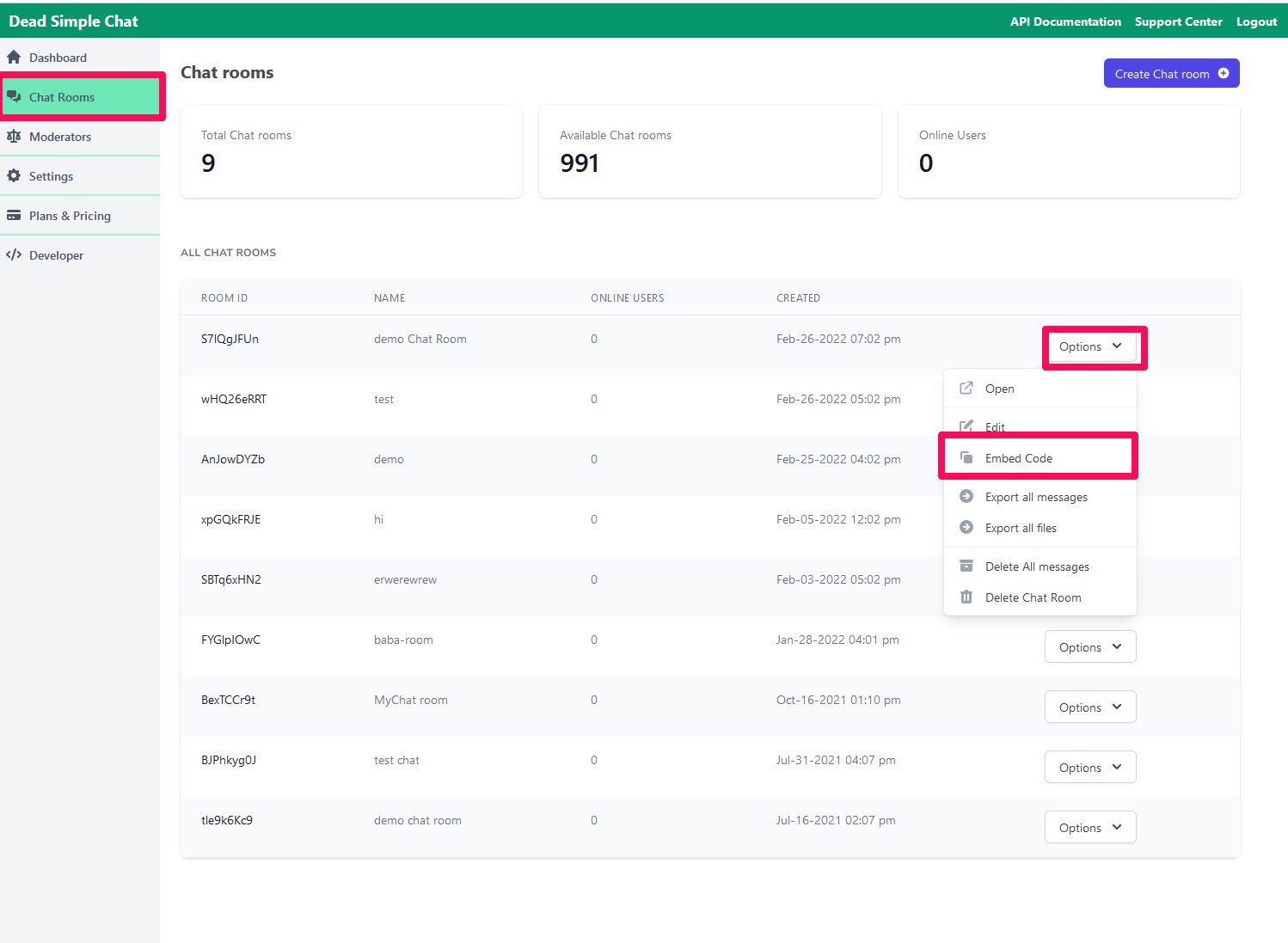 Dead Simple Chat Dashboard with Get Embed Code button highlited
You will be taken to the Embed Info page, there in the black box will be the Embed Code that you would use to embed the Chat Room on your website or app.
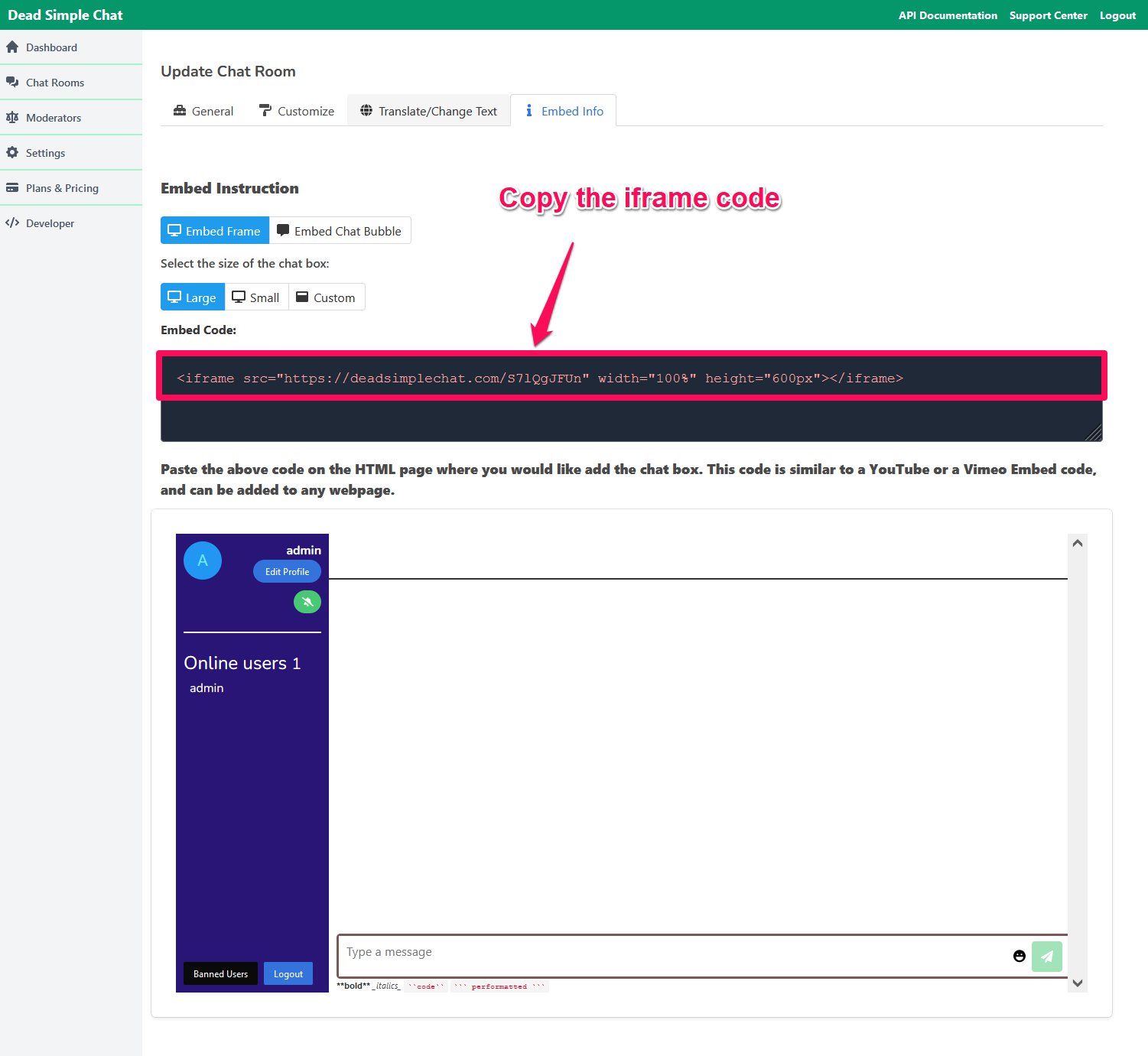 In our example, the embed code is:
<iframe src="https://deadsimplechat.com/YOUR_ROOM_ID" width="100%" height="600px"></iframe>
and the URL in the src attribute is your Chat Room URL — replace YOUR_ROOM_ID with your own room's id, so it reads https://deadsimplechat.com/YOUR_ROOM_ID
Step 2: Passing the username
Now that we have obtained our embed code and the chat room url, we can pass the username as a query parameter to the chat room, like this:
https://deadsimplechat.com/YOUR_ROOM_ID?username=bob
In the above snippet https://deadsimplechat.com/YOUR_ROOM_ID is the chat room url and ?username= is username key bob is the value i.e name of the user and it should be replaced by the actual name of the user.
And the complete iFrame code would look something like this:
<iframe src="https://deadsimplechat.com/YOUR_ROOM_ID?username=bob" width="100%" height="600px"></iframe>
The value of the username key i.e bob should come from your website, and it will be the actual name of the user, and how you fetch that value into the page depends upon your CMS or Backend.
Implement Basic SSO in Chat Bubble
Implementing Basic SSO in the Chat Bubble is slightly different than the iFrame, in the Chat Bubble you get an script, and in the embed script you would need to pass the username key.
Step 1: Obtain the Chat Bubble Embed Code
From the Embed Info page, if we click on the Embed Chat Bubble tab we will be presented with the Chat Bubble Embed Code:
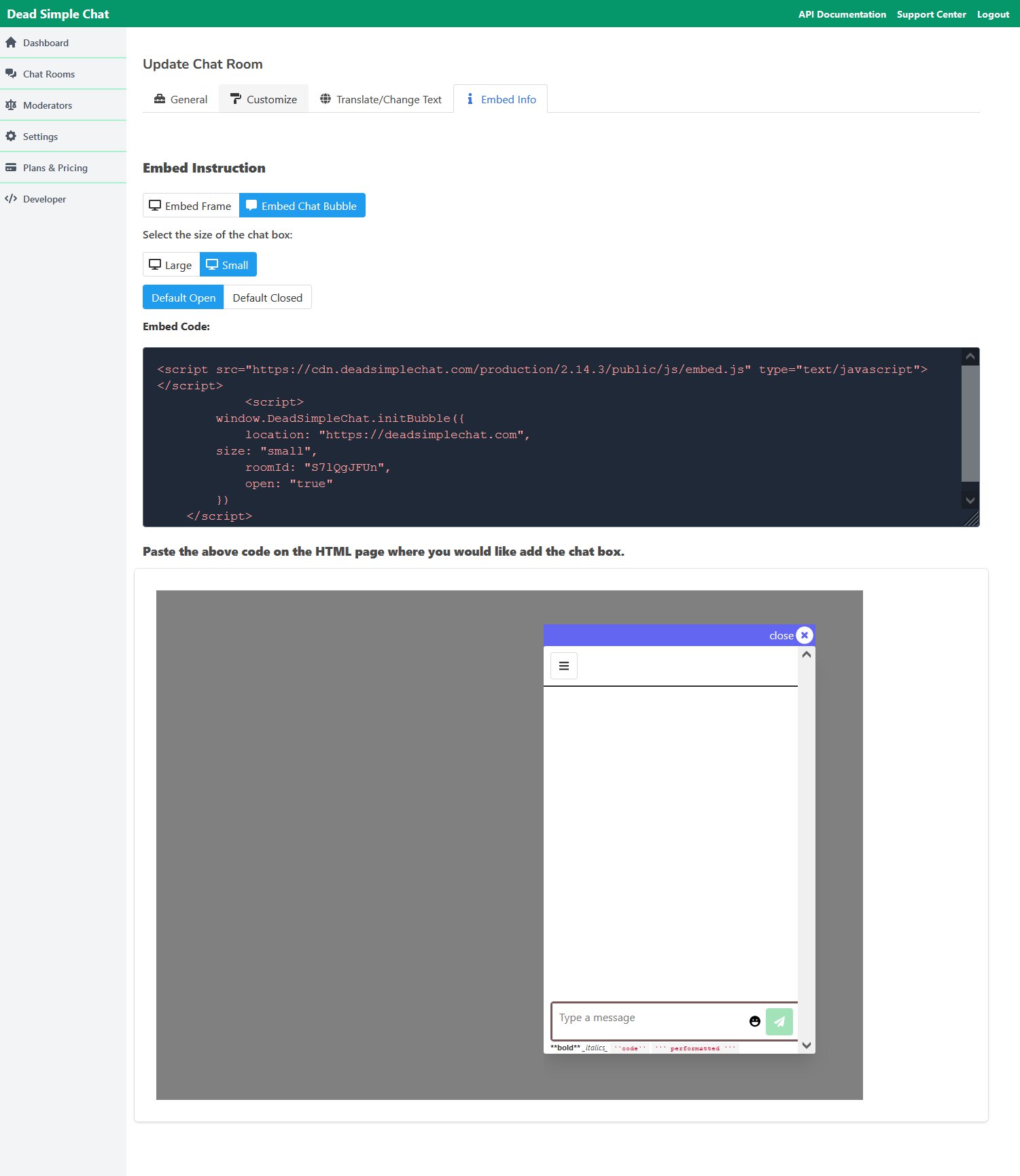 Embed Code for Dead Simple Chat - Chat Bubble
In our example the Chat Bubble Embed code is:
<script src="https://deadsimplechat.com/js/embed.js" type="text/javascript"></script>
<script>
    window.DeadSimpleChat.initBubble({
       mode: "small",
        roomId: "YOUR_ROOM_ID",
        open: "true"
    })
</script>
Step 2: Passing the username
Now that we have obtained the embed code, we need to pass the username to the initBubble function, like below:
<script src="https://deadsimplechat.com/js/embed.js" type="text/javascript"></script>
<script>
    window.DeadSimpleChat.initBubble({
       mode: "small",
        roomId: "YOUR_ROOM_ID",
        open: "true",
        username: "bob"
    })
</script>
In the above example we have passed the username: "bob" now the user will be logged-in to the chat room automatically and will have a username set as bob.
You would have to replace the bob with the actual username of the user, this varies upon your app on how you retrieve the username of the logged-in user, and once you have the username you can pass it as a parameter to the chatRoom to login the user automatically.
Bonus: Setting random usernames for users and logging them in automatically
In Dead Simple Chat, the users have to set a username before they can join the chat room, but suppose you want to have a chat room, so that all the users are logged-in with the username guest.
Then it can be easily implemented using some Javascript and Basic SSO functionality.
For example, this is our embed code:
<iframe src="https://deadsimplechat.com/YOUR_ROOM_ID" width="100%" height="600px"></iframe>
Editing the embed code
We will edit our embed code a little bit and add an id tag with value myFrame so that we can easily reference it via JavaScript.
<iframe id="myFrame" src="https://deadsimplechat.com/YOUR_ROOM_ID" width="100%" height="600px"></iframe>
Script to automatically Login Users
Now we will write a small script that will automatically login the users into the chat room, place this script tag after the iFrame tag on your html webpage
- iFrame
- Chat Bubble
<iframe id="myFrame" src="https://deadsimplechat.com/YOUR_ROOM_ID" width="100%" height="600px"></iframe>
<script>
    var iframe = document.getElementById("myFrame");
    iframe.src = iframe.src + "?username=guest-" + Math.floor(Math.random() * 100);
</script>
<script src="https://deadsimplechat.com/js/embed.js" type="text/javascript"></script>
<script>
    window.DeadSimpleChat.initBubble({
        mode: "small",
        roomId: "YOUR_ROOM_ID",
        open: "true",
        username: "guest-" + Math.floor(Math.random() * 10)
    })
</script>
Now every user that visits the webpage will be automatically logged in as a guest-1 to guest-100 randomly.
In the Chat Bubble simply passing the username key as Guest would do the trick.
Conclusion
In the Basic SSO guide we have gone through how we can implement Basic SSO and login users automatically into the chatroom.
If you have some advanced use cases you can do further reading on:
- SSO Using Auth Token: SSO using auth token offers the following benefits over basic sso:
- Persistant users
- Pass Profile Picture
- Secure
- Login Moderators
📄️ SSO using Auth Token (Secure SSO) — In this section, we will learn about Advanced SSO (SSO using Auth Token).
- SSO in WordPress: If you use WordPress checkout our WordPress Guide to implement SSO in your WordPress site and login the users logged-in WordPress automatically into the chat room.
📄️ SSO in WordPress — Implement SSO on a WordPress site.