AI Configuration Assistant
The AI Configuration Assistant sets up a chat room from a plain-English description. You type what you want — "make this chatroom dark mode", "set up for German-speaking users" — and it proposes the settings to match. You review the proposal and decide whether to apply it.
It is a faster way to reach the same settings you can always change by hand. Nothing it does is exclusive to the assistant, and nothing is applied without your confirmation.
Where to find it
Open any chat room and look for the round button in the bottom-right corner. It is available on four pages:
| Page | What the assistant can change there |
|---|---|
| Create / Edit Chat Room | Room features such as private chat, channels, polls, pre-moderation, password protection and file sharing |
| Customize | Colours, fonts, sizes, hidden elements and custom CSS |
| Translate / Change Text | The interface labels shown to people in the room |
| Embed Info | Embed-related settings for the room |
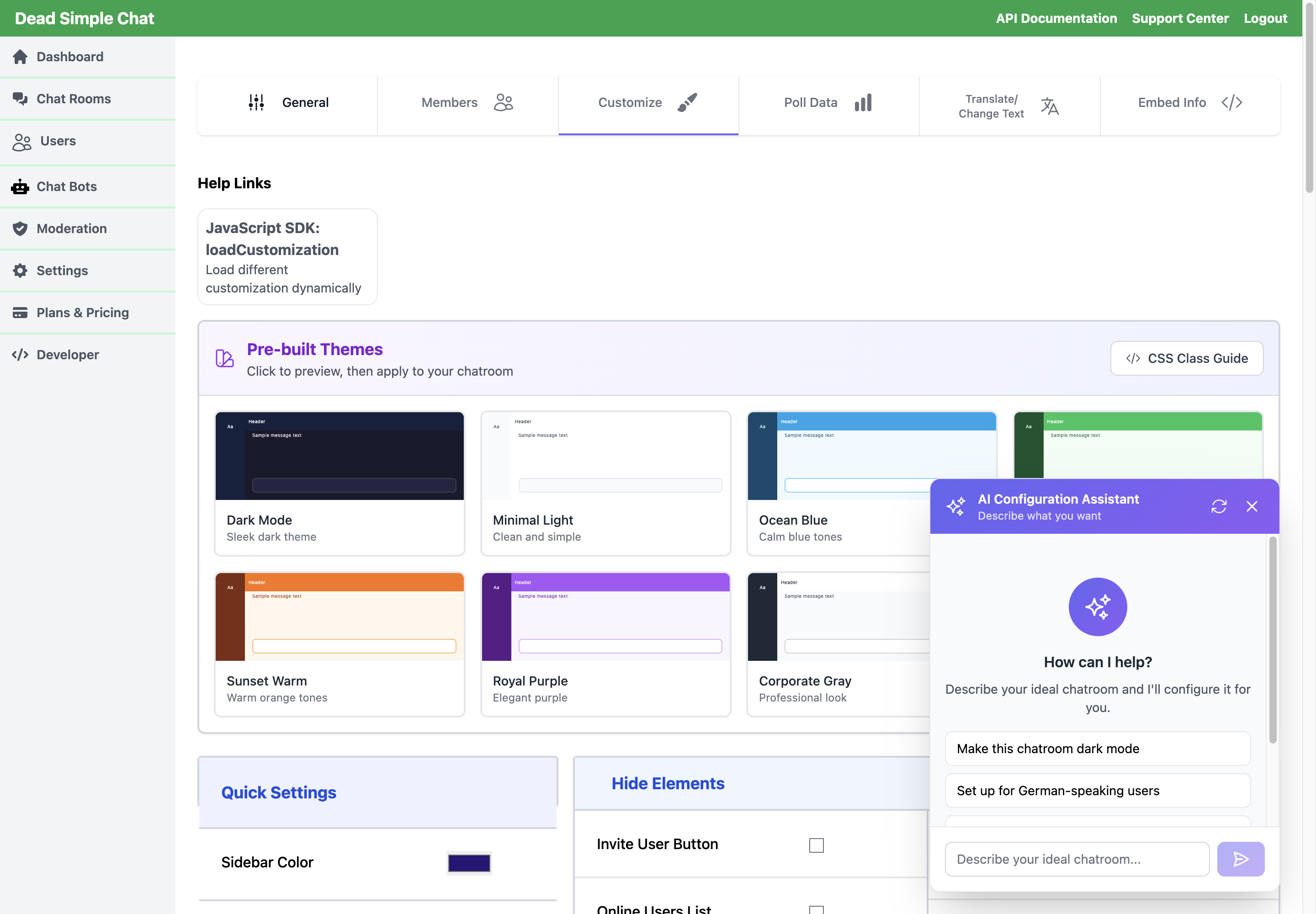 The assistant, opened from the Customize tab.
If you have not used it before, start with one of the four suggestions in the panel. They are ordinary prompts — you can edit them or ignore them and write your own.
How a request works
- Describe what you want. One sentence is usually enough. You can mention several things at once: "dark theme, hide the sidebar, and turn on file sharing".
- Read the proposal. The assistant replies with a short explanation and a summary of what it intends to change, grouped by area and counted — for example Visual styling (23 properties). Nothing has been saved at this point.
- Apply or discard. Select Apply Changes to save, or simply type a different request. If the proposal is close but not right, say what to adjust rather than starting over — the assistant keeps the context of your conversation.
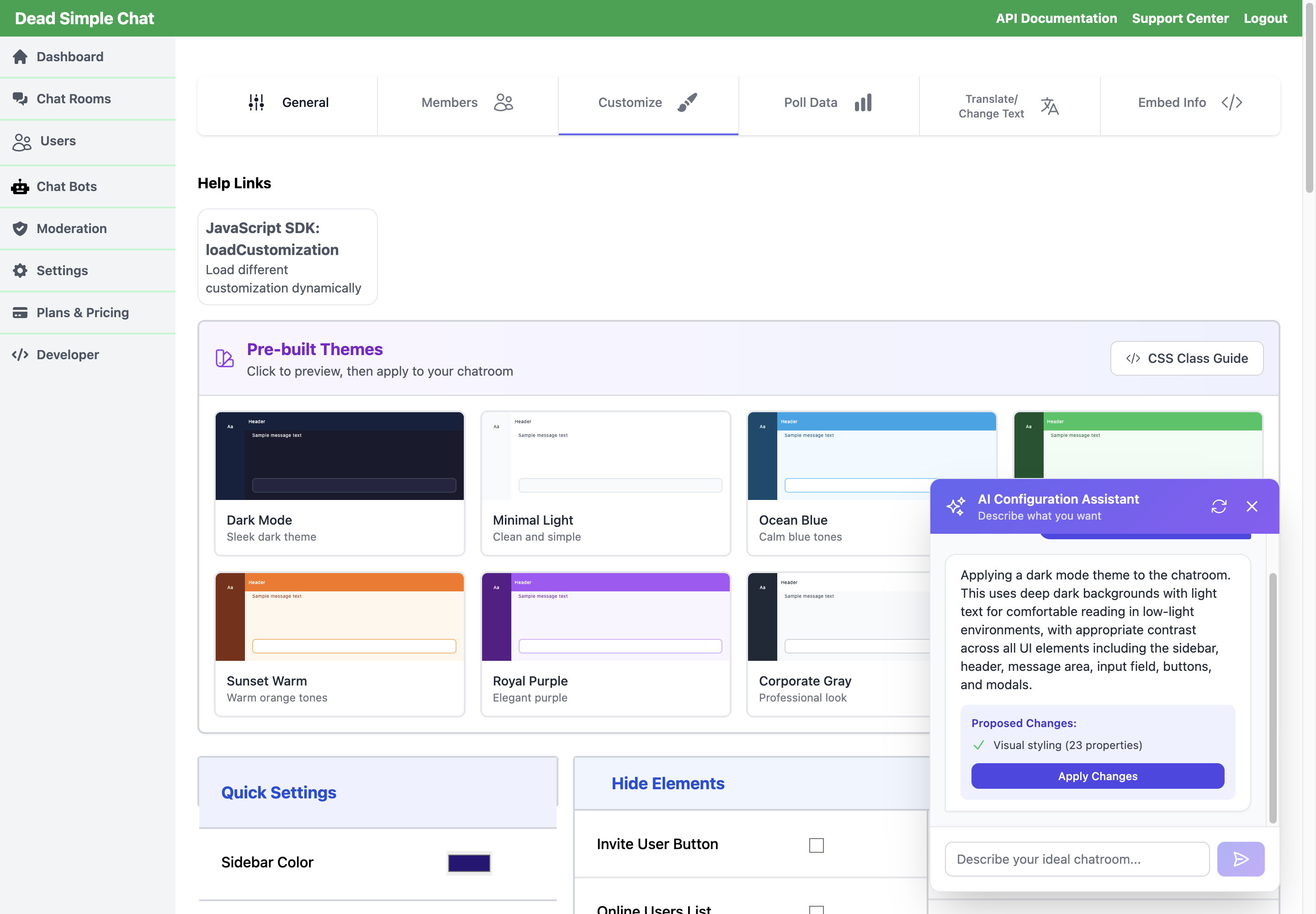 The assistant explains what it will change and how many properties it affects. Nothing is saved until you select Apply Changes.
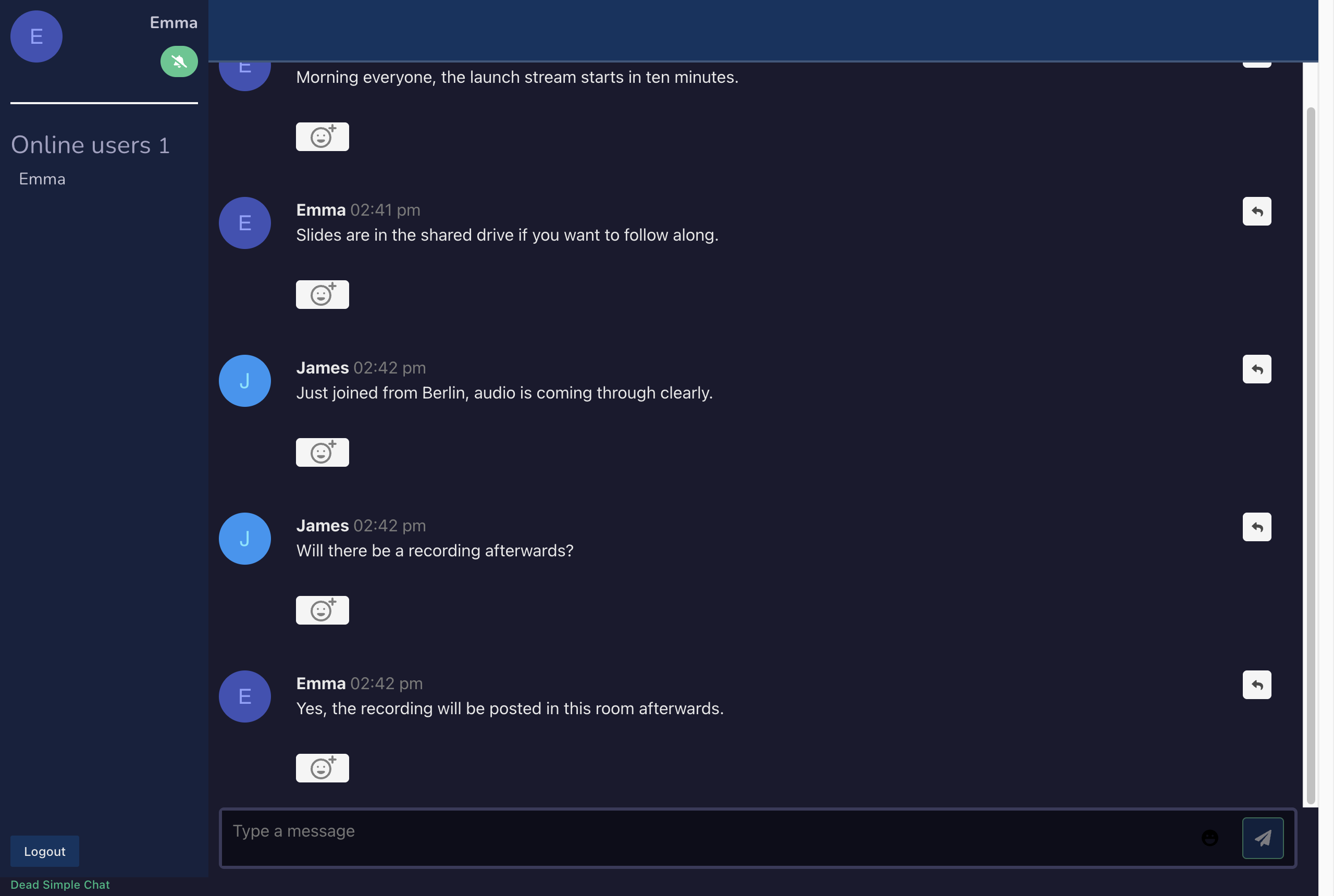 The same room after applying a dark theme.
On the Customize tab the proposal is previewed in the live chat preview before you save, so you can see the result first. On the other three pages, Apply Changes saves immediately.
What it can and cannot change
It can set room features, visual customization, interface translations and custom CSS.
It cannot do anything outside that room's configuration. It will not create or delete rooms, send or delete messages, add or remove users, moderate, change your plan, or touch your API keys.
Two limits are worth knowing:
- Colours must be valid. If a colour cannot be interpreted it is dropped from the proposal and the assistant tells you, rather than guessing.
- Conflicting requests are flagged. Asking to hide the sidebar while using channels, for example, produces a warning alongside the proposal, because channels are selected from the sidebar.
Usage limits
The assistant is available on every plan. The number of requests per hour is limited, and the limit is lower on the free plan than on paid plans. If you reach it, the assistant says so and the limit resets within the hour. Applying a proposal does not count as a request — only asking does.
If something goes wrong
Changes are applied to the room's normal settings, so anything the assistant does can be changed back the same way you would change it yourself.
- To undo visual changes, use Reset to default settings at the bottom of the Customize tab, or apply one of the pre-built themes.
- To undo a feature change, toggle it back on the General tab.
- If the assistant cannot interpret a request, it asks you to rephrase and suggests two examples rather than applying a guess.
Related
- Creating and Managing Users and Chat Room Permissions
- loadCustomization — apply customization from the SDK instead
- loadTranslation — apply translations from the SDK instead