File and Image Sharing
Whether people can attach anything to a message is one three-way choice on the room's General tab. There is no separate image switch and no separate file switch: File and Image Sharing covers both, and it applies everywhere in the room — the main conversation, every channel, and every private chat.
The three choices
Open the Dead Simple Chat dashboard, go to Chat Rooms, select a room, and stay on the General tab. File and Image Sharing offers three radio buttons.
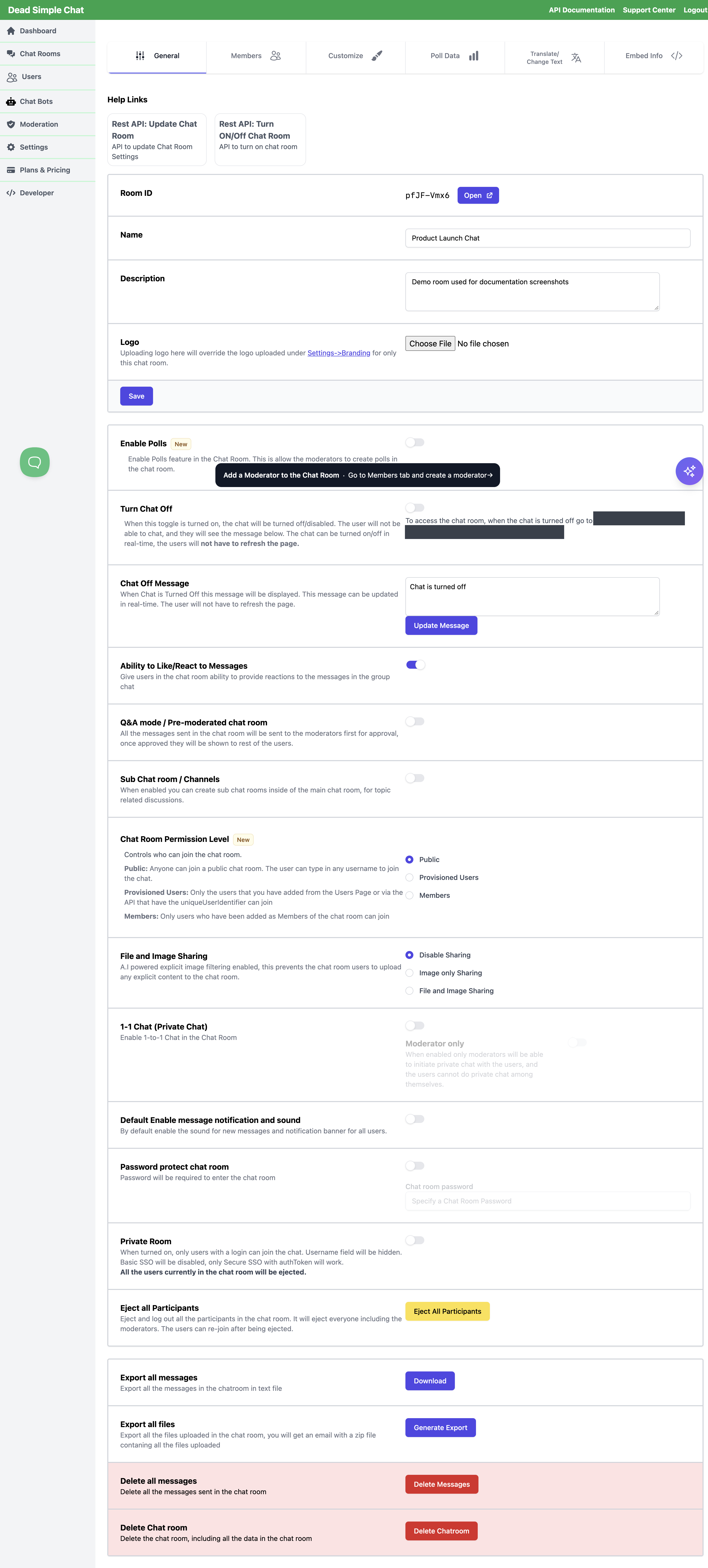
| Choice | What participants can attach |
|---|---|
| Disable Sharing | Nothing. There is no attachment button in the message box. |
| Image only Sharing | Images. The file chooser offers images only, and anything else that reaches the server is refused with "Only image upload is allowed". |
| File and Image Sharing | Images and other files. |
A new room is set to Disable Sharing. The choice saves itself as soon as you select it — there is no Save button on this part of the tab.
What a participant sees
With sharing on, a paperclip appears in the message box. Selecting it opens a file chooser; the chosen file is uploaded straight away and shown as a tag next to the message box while it uploads.
- One attachment at a time. While a file is attached the paperclip is disabled, with the tooltip "Delete the existing file to upload another." Remove the attachment with the small x on the tag.
- The message and the attachment travel together. Type a message and send, or send the attachment on its own — the Send button is available as soon as either is present.
- Images appear inline in the conversation. Other files appear as a download link carrying the original filename.
What can be uploaded
Images are anything the browser reports as an image — JPEG, PNG, GIF, WebP and the rest — with one
exception: an .svg file is treated as a file rather than an image. That matters in both modes. Under
Image only Sharing an SVG is refused, and under File and Image Sharing it goes through as an
ordinary file.
An image is scaled down before it is uploaded, so that neither side is more than 800 pixels. People sharing photographs from a phone do not have to think about size, and the stored copy is the scaled one.
The same rule catches pictures in formats the browser does not recognise as images: they are handled as files, so under Image only Sharing they are refused even though a person would call them pictures.
Other files can be of any type except a blocked list of executable and script formats, which are refused with "This file type is not allowed" when the file is chosen, or "This file type cannot be uploaded" if it reaches the server:
.bat  .bin  .chm  .com  .cpl  .crt  .exe  .hlp  .hta  .inf  .ins  .isp  .jse
.lnk  .mdb  .msc  .msi  .msp  .mst  .pcd  .pif  .reg  .scr  .sct  .shs  .vba
.vbe  .vbs  .wsf  .wsh  .wsl
The block is on the file's extension, so it stops the obvious cases and nothing more. File and Image Sharing means accepting arbitrary content from whoever can join the room — decide that deliberately, and prefer Image only Sharing when images are all you actually need.
Size and storage limits
| Limit | What happens when it is reached |
|---|---|
| 100 MB for a single upload | The file is refused before it is sent, with "File too large". No plan raises this. |
| Your plan's maximum upload size, which can be as low as 5 MB | The upload is refused and the person is told an upgrade is needed. See pricing or contact support. |
| Your account's total storage | Uploads stop with "Chat Storage full, ask the admin to upgrade." Deleting a message that carries an attachment gives that space back. |
Where uploads are kept, and for how long
An upload is stored by Dead Simple Chat, not on your own site, and the message carries a direct link to it. Two things follow from that:
- The link is not restricted to the room. Anyone who has the link can open the file without being in the chat. Treat anything shared in a room as shareable beyond it.
- Uploads are removed 30 days after they are uploaded. The file goes and the link stops working; the message it was attached to remains. If a room's attachments matter to you for longer than that, pull them out before the month is up — Export Files lists everything uploaded in a room.
Deleting a message that carries an attachment deletes the attachment with it, straight away, and frees the storage it was using. That applies wherever the deletion comes from: a moderator in the room, the Moderation Dashboard, or the REST API.
Explicit-image screening
The dashboard describes this setting as having A.I. powered explicit image filtering, and that is what happens to an image on its way in: it is checked for explicit content before it is stored, and an image that does not pass is refused with "This image might contain explicit content, hence it cannot be uploaded". An image is only stored once the check has come back clear, so a check that cannot be completed ends in a failed upload rather than an unchecked image appearing in the room.
Be precise about what it covers:
- It applies to images. Both Image only Sharing and File and Image Sharing put images through it.
- It does not apply to other files. Under File and Image Sharing, a document, an archive or a video is stored as it arrives.
- It does not apply to
.svgfiles, which are handled as files rather than images.
Treat it as a filter that turns away obvious material, not as a guarantee about everything that reaches your room. Where the content genuinely matters, stack it with the room's other controls:
- Image only Sharing rather than File and Image Sharing, so everything that gets uploaded is an image and is screened.
- Q&A mode / Pre-moderated chat room on the General tab, which holds every message — attachments included — until a moderator approves it, so nothing reaches the room unseen.
- Moderators, who can delete a message and its attachment from inside the room or from the Moderation Dashboard. See Creating Moderators.
Sharing in channels and private chats
The setting is the room's, not the conversation's. Whatever you choose applies to every channel in the room and to every private chat inside it, with the same limits, the same blocked extensions and the same image handling. There is no way to allow uploads in one channel and not another; if the difference matters, use separate chat rooms.
Setting it through the REST API
The field is fileSharingMode, and the two endpoints do not accept the same values:
| Endpoint | Accepted values |
|---|---|
| Create Chat Room | imageSharing, fileAndImageSharing. Leave the field out for no sharing — that is the default anyway. |
| Update Chat Room | imageSharing, fileAndImageSharing, "". |
Any other value is refused with a 400, and because a rejected request changes nothing at all, the rest
of the body is not applied either.
Switching between the two sharing modes works normally through the API. Switching sharing off is a
dashboard job: the update endpoint takes fileSharingMode: "" and answers 200, but the room keeps the
mode it had, so use the Disable Sharing radio button. Read the room back with
Get a Chat Room to confirm any change —
Chat Room Settings Reference covers the differences between
the two endpoints in full.
Related
- Chat Room Settings Reference — every other control on the General tab.
- Moderation Dashboard — approving held messages and deleting attachments.
- Channels and Sub-Rooms and Private Chat — the other places this setting applies.
- Export Files — everything uploaded in a room.