Configuring the Join Screen
The join screen is the panel a visitor meets before they are let into a chat room. It is headed Join Chats, and it asks them to identify themselves in one of the ways the room accepts.
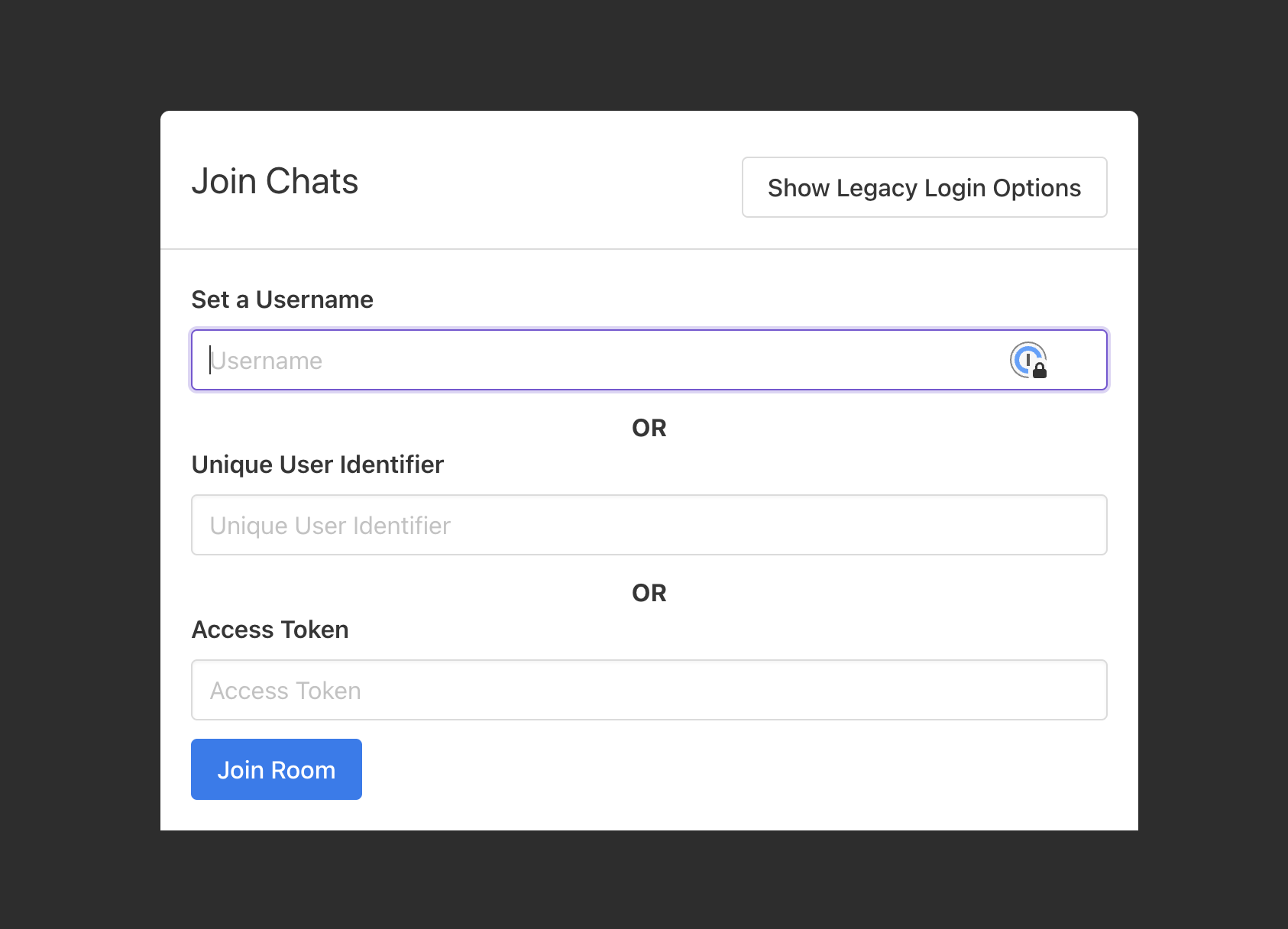
What it puts in front of somebody is not fixed. Four things shape it, in this order:
- Whether the visitor arrives already identified. If your page carries a credential into the
room —
?accessToken=,?uniqueUserIdentifier=, or through the SDK — the person is joined straight away and never sees a join screen at all. - The room's permission level. This decides which fields exist. A Set a Username box is only offered where typing a name is actually a way in.
- Private Room. This setting removes the join form outright.
- The Hide Elements toggles on the room's Customize tab. These take individual fields off a screen that would otherwise show them.
This page covers 2, 3 and 4 — everything the dashboard lets you decide about that screen.
What each permission level puts on the screen
The permission level is set on the room's General tab and is the first thing that shapes the join screen.
| On the join screen | Public | Provisioned Users | Members |
|---|---|---|---|
| Set a Username box | Yes | Not shown | Not shown |
| Unique User Identifier box | Yes | Yes | Yes |
| Access Token box | Yes | Yes | Yes |
| Join Room button | Yes | Yes | Yes |
| Show Legacy Login Options button | Yes | Yes | Yes |
The username box is the one that moves. It is the only route that invents an identity on the spot, so it is offered only on a Public room; at the other two levels the person must already be a user in your account and the screen asks for an identifier or a token instead.
The Show Legacy Login Options button is the exception to the pattern: it has nothing to do with the permission level, it reveals an older email-and-password sign-in, and not every account is offered it. If it is not on your join screen, your moderators sign in with an access token — see Moderators sign in through these fields below.
Showing a box is not the same as accepting what is typed into it. On a Members room the identifier and token boxes are both present, but only a member of that particular room gets through them. What is accepted where, and what each refusal says, is in Chat Room Permission Levels.
Two more things follow from the level. If nothing is filled in and Join Room is pressed, a Public room answers "Please specify the username, uniqueUserIdentifier or accessToken to join" and the other two levels answer "Please specify the uniqueUserIdentifier or accessToken to join". And where more than one box is filled in, the access token is used first, then the unique user identifier, then the username.
Taking the form away entirely: Private Room
Private Room, on the room's General tab, removes the whole participant side of the join screen — username, identifier, token and the Join Room button with them. Nobody can type their way into the room; the only people who take part are the ones your application sends in already identified.
It is a different job from the toggles below, and it is documented with the rest of the General tab in Chat Room Settings Reference, including the important detail that turning it on ejects everybody currently in the room.
Hiding individual fields
Everything else is on the room's Customize tab, in the Hide Elements panel: open the dashboard, go to Chat Rooms, click the room, and open Customize.
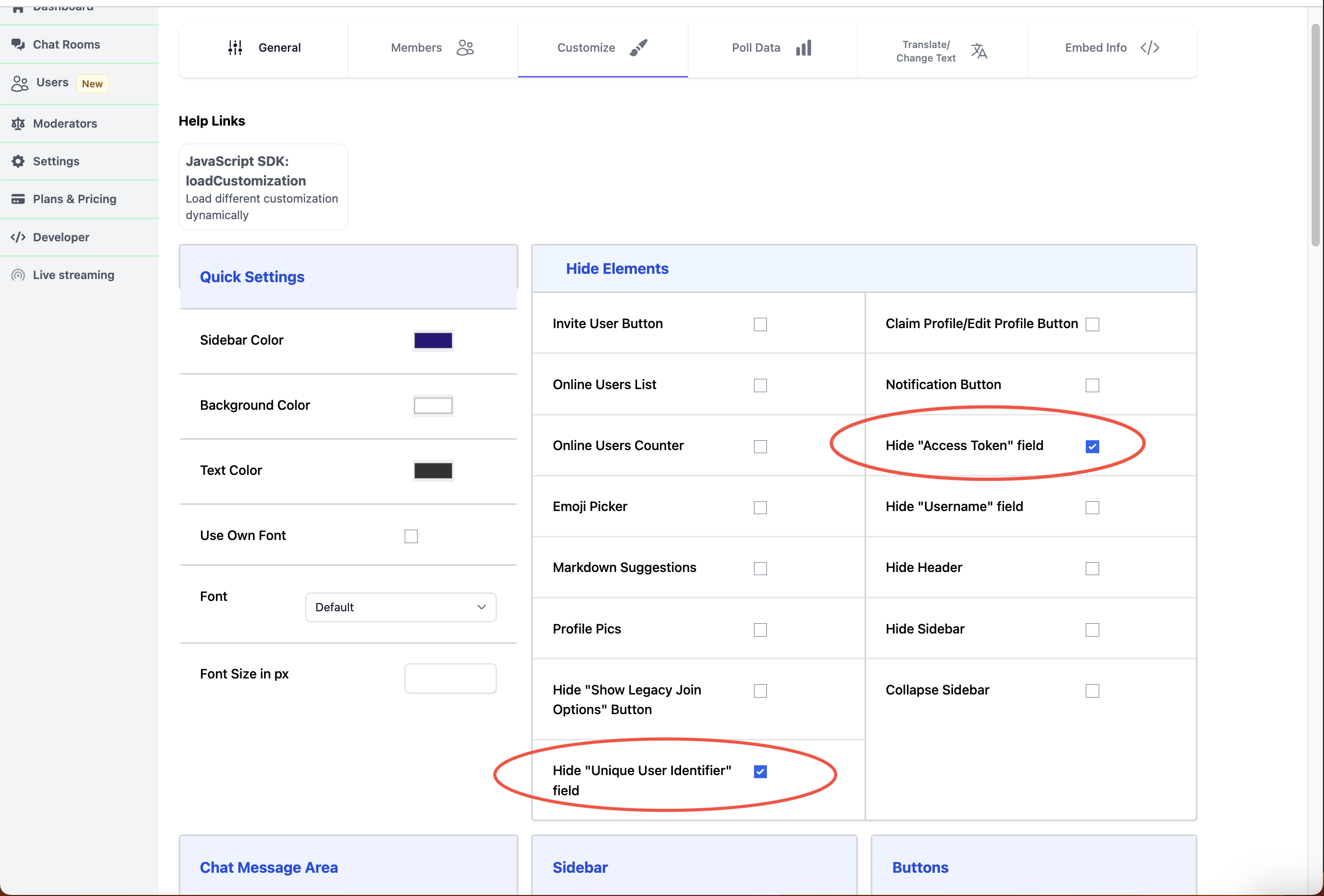
Every toggle reads the same way: on means hidden, and they all start off. There is no Save button — a change saves itself about a second after you flip the toggle, and the preview reloads.
| Toggle | What it takes off the join screen |
|---|---|
| Hide "Username" field | The Set a Username box |
| Hide "Unique User Identifier" field | The Unique User Identifier box, and the OR above it |
| Hide "Access Token" field | The Access Token box, and the OR above it |
| Hide "Show Legacy Join Options" Button | The button that reveals the email and password sign-in |
| Already have an account/Login | The email and password sign-in columns themselves |
The panel shows the toggles that suit the join experience your account uses, so you may not see
every row above. Where Already have an account/Login is not in the panel, the same thing is
available from the SDK as hideLoginFields, described under
setting these per embed.
Each of these is also listed in the Hide Elements Reference alongside the toggles for the rest of the chat interface — the sidebar, the header, profile pictures and so on.
Hide "Username" field
Removes the Set a Username box. It only has anything to remove on a Public room, because that is the only level where the box is offered at all.
Hide it when identity comes from your own system and you do not want people naming themselves. The usual pairing is to hide it and pass a unique user identifier or an access token in the embed, so nobody is asked anything.
Hide "Unique User Identifier" field and Hide "Access Token" field
Remove those boxes. Identifiers and tokens are normally issued by your own backend and applied when you embed the room, and in that case the boxes are not a feature — they are an invitation to paste the wrong thing. Hide them once your integration is in place.
Hide "Show Legacy Join Options" Button
Removes the button on the join screen that reveals an older way of signing in with an email address and a password. The toggle is labelled Hide "Show Legacy Join Options" Button; the button it removes is the one labelled Show Legacy Login Options.
That button is the only way to open the email and password columns, so hiding it hides them too. Read the warning below before you turn it on.
Do not lock everybody out
Hiding fields is subtraction, and it is possible to subtract everything.
Turn on every field toggle and the join screen is left with a Join Room button that has nothing to send — pressing it answers "Please specify the ..." and the visitor gets no further.
That is a reasonable state for a room where everyone arrives with a credential already in the URL or supplied through the SDK, because those people never see the join screen. It is not a reasonable state for a room anybody can open directly. Test the room as a stranger would — in a private browsing window, at its plain URL — before you rely on it.
Moderators sign in through these fields
There are two ways a moderator signs in from the join screen:
- The Access Token box. A moderator created from the dashboard or the API is given an access token and cannot join with a unique user identifier, so this box is their way in. See Creating Moderators.
- The email and password columns, behind the Show Legacy Login Options button. This is the older route, for moderators who were given an email address and a password.
Hide the ones your moderators use and they cannot sign in from the room as everybody else sees it. That includes Hide "Show Legacy Join Options" Button, because that button is the only way to open the email and password columns.
The way back in is to give your moderators the room URL with ?disableCustomCSS=true on the
end:
https://deadsimplechat.com/YOUR_ROOM_ID?disableCustomCSS=true
That version of the page ignores the room's Customize settings and its custom CSS, so every field is present. It also means the room appears unstyled for them — the colours, fonts and hidden interface elements are all set aside together, not just the join fields.
The alternative to either is to stop sending moderators to the plain room URL: put the access token into the link you give them, so the join screen never has to be filled in.
https://deadsimplechat.com/YOUR_ROOM_ID?accessToken=THEIR_ACCESS_TOKEN
Setting these per embed
The toggles change the room for everybody. If you need a different join screen in different places —
a stripped one where your site signs people in, a full one on a public landing page — set the same
keys from the SDK with
loadCustomization instead of changing the room:
// This page signs its own visitors in, so nothing on the join screen is any use to them
frame1.loadCustomization({
  hideUsernameField: true,
  hideUniqueUserIdentifierField: true,
  hideAccessTokenField: true,
  hideShowLegacyJoinOptionsButton: true
});
| Toggle | Key |
|---|---|
| Hide "Username" field | hideUsernameField |
| Hide "Unique User Identifier" field | hideUniqueUserIdentifierField |
| Hide "Access Token" field | hideAccessTokenField |
| Hide "Show Legacy Join Options" Button | hideShowLegacyJoinOptionsButton |
| Already have an account/Login | hideLoginFields |
Dynamically load customizations works through a longer example of deciding this at page load.
Changing the wording instead of hiding it
Hiding a field is not the only answer to a field that reads badly. Every piece of text on the join screen — the Join Chats heading, the Set a Username label, Unique User Identifier, Access Token, Join Room, and the legacy sign-in heading and its labels — can be replaced on the room's Translate/Change Text tab. See Translate and Relabel.
That is usually the better move when the field is right but the words are not. "Enter your name" says more to a visitor than "Set a Username", and it does not cost you the box.
Three arrangements that work
A public room anybody can join by typing a name. Leave the level on Public. Turn on Hide "Unique User Identifier" field and Hide "Access Token" field, so the screen offers one box and one button. Leave the moderators' route alone, or give them a link with their token in it.
A room your site signs people into. Set the level to Provisioned Users or Members, and
pass accessToken or uniqueUserIdentifier in the embed so the join screen is never reached. Then
hide the identifier and token boxes so the handful of visitors who arrive at the bare URL are not
invited to guess. Keep a ?disableCustomCSS=true link for your moderators, or send them a link with
their token applied.
A room where nobody should be able to type their way in at all. Set the level to Provisioned Users or Members and turn on Private Room, which removes the form rather than the fields. The permission level is what enforces it; Private Room is what makes the screen stop offering.
Related pages
- Chat Room Permission Levels — which credentials a room accepts, and what a refusal says
- Hide Elements Reference — these toggles alongside every other one on the Customize tab
- Chat Room Settings Reference — Private Room, password protection and the rest of the General tab
- Creating and Managing Users — provisioning the users who join with an identifier or a token
- Creating Moderators — how moderators get an access token
- Translate and Relabel — rewording the join screen instead of hiding parts of it
- Embedding Chat on Your Website — carrying a credential into the room from your page
loadCustomization— setting any of this per embed- Contact support