Hide Elements Reference
Hide Elements is the second panel on a room's Customize tab: open the Dead Simple Chat dashboard, go to Chat Rooms, click a room, and open Customize.
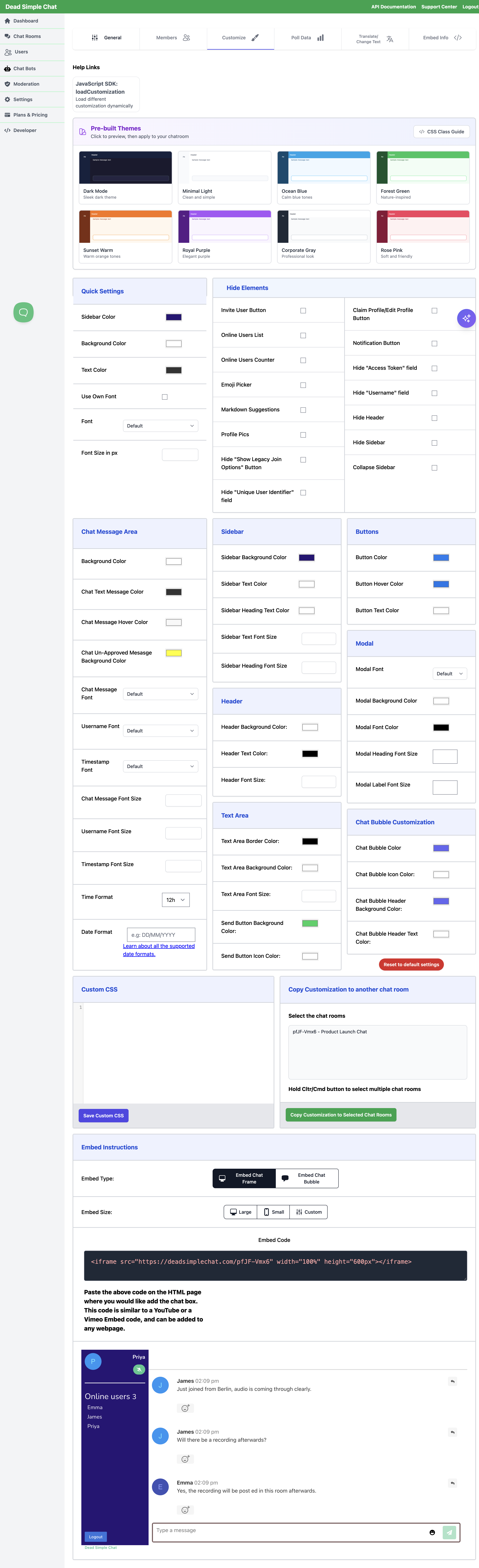
Each toggle takes one thing out of the chat interface. They are how you pare a full-featured room down to something that fits a narrow embed, or hide a feature you are not using so people are not offered it. Colours, fonts and sizes are in the Appearance Reference.
Every toggle reads the same way: on means hidden. They are all off to begin with, so a new room shows everything it is capable of showing.
Changes save themselves about a second after you flip a toggle — there is no Save button — and the live preview reloads so you can see the result.
Every toggle at a glance
| Toggle | What disappears | loadCustomization key |
|---|---|---|
| Invite User Button | The Invite User button | hideInviteUserButton |
| Online Users List | The list of names in the sidebar | hideOnlineUsersList |
| Online Users Counter | The count beside that heading | hideOnlineUserCounter |
| Emoji Picker | The emoji button in the message box | hideEmojiPicker |
| Markdown Suggestions | The formatting hint row | hideMarkdownSuggestions |
| Profile Pics | Avatars beside messages | hideProfilePics |
| Claim Profile/Edit Profile Button | The profile buttons in the sidebar | hideClaimAndEditProfileButtons |
| Notification Button | The notification bell | hideNotificationButton |
| Hide "Username" field | The Set a Username box in the join modal | hideUsernameField |
| Hide "Unique User Identifier" field | That box in the join modal | hideUniqueUserIdentifierField |
| Hide "Access Token" field | That box in the join modal | hideAccessTokenField |
| Hide "Show Legacy Join Options" Button | The button revealing the older join fields | hideShowLegacyJoinOptionsButton |
| Already have an account/Login | The email and password sign-in columns | hideLoginFields |
| Hide Header | The whole top bar | hideHeader |
| Hide Sidebar | The whole sidebar | hideSidebar |
| Collapse Sidebar | The sidebar, but reachable from the header | collapseSidebar |
| Powered by Dead Simple Chat | Handled through branding, not this panel | — |
The panel shows the join-modal toggles that suit the join experience your account uses, so you may not see every row in the table above. Creating and Managing Users explains the join modal and which fields it offers.
Setting these from code
Each key is a boolean on
loadCustomization, so you can hide things for one embed
without changing the room:
// A read-only, stripped-back view for a public landing page
frame1.loadCustomization({
  hideSidebar: true,
  hideHeader: true,
  hideProfilePics: true,
  hideChatInputTextArea: true
});
hideChatInputTextArea in that example is worth knowing about: it removes the message box so people
can read the conversation but not post into it, and it is available from the SDK only — there is no
toggle for it in the panel.
The sidebar
Online Users List
What disappears: The list of names under the Online Users heading in the sidebar. The heading and its count stay unless you also hide the counter.
Worth hiding in a large room, where a list of hundreds of names is noise rather than information, or anywhere you would rather people did not see who else is present.
Key: hideOnlineUsersList
Online Users Counter
What disappears: The live count of people in the room, shown beside the Online Users heading.
This is independent of the list, so the two combine four ways: both shown, a count with no names, a list with no total, or neither. A count without names is the usual choice for a public room — it shows the room is busy without exposing who is in it.
Key: hideOnlineUserCounter
Claim Profile/Edit Profile Button
What disappears: Both profile buttons from the top of the sidebar — Edit Profile, which lets someone change their username and upload a picture, and Claim Profile, which lets a guest turn their one-off identity into a lasting one. One toggle covers the pair.
Hide them when identity comes from your own system rather than from the chat, so people cannot change a name you have set for them.
Key: hideClaimAndEditProfileButtons
Hide Sidebar
What disappears: The sidebar in its entirety, with no way to reach it.
Channels and private chats are reached through the sidebar. If the room uses either feature, hiding the sidebar takes that feature away from the people in it. Use Collapse Sidebar instead when you want the space back but not the loss.
Key: hideSidebar
Collapse Sidebar
What disappears: The sidebar, from view only. It starts closed and a menu button appears in the header to open it, so channels, private chats and the online users list all remain reachable.
This is the right choice for a narrow embed — a sidebar and a message list side by side in a few hundred pixels leaves room for neither.
The button that opens a collapsed sidebar lives in the header. Turning on Collapse Sidebar and Hide Header together leaves no way to open it, which amounts to Hide Sidebar with extra steps.
Key: collapseSidebar
Messages
Profile Pics
What disappears: The avatar column beside each message — both uploaded pictures and the generated initial shown for people who have not set one. Messages close up to the left edge, which buys a useful amount of width in a narrow embed.
Key: hideProfilePics
The message box
Emoji Picker
What disappears: The emoji button in the message box, and the picker it opens.
This removes the picker, not emoji: anyone can still type or paste an emoji character into a message, and reactions on messages are unaffected. To change the size of reaction emojis, see Emoji size.
Key: hideEmojiPicker
Markdown Suggestions
What disappears: The row of formatting hints that sat beneath the message box, reminding people
that **bold**, _italics_ and backticks for code all work.
That hint row is no longer part of the message box, so this toggle has nothing left to remove and
turning it on makes no visible difference. The key is still accepted, so an integration that sets it
keeps working. Markdown itself is untouched either way — messages are still parsed for it, so
**bold** still posts as bold.
Key: hideMarkdownSuggestions
The header
Notification Button
What disappears: The bell in the header that each person uses to turn browser notifications for the room on or off.
Hiding it does not disable notifications — it removes the per-person control over them. Hide it when you would rather people kept whatever the room's default is.
Key: hideNotificationButton
Invite User Button
What disappears: The Invite User button.
The chat interface no longer presents a standalone Invite User button — people are brought into a room by being given its link or by meeting your embed — so on a current room this toggle has nothing to remove. The key is still accepted, so an integration that sets it keeps working.
Key: hideInviteUserButton
Hide Header
What disappears: The top bar of the room, along with everything in it: the room name, your branding, the notification bell, and the menu button that opens a collapsed sidebar.
Read the Collapse Sidebar warning before turning this on. Hiding the header removes the only way to open a collapsed sidebar.
Key: hideHeader
The join modal
These control what a person is asked for before they enter the room. Which of them the panel shows depends on the join experience your account uses — see Creating and Managing Users.
Hide "Username" field
What disappears: The Set a Username box in the join modal, which is what a room offers a visitor with no identity of their own.
The box is only ever shown in a public room, so this toggle only has an effect there. Hide it when identity comes from your own system — pass a unique user identifier or an access token instead of letting people name themselves, and people then enter the room without being asked anything.
Key: hideUsernameField
Hide "Unique User Identifier" field
What disappears: The Unique User Identifier box in the join modal, and the OR divider above it.
Hide it when your integration supplies the identifier itself, so nobody is invited to type one in by hand.
Key: hideUniqueUserIdentifierField
Hide "Access Token" field
What disappears: The Access Token box in the join modal, and the OR divider above it.
Access tokens are normally issued by your own backend and applied when you embed the room, in which case this box only offers a way to get it wrong. Hide it once your integration is in place.
Key: hideAccessTokenField
Hide "Show Legacy Join Options" Button
What disappears: The button in the join modal that reveals the older sign-in fields. With it hidden, people see only the current join options.
Key: hideShowLegacyJoinOptionsButton
Already have an account/Login
What disappears: The email and password columns of the join modal — the Already have an account prompt and the sign-in form under it.
Moderators sign in through those fields. With them hidden, a moderator cannot log in from the room as
it appears to everyone else. Give your moderators the room URL with ?disableCustomCSS=true on the
end — the sign-in fields are present on that version of the page.
Key: hideLoginFields
Powered by Dead Simple Chat
This is not a Hide Elements toggle, and there is no loadCustomization key for it. Branding is
handled at the account level, on Settings → Branding in the dashboard, and it comes in two
separate parts.
Adding your own branding is self-serve. On Settings → Branding, turn the switch on, then set a Custom Brand Name, upload a Logo, or both, and click Save. They appear in the header of every chat room on your account — so this is an account-wide setting, not a per-room one, and it has nothing to do with the Header fields on the Customize tab, which only colour the bar your branding sits in.
Branding is not available on every plan. If saving returns a prompt to upgrade, your current plan does not include it — see pricing or contact support.
Removing the Dead Simple Chat link is a different matter. The small link in the corner of the chat is not covered by the Branding page, and adding your own logo does not take it away — the two can show at once. Removing it is a white-label change, applied to your account rather than set from the dashboard, so contact support to have it enabled and they will confirm what your plan covers.
Related pages
- Appearance Reference — every colour, font and size on the Customize tab
loadCustomization— the SDK method and its full key list- Dynamically load customizations — hiding different things for different visitors
- Creating and Managing Users — the join modal and its fields
- Chat Room Permission Levels — public, private and protected rooms
- Contact support