Polls
A poll is a question with a list of choices that a moderator posts into a chat room. Everyone in the room can cast one vote, the tally builds up live, and the poll stops accepting votes when the expiry you set is reached.
Polls are per room. You turn them on for a room once, and after that any moderator of that room can create them.
Turning polls on for a room
- Open the Dead Simple Chat dashboard and go to Chat Rooms, then select the room you want.
- On the General tab, find Enable Polls and turn the switch on.
The switch saves as soon as you toggle it — there is no separate Save button for it.
Polls are not available on every plan. If the Enable Polls switch is covered by an upgrade prompt, your current plan does not include them — see pricing or contact support.
While the switch is off, moderators do not see the poll button in the chat room, and the Moderation console refuses to create a poll for that room.
Where polls are created and managed
| Where | What you can do there |
|---|---|
| Inside the chat room, as a moderator | Create a poll, vote, watch results, delete the poll message |
| Dashboard -> Moderation -> Polls tab | Create a poll without joining the room, see every poll and its status, close a poll |
| Chat Rooms -> room -> Poll Data tab | Read the final results of every poll in the room and export the individual responses |
There is no REST API call or SDK method for creating a poll. Polls are created either in the chat room or in the Moderation console.
Creating a poll inside the chat room
You must be in the room as a moderator. If you have not created one yet, see Creating Moderators.
- Select the bar-chart poll button next to the message box. The poll builder opens underneath it and the message box placeholder changes to Type your poll Question.
- Type the question into the message box. This is the question — the poll builder has no separate question field. It is sent as a chat message, so it is subject to the usual 1000 character message limit.
- Fill in Option 1 and Option 2. Select Add Option for more, up to ten. The first two options cannot be removed; each of the others has a delete button next to it.
- Set Poll Expiry using the days, hours and minutes dropdowns.
- Optionally tick Send Poll Notification to users joining afterwards too.
- Press the send button.
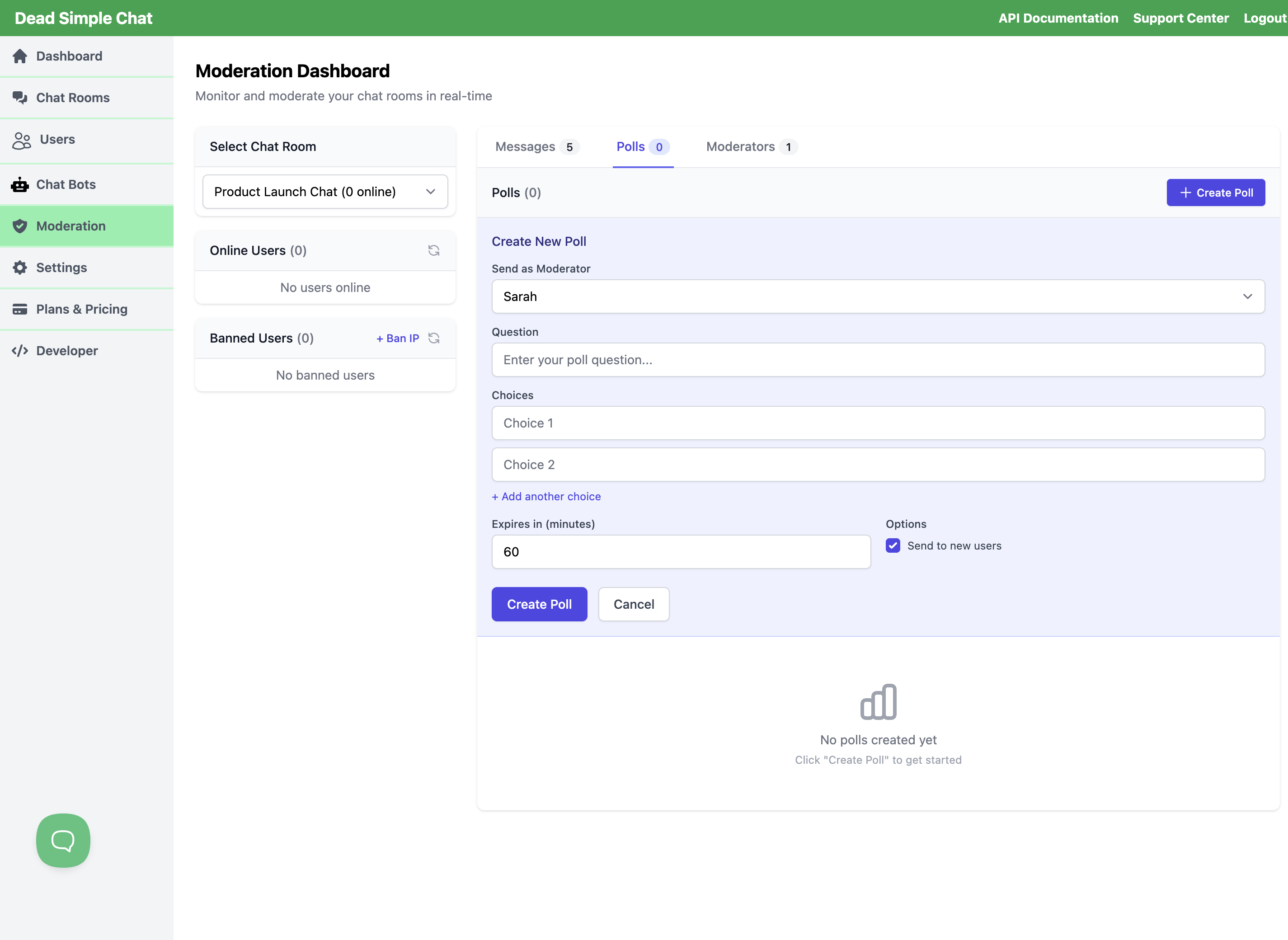 The poll builder, opened from the message box. The question goes in the message box above it.
Two things to check before you send
A duration is required. A poll with no duration set is not created. If the builder is showing a message in red — Please select a duration for the poll or Please provide at least two non-empty choices — the poll is not attached to your message, and pressing send posts your question into the room as an ordinary chat message with no poll on it. Correct the red message first, then send.
Set the duration above zero. The countdown starts from the moment you send, so a poll set to zero days, zero hours and zero minutes is already expired when it arrives. People in the room see its results rather than its choices and nobody can vote.
Notes
- In a pre-moderated room, a poll message is posted straight away rather than waiting for approval.
- People cannot reply to, or like, a message that carries a poll.
Creating a poll from the Moderation console
The Moderation console lets you post a poll into a live room without joining it yourself.
- Go to Moderation in the dashboard sidebar.
- Select the room from the list on the left, then open the Polls tab.
- Select Create Poll.
- Choose a moderator under Send as Moderator. The poll is posted into the room as a message from that moderator, so this is required. The moderator must be assigned to this room, or to all rooms.
- Enter the Question and at least two Choices. Select + Add another choice for more, up to ten.
- Set Expires in (minutes). It starts at 60 and the field accepts up to 10080 minutes, which is seven days. If you clear the field, the poll expires one hour after you create it.
- Select Create Poll.
The poll appears in the room immediately, exactly as if the moderator had posted it.
The Send to new users checkbox in this form has no effect. Polls created here are shown to the people who are in the room at the time; they are not pushed to people who join later, whether the box is ticked or not. The poll does stay in the room's message history, so someone who joins while it is still running can find it there and vote. If you need a poll actively shown to people as they arrive, create it from inside the chat room instead and tick the option there.
If the room does not have Enable Polls turned on, this form reports that polls are not enabled for the chat room. Unlike the chat room, this form does not show an upgrade prompt: once a room has polls enabled, the console will create polls for it.
What participants see and how voting works
When a poll is posted, two things happen for everyone currently in the room: the poll appears in the message list under the question, and a floating card with the poll pops up above the message box.
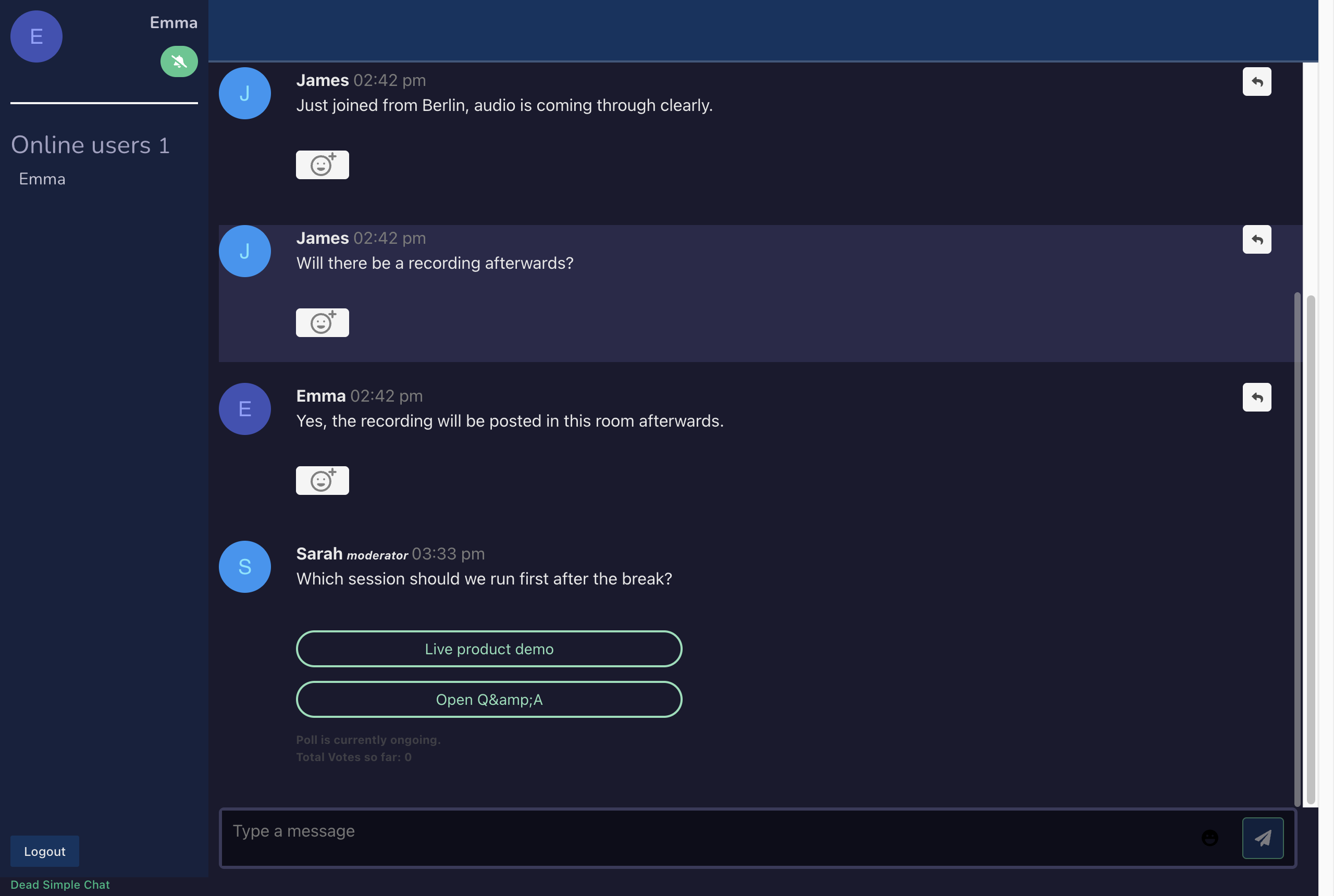 The poll in the message list. Selecting a choice casts the vote.
- Selecting a choice casts the vote. There is no separate submit button.
- Each person gets one vote, on one choice. Polls are single-choice. A vote cannot be changed or withdrawn once it is cast.
- One vote is counted per chat user. In a public room where people join by typing a name, each join creates a new chat user, so somebody who leaves and rejoins can vote again. If a poll needs to be one vote per real person, bring people in with your own user identifier so that they return as the same user — see Creating and Managing Users and Chat Room Permissions.
- Results are hidden until you vote. Before voting you see the choices and the line Poll is currently ongoing; the vote counter reads 0 until you have voted, so it is not a live total at that point.
- The floating card closes itself about five seconds after you vote, and it has a close button. It also appears once for people who join later, if the poll was created inside the chat room with Send Poll Notification to users joining afterwards too ticked and they have not voted yet. Closing the card does not prevent voting — the poll is still in the message list.
If someone joins after the poll is posted
They see the poll in the message history as they scroll back, and can vote on it as long as it has not expired. Anyone who joins after it has expired sees its results.
Reading results
In the chat room. As soon as you vote, the choices are replaced by a bar for each choice with its percentage, with the leading choice highlighted. The bars refresh about once a minute while the poll is running, and the total is labelled Total Votes so far.
 After voting, each choice becomes a bar with its share of the vote.
In the Moderation console. The Polls tab is where you see which polls exist and what state they are in: each one is listed with its question, its choices, an Active or Disabled badge, and either when it expires or that it has expired. It does not show the vote numbers — selecting Results opens the poll's question without the per-choice breakdown. For the numbers, use the Poll Data tab.
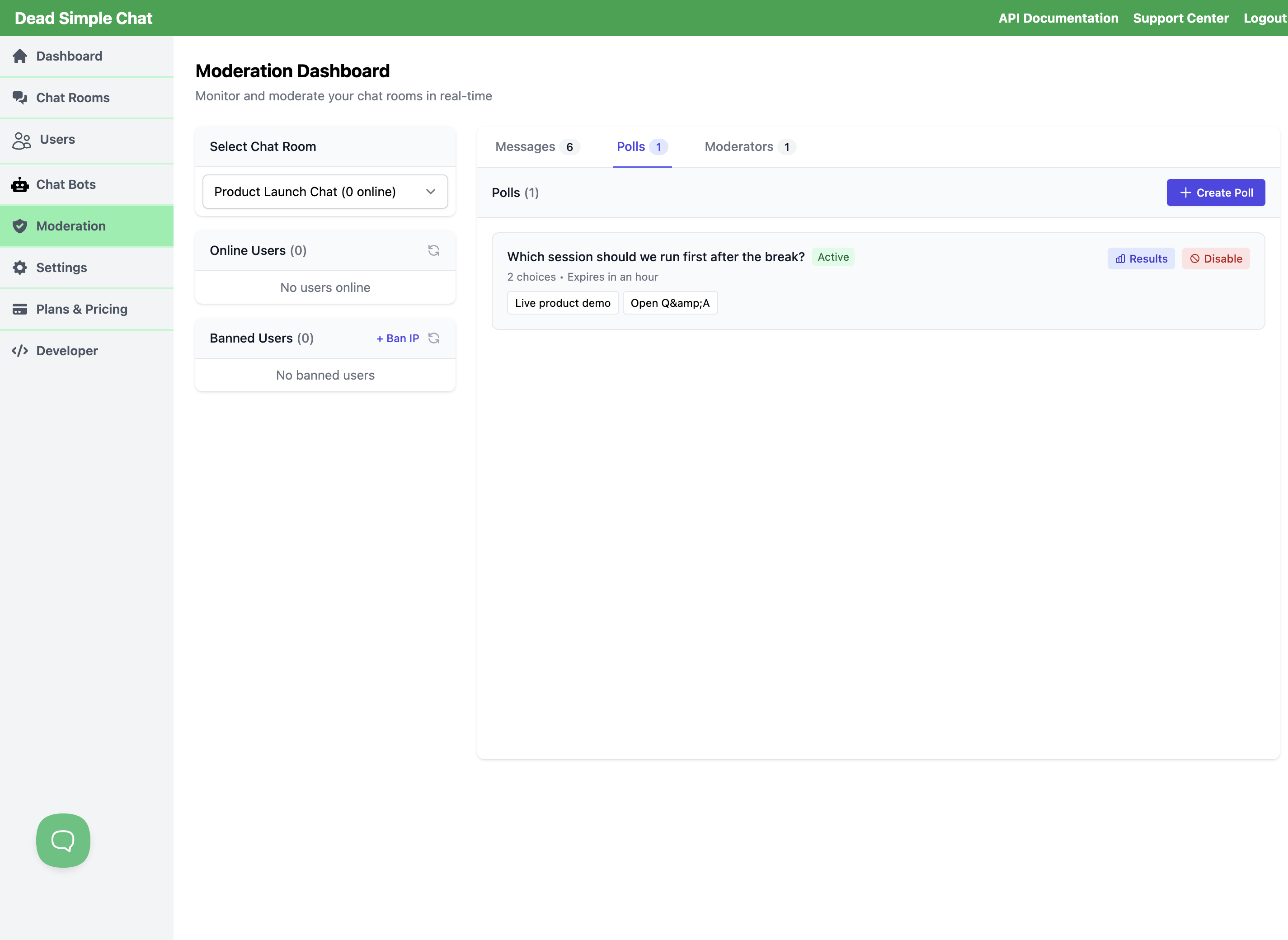 Every poll for the selected room, with its status.
On the Poll Data tab. Open Chat Rooms -> room -> Poll Data for the full picture: every poll in the room, newest first, with the question, the total votes, when it was created, its expiry time, and a Choice/Votes table. The expiry row is labelled Expired and shows the expiry timestamp whether or not it has passed. Closed and expired polls stay listed here.
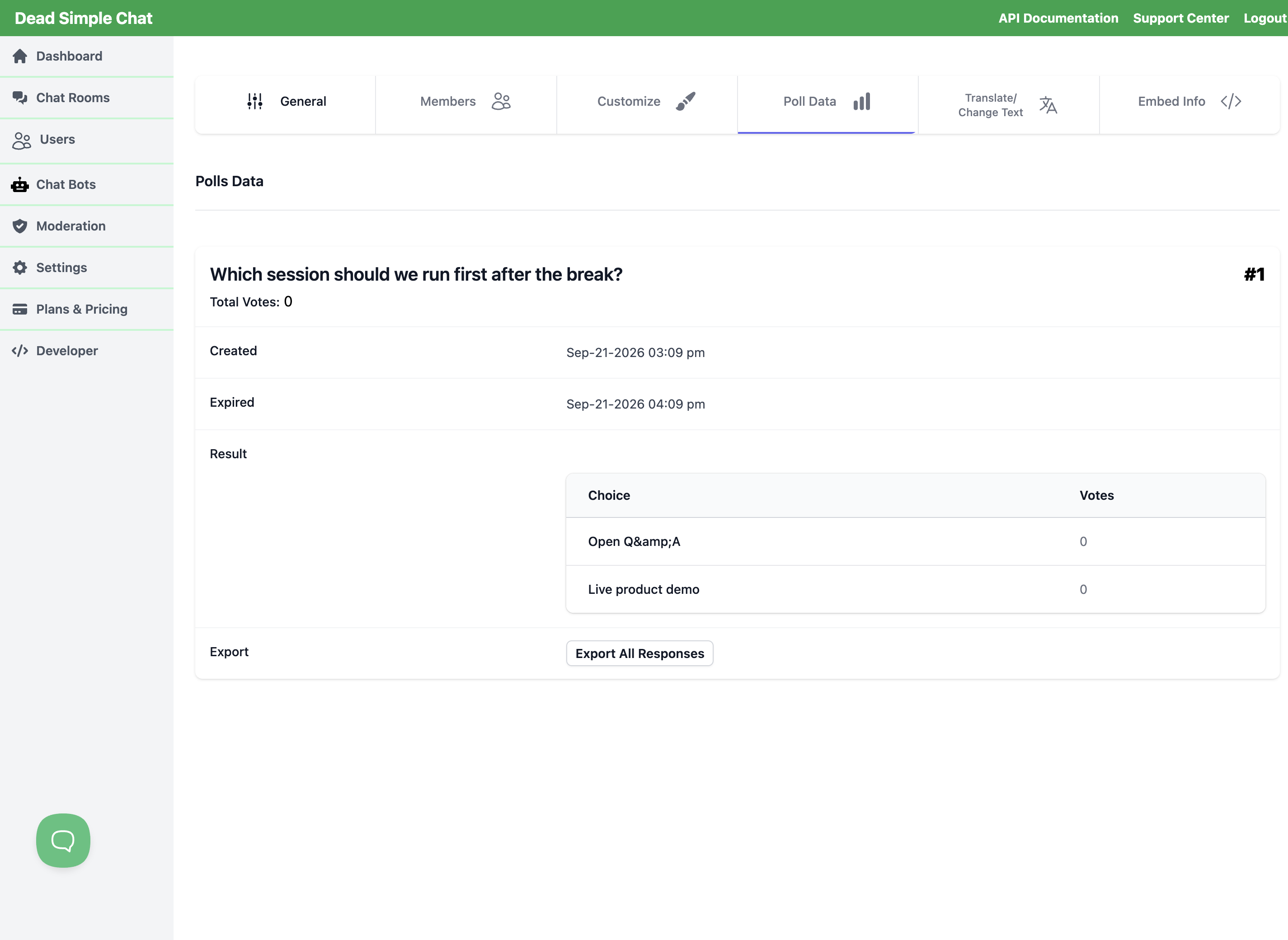 Results for every poll in the room, with the export link for each one.
None of these views shows who voted for which choice. That appears only in the CSV export, described below.
When a poll expires
Expiry is the normal way a poll ends. Once it passes:
- The choices are replaced by the results for everyone, including people who never voted, and the Poll is currently ongoing line disappears. The total is now labelled Total Votes.
- Votes are no longer accepted. Somebody who selects a choice at the same moment the poll expires sees the results and their vote is not counted.
- The poll and its results stay in the room's message history, on the Poll Data tab, and in the export.
Closing a poll early
To close a poll before its expiry, go to Moderation -> Polls, find the poll and select Disable. You are asked to confirm. The poll is then shown greyed out with a Disabled badge.
Be aware of what this does and does not do:
- It stops the poll being shown to people who join later.
- Its results stay on the Poll Data tab and in the export, and it stays listed in the console.
- It does not remove the poll from the room. The poll stays in the message history and people who can still see it there can still vote until its expiry passes.
To take a poll out of the room entirely, delete the message that carries it — see below. To stop a poll accepting votes at a known time, set the expiry when you create it.
Turning Enable Polls off for the room stops new polls being created and takes the poll button away from moderators. It does not retract polls that are already in the room, and it does not remove any results. Existing poll data stays on the Poll Data tab.
Deleting a poll message
Deleting the message that carries a poll — with the trash button in the chat room, which only moderators see, or from the Messages tab of the Moderation console — does two things:
- The message disappears from the room for everyone, taking the poll with it. Nobody can vote on it any more.
- The poll is closed, exactly as if you had used Disable.
Votes already cast are kept. The poll continues to appear on the Poll Data tab with its results, and the responses can still be exported. Deleting the message is therefore the way to pull a poll out of a live room without losing the answers you already have.
Exporting responses
On Chat Rooms -> room -> Poll Data, each poll has an Export All Responses link. It
downloads a CSV file named after the poll's creation time, for example
poll-export-Sep-21-2026-14-05.csv.
The file has one row per vote, not one row per choice, with these columns:
| Column | Contents |
|---|---|
poll_id | Identifier of the poll |
vote_id | Identifier of this individual vote |
user_id | Identifier of the person who voted |
username | The name they used in the chat room |
externalUserId | Your own identifier for that person, if you provisioned them or signed them in from your own system |
user_isModerator | Whether the voter is a moderator |
user_email | The email address on their chat user record, if there is one |
user_meta | Any custom metadata you attached to that user |
question | The poll question |
response | The choice they voted for |
created | When the vote was cast |
The export is not anonymous. Every row ties one choice to one identifiable person, including their username and, where those values exist, their email address, your own user identifier for them, and any metadata you attached to their account. Treat the file as personal data and check what is in it before you share it. If you need anonymous voting, use the aggregate views instead — the chat room and the Poll Data tab show counts per choice only, and never show who voted for what.
If nobody has voted yet, the downloaded file is empty.
Limits
| Choices per poll | 2 to 10 |
| Characters per choice | up to 500 |
| Votes per person | one, on one choice, not changeable |
| Expiry, created in the chat room | required; up to 30 days, 23 hours and 59 minutes |
| Expiry, created in the Moderation console | 60 minutes by default; the field accepts up to 10080 minutes (7 days) |
| Who can create a poll | moderators of the room |
| Who can vote | anyone in the room |
Related
- Creating Moderators — you need a moderator before you can create a poll
- Creating and Managing Users and Chat Room Permissions — how usernames, external user identifiers and user metadata get set, all of which appear in the poll export