Moderation Dashboard
The Moderation Dashboard is a moderation console inside your account. It lets you watch a chat room's messages and participants, and act on them, without joining the room yourself.
Open it from Dashboard -> Moderation in the left sidebar.
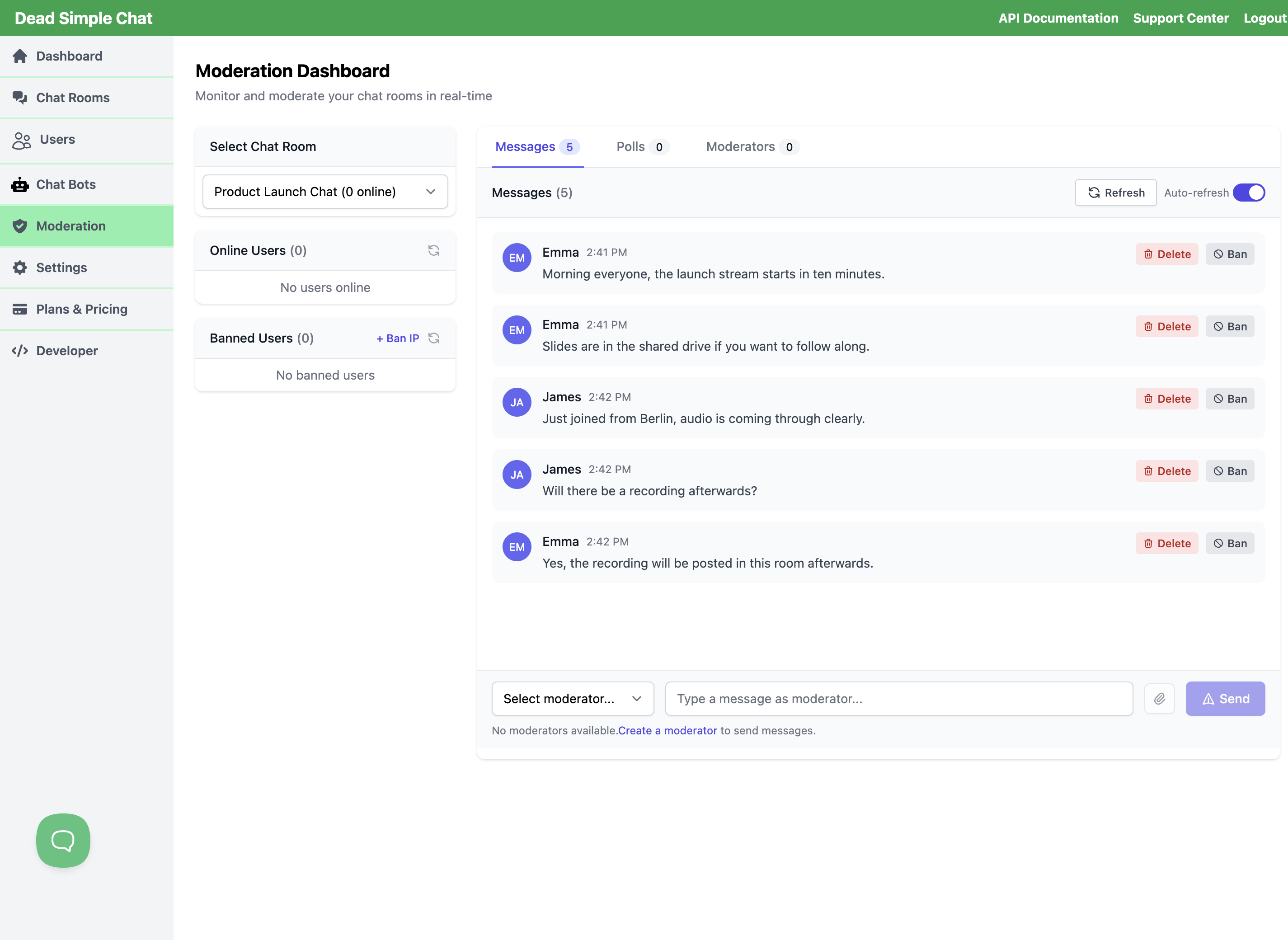 The room selector and the Online Users and Banned Users panels on the left, the Messages tab on the right.
How it differs from moderating inside the chat room
Both routes do the same core job — approve, delete, ban — but they suit different situations.
| Inside the chat room | Moderation Dashboard | |
|---|---|---|
| Who acts | A moderator signed in to the room | You, signed in to your account |
| Rooms | The one room the moderator is in | Any room on your account, from one selector |
| History | What the room has loaded | The room's full stored message history, paged back as far as you need |
| Posting | The moderator speaks as themselves | You choose which moderator to speak as |
| Bulk actions | Not available | Delete every message from one person in one step |
| Managing moderators | Not available | Create and remove moderators from the Moderators tab |
| Updates | Immediate | On a timer — see Keeping the page up to date |
You do not need to be in the room, and you do not need a moderator's sign-in details, to use the console. You do need at least one moderator on the room before you can post into it.
Choosing a room
Everything except the Moderators tab is scoped to one room. Pick it from Select Chat Room at the top left. The list covers every chat room on your account, newest first, and shows how many people are in each one.
Selecting a room loads its messages, participants, bans, polls and channels, and puts the room in the page address, so you can bookmark or share a link that opens straight onto that room.
The other tabs show Select a chat room until you choose one.
Keeping the page up to date
The console refreshes on a timer rather than streaming. Two things refresh on their own: the message list and the Online Users list. The Auto-refresh toggle above the message list controls that, and it is on when you open the page.
Everything else updates when you do something or when you change room:
| Panel | Updates when |
|---|---|
| Messages | On its own while Auto-refresh is on; or select Refresh |
| Online Users | On its own while Auto-refresh is on; or select the refresh icon on the panel |
| Banned Users | You ban or unban someone, change room, or select the refresh icon on the panel |
| Polls, Channels, Moderators | You act on them, or change room |
The chat room itself does not wait. Every action you take here — approving, deleting, banning, posting — reaches the room and the people in it straight away. It is only your own view of the room that is on a timer.
Two things to know about the message list:
- When new messages arrive, the list jumps back to the newest ones. If you are reading back through older history, turn Auto-refresh off first.
- The participant counts beside the room names in the selector are from when the page was loaded. The count on the Online Users panel is the current one.
Online Users
The panel lists who is in the selected room right now. Moderators are marked Mod.
Each other participant has three actions:
- DM — open a private conversation with them. See Direct messages.
- Del All — delete every message that person has sent in this room.
- Ban — ban them from this room.
Moderators are listed without those actions, so you cannot accidentally ban or delete your own team.
Deleting all of one person's messages
Del All asks you to confirm, then removes every message that person has sent in the selected room — not just the ones currently on screen — and tells you how many it deleted. The room updates for everyone immediately. This cannot be undone.
It is the right tool for someone who has flooded a room. Two notes:
- It clears messages only. The person is still in the room and can keep posting, so ban them as well if that is what you want.
- Attachments and polls attached to those messages are not cleared with them. If a specific image or poll has to go, delete that message on its own from the Messages tab, which removes the attachment and closes the poll too.
Del All and DM act on someone who is currently in the room, so they appear only on the Online Users panel. To remove messages from someone who has already left, find their messages in the Messages tab and delete them there.
Banned Users
The panel lists everyone barred from the selected room, whether you banned the person or their IP address. Each row has Unban, which lifts that entry — you do not have to know which kind of ban it was.
Bans and unbans apply to the selected room only. A person banned from one room can still join your other rooms.
Banning a person
Ban from the Ban action on the Online Users panel, or from Ban on any of their messages in the Messages tab. Either way you are asked to confirm.
When you ban someone, the room shows them the banned message and closes their connection, and they cannot rejoin. If the console knows which IP address they were using, that address is recorded on the ban entry as well. If they are already banned, the console tells you so instead of adding a second entry.
Banning does not delete anything they have already posted. Use Del All, or delete individual messages, for that.
Banning an IP address
Select + Ban IP on the Banned Users panel, type the address and select Ban. The address appears in the list, and you lift it later with Unban on that row.
- Enter one IPv4 address, such as
192.168.1.1. Ranges and IPv6 addresses are not accepted here. - The ban covers the selected room. For an address you want blocked across every room on the account, use Settings -> Global IP Ban instead.
- Banning the same address twice is refused rather than duplicated.
The escalation ladder
There is no mute and no timeout. The console gives you four steps, from the narrowest to the broadest:
- Delete the message — the message goes, the person stays.
- Del All — everything that person has said in this room goes, the person stays.
- Ban the person — they are removed from the room and cannot rejoin it.
- Ban the IP address — anyone on that address is kept out of the room, which is the step to reach for when someone returns under a new name.
If you want messages held for review before anyone sees them, that is a room setting rather than a moderation action: turn on Q&A mode / Pre-moderated chat room in the room's settings, and every message waits for approval in the Messages tab.
The tabs
| Tab | What it covers |
|---|---|
| Messages | The main conversation in the selected room |
| Channels | Messages inside the room's channels. Appears only if the room has channels |
| Polls | Polls in the selected room, with results |
| Moderators | Your moderators, across the whole account |
The Moderators tab is account-wide, so it works before you have picked a room. The other three need a room selected.
Messages
The Messages tab is the room's stored history, oldest at the top, newest at the bottom. It loads 50 messages at a time; Load older messages at the top pages further back. The tab header shows the total number of messages in the room, and a pending approval count when the room is pre-moderated and messages are waiting.
Each message shows who sent it and when, with a Mod badge for moderators and a Pending badge for a message still waiting for approval. Attached images appear inline, other files as a link you can open, and a poll is shown in full with its choices and an Active or Closed marker.
Three actions sit on each message:
| Action | Available on | What it does |
|---|---|---|
| Approve | Messages waiting for approval | Releases the message into the room |
| Delete | Any message | Removes it from the room for everyone |
| Ban | Messages from participants, not from moderators | Bans the author from this room |
Approve acts at once. Delete and Ban ask you to confirm first.
Deleting a message does a little more than remove the text. If the message carried an attachment, the attachment is deleted with it. If the message carried a poll, that poll is closed. This is the only action that cleans up an attachment or a poll, so reach for it when a specific image or poll is the problem.
Posting into the room
The composer at the bottom of the Messages tab posts into the room. You must choose who to post as — the console never posts as you or as your account, only as one of your moderators.
- Pick a moderator from the selector on the left of the composer. The first moderator available for the room is chosen for you, and the message box stays disabled until one is chosen.
- Type your message, or attach a file, or both.
- Select Send.
Only moderators who can act in this room appear in the selector: ones assigned to this specific room, and ones assigned to All Chat Rooms.
If the room has no moderator, the composer is disabled and the console says No moderators available, with a link to create one. Create one from the Moderators tab, or follow Creating Moderators, and it becomes available in the selector.
The moderator you pick is used for everything you post into that room while you are on the page — chat messages, channel messages, polls and direct messages. Change the selector to switch identity.
Attachments
Select the paperclip beside the message box to attach a file. Images, PDFs, Word documents, text files and ZIP archives are accepted. The file is shown with its name and size before you send, with a thumbnail for images, and you can remove it again without sending. You can send a file on its own or with a message.
Messages you post bypass pre-moderation
A message you post from the console goes straight into the room. It is never held for approval, even in a room with Q&A mode / Pre-moderated chat room turned on. Everyone in the room sees it immediately.
That is deliberate — it is how you answer a question or post a house-rules notice in a pre-moderated room without approving your own message. It also means there is no draft step, so read the message before you send it.
Channels
If the room has Sub Chat room / Channels turned on and channels exist, a Channels tab appears. Choose a channel from Select Channel to see its messages, with the same total and pending counts, and Load older messages to page back.
Channel messages offer Approve and Delete, and there is a composer with attachments that works exactly like the one on the Messages tab, including the moderator selector. Banning is not offered from a channel message — bans are room-wide, so ban the person from the Online Users panel or from one of their messages in the Messages tab.
The channel list shows the text of each message. A channel message that is only an attachment therefore shows as an empty row, so if you need to see an attachment before deciding, open the channel in the chat room. You can still delete the message from here.
The Channels tab does not refresh on its own. To pick up new channel messages, choose another channel and come back to it, or reselect the room.
Polls
The Polls tab lists the polls in the selected room, each marked Active or Disabled, with its number of choices and when it expires.
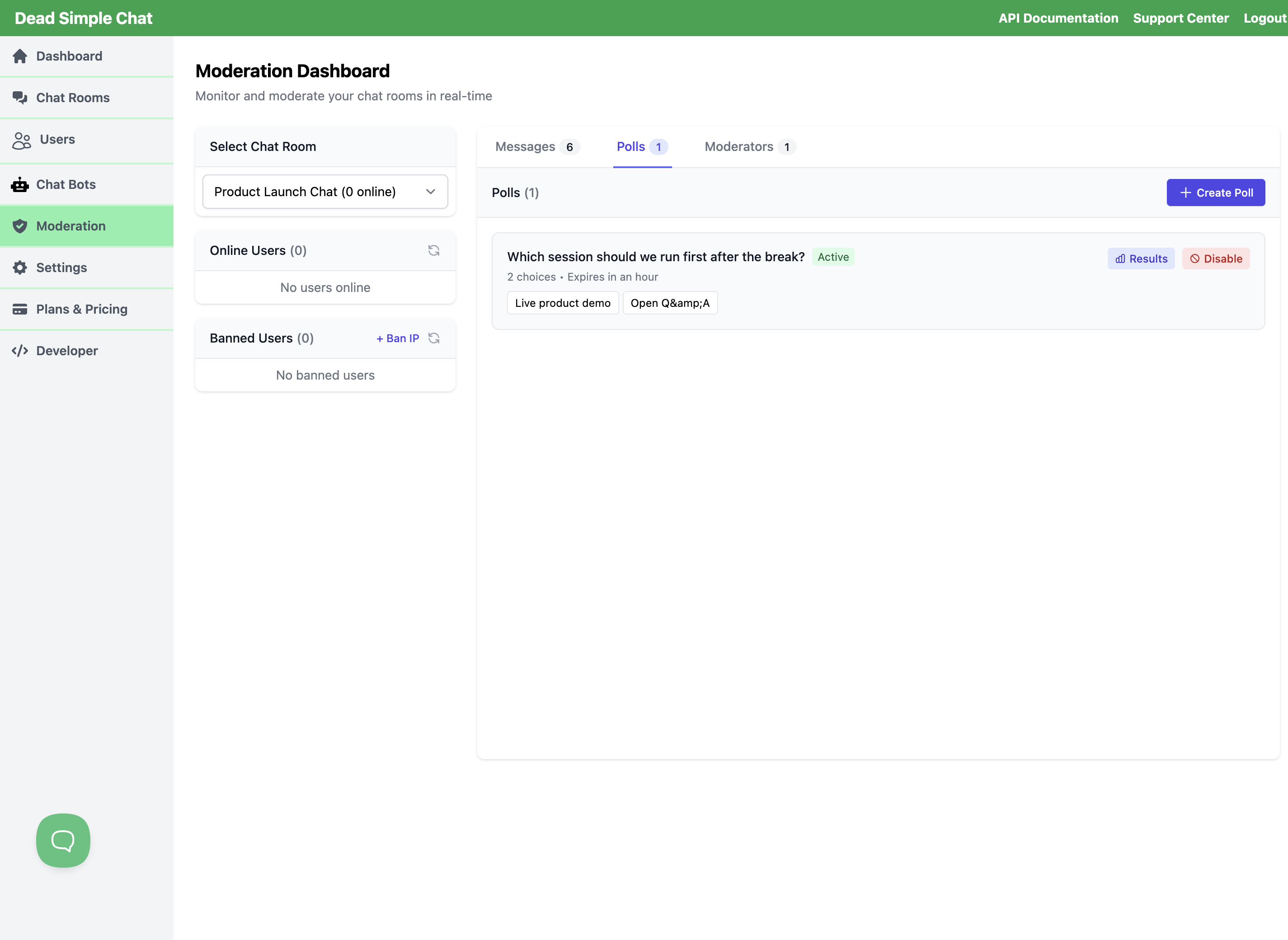 Creating a poll, and the list of existing polls with their results.
Creating a poll
Select Create Poll, then fill in:
- Send as Moderator — which moderator the poll is posted as. Required, as with any message.
- Question.
- Choices — at least two, up to ten. + Add another choice adds a row; the cross removes one.
- Expires in (minutes) — up to 10080 minutes, which is seven days.
Select Create Poll to post it. The poll appears in the room immediately, as a message from the moderator you chose.
A poll created here is offered to the people who are in the room when you post it. The Send to new users checkbox is not applied to polls created from the console, so if you need people who join later to be prompted with the poll too, have a moderator create it from inside the chat room and tick Send Poll Notification to users joining afterwards too there.
Polls have to be switched on for the room first. If the room's Enable Polls setting is off, the console tells you polls are not enabled for the chat room. Turn it on in the room's settings and try again.
Polls are not available on every plan. If the room's Enable Polls setting shows an upgrade prompt instead of a toggle, your current plan does not include polls — see pricing or contact support.
Results and closing a poll
Results opens a breakdown of each choice with its share of the vote and a total. It is a snapshot — reopen it to see later votes.
Disable asks you to confirm, then marks the poll Disabled and stops it being offered to people who join the room afterwards. Votes already cast are kept and stay in Results. Two things it does not do: it does not take the poll away from someone who already has it open, and it does not retract the poll's message. Every poll also closes by itself at the expiry you set, which is the dependable cut-off. To take a poll out of the conversation entirely, delete its message from the Messages tab — that removes the message and closes the poll in one step.
Moderators
The Moderators tab covers your whole account rather than one room, so it works whether or not a room is selected. It is the quickest route to a moderator when you have just realised you need one to post with.
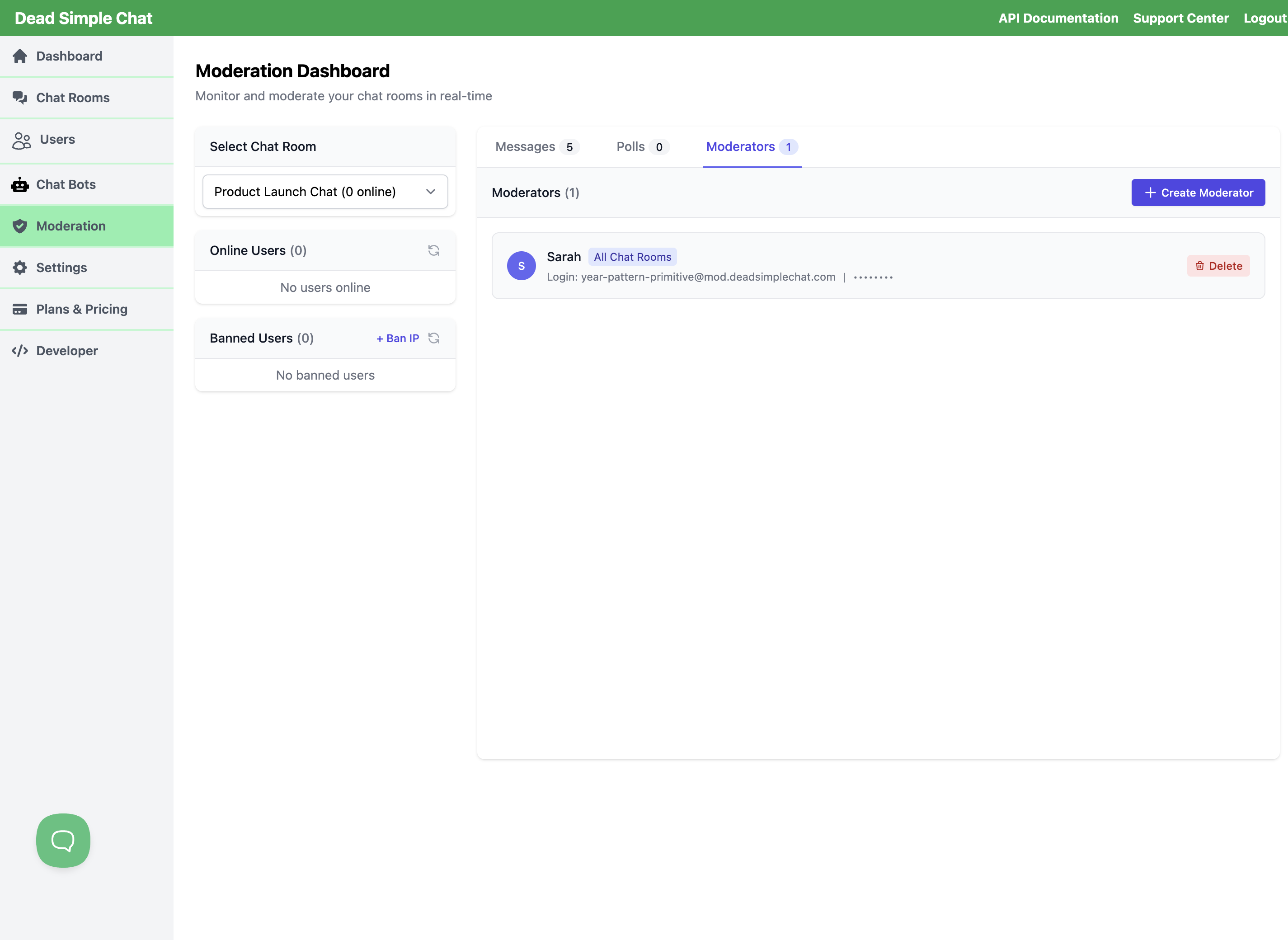 The moderator list, with each moderator's room assignment and sign-in details.
Create Moderator asks for three things:
- Username — the name people in the room will see.
- Password.
- Assign to Chat Room — one room, or All Chat Rooms to let the moderator work in every room on the account.
Each entry in the list shows the username, which room it is assigned to, and the login email and password generated with it. That email address exists only so the moderator can sign in — no mail can be sent to it or from it. Delete asks you to confirm, then removes the moderator, and it disappears from the moderator selectors on the other tabs.
Moderators created here are ordinary moderators on your account. They can sign in to the chat room and moderate from inside it, and they appear in the moderator selectors on the other tabs. For the other ways to create a moderator, and for how a moderator signs in, see Creating Moderators.
Direct messages
DM on a participant's row opens a private conversation between one of your moderators and that person, in the selected room.
Choose a moderator first — in the composer selector or in the As moderator selector in the DM window — because the conversation is between that moderator and the participant, not between you and the participant. The window shows the conversation so far, so you can pick up an exchange a moderator started in the room.
Type a message and select Send. If the person is connected, it reaches them straight away.
Direct messages are best effort. The message is always saved to the conversation, but it is only delivered live if the recipient is connected at that moment. If they have dropped off, it waits in the conversation rather than reaching them, and the window does not distinguish the two cases.
The room also needs 1-1 Chat (Private Chat) turned on in its settings for the participant to see and reply to the conversation in the chat room. Sending into a room with private chat off stores the message where nobody will read it.
Webhooks
If you use webhooks, deleting or approving a chat-room message from this page sends
the same chatroom_message_deleted and chatroom_message_approved events as the equivalent action
inside the room. The other actions here — banning, bulk deleting, posting, polls, channel moderation
and direct messages — do not send webhooks. See
Webhook events for the full catalogue.
Availability
The Moderation Dashboard is available on every plan, and appears in the sidebar for every account. Individual features it exposes keep their own requirements — polls need the room's Enable Polls setting, channels need Sub Chat room / Channels, and direct messages need 1-1 Chat (Private Chat).
Related
- Creating Moderators — the other ways to create a moderator, and how a moderator signs in
- Creating and Managing Users and Chat Room Permissions — roles and who is allowed into a room
- Webhook events — what your server hears when you moderate
- banUser and banIp — the same bans from the SDK
- approveMessage and deleteMessage — approve and delete from the SDK