Custom CSS Guide
The Custom CSS box takes styling past what the Customize tab's fields cover: round a corner, tighten the message rows, restyle a modal, hide something that has no toggle. What you save there is served as a stylesheet with the chat room, so it applies to every visitor of that room on every page you embed it on.
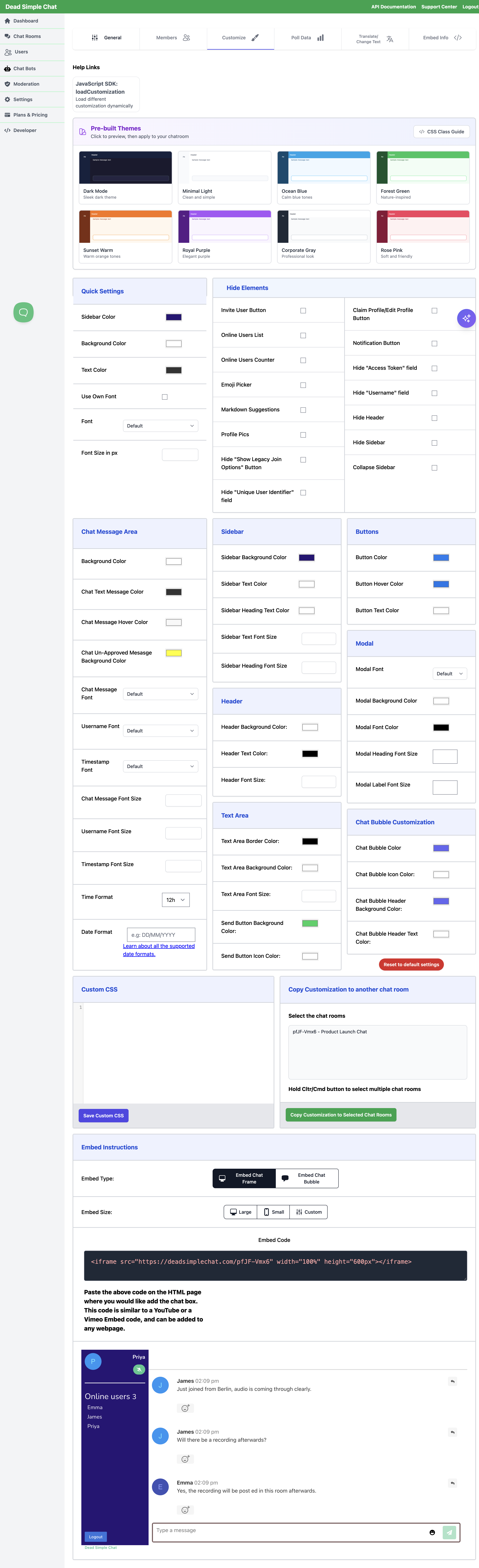
Open the Dead Simple Chat dashboard, go to Chat Rooms, click a room, and open the Customize tab. Scroll to the bottom of the tab: Custom CSS is the panel on the left, next to Copy Customization to another chat room.
For the selectors you can target, see the CSS Class Reference. The same list is in the product — the CSS Class Guide button at the top right of the Pre-built Themes panel opens it, with a copy button beside every selector.
Saving is separate from the rest of the tab
Every field above the Custom CSS panel saves itself about a second after you stop editing it. The Custom CSS box does not. It has its own Save Custom CSS button directly beneath it, and nothing is stored until you click that button. Paste a stylesheet, then change a colour field or navigate away, and the CSS is gone — the fields were saved, your CSS never was.
Saving reloads the Customize tab, so the preview at the bottom of it comes back with your new stylesheet applied. A chat room you already have open in another tab, or on your own site, keeps the old one until you reload it.
What custom CSS reaches
The chat room itself — header, sidebar, message list, composer, modals, and the bubble's chat window once it is open.
Not the page you embed it in. An embedded chat room sits in a frame of its own, so custom CSS cannot style your surrounding site, and your site's stylesheet cannot reach into the chat. Style your own page from your own stylesheet.
Not the floating chat bubble. The bubble launcher and its close bar sit outside the chat room, so the Custom CSS box does not reach them. Use Chat Bubble Color, Chat Bubble Icon Color, Chat Bubble Header Background Color and Chat Bubble Header Text Color on the Customize tab for those. Open the bubble and the chat inside is an ordinary chat room, where all of your custom CSS applies.
Custom CSS versus the Customize fields
The Customize fields win, unless your rule says !important.
Every colour, font and size you set on the Customize tab is written directly onto the element it styles. A rule in the Custom CSS box is a stylesheet rule, and a value set on an element beats a stylesheet rule:
/* Loses to Header Background Color if that field is set */
.chat-header {
  background-color: #101828;
}

/* Wins */
.chat-header {
  background-color: #101828 !important;
}
The chat's own default styling behaves the same way for a different reason: your stylesheet is served ahead
of the interface's own, so a rule that carries the same weight as a built-in rule loses the tie. An
!important declaration in your custom CSS sits above both. The practical rule:
| What you are doing | What you need |
|---|---|
| Overriding something a Customize field sets, or something the default look already sets | !important |
| Adding styling nothing sets yet — a shadow, a radius, letter spacing, a transition | Plain CSS is enough |
That is why nearly every example here and in the CSS Class Reference
carries !important.
Fields are validated, they are safe across redesigns of the interface, and each one has a
loadCustomization key, so you can vary it per embed from the SDK without touching the room. Keep custom
CSS for what the fields do not reach. See the Appearance Reference for
every colour, font and size, and the Hide Elements Reference for the
toggles that remove parts of the interface.
How much CSS fits
The box holds up to 500,000 characters, roughly 500 KB. Practically, stay far under that: the stylesheet is delivered with every load of the room, so a bloated one costs every visitor. If you are reaching for a whole framework build, pull out the handful of rules you actually need instead.
CSS written for you by the AI Configuration Assistant is trimmed at 100,000 characters.
What the box will not accept
It has to be CSS, and only CSS.
Markup does nothing. The contents of the box are served strictly as a stylesheet, so an HTML tag or a
script tag in there styles nothing and cannot affect the page around the chat. A stray </style> in the
middle of your CSS will not cut the stylesheet short either — the rest of your rules still apply.
Anything that loads or runs code rather than styling an element is disallowed and may be removed. That
means @import of an external stylesheet, url() values pointing at a javascript: target or carrying an
embedded data: payload, @charset, and the legacy expression(), behavior: and -moz-binding
properties. If a stylesheet the AI Configuration Assistant saved came back shorter than you asked for, one
of those was taken out of it.
A web font is still fine: declare it with @font-face pointing at a normal https:// URL, or pick one of
the bundled fonts with the Chat Message Font, Username Font, Timestamp Font and Modal Font
fields.
The changes people make most
Restyle the header
.chat-header {
  background-color: #101828 !important;
  border-bottom: none !important;
  height: 56px !important;
}
Colour, text colour and font size have fields — Header Background Color, Header Text Color, Header
Font Size — so reach for those first and use CSS for the border, the height and anything else. To remove
the header altogether use the Hide Header toggle rather than hiding .chat-header: the toggle also
re-lays the room out to fill the space the header occupied.
Restyle the message box
.textarea-div {
  border: 2px solid #4f46e5 !important;
  border-radius: 12px !important;
}

.textarea-div textarea {
  font-family: monospace !important;
  font-size: 13px !important;
  padding-top: 6px !important;
}
.textarea-div is the frame around the message input and its buttons; the input inside it is
.textarea-div textarea, and carries the id #messageTextArea if you would rather target it directly.
Change the font of chat messages
.chat-container {
  font-family: monospace !important;
}
For one of the bundled fonts, use Chat Message Font on the Customize tab instead.
Loosen or tighten the message rows
.chat-message {
  padding: 12px 16px !important;
  margin-bottom: 8px !important;
  border-radius: 8px !important;
}
Hide profile pictures
.profilePicContainer {
  display: none !important;
}
The Profile Pics toggle in Hide Elements is the better tool for this — it takes the avatars out rather than painting over them, so the message text reflows into the space.
Hide the sidebar
Use the Hide Sidebar toggle, not CSS. Hiding .sidebar with a rule leaves the column it occupied
sitting empty; the toggle rebuilds the room's layout as a single column so the chat fills the width. Same for
Collapse Sidebar, which keeps the sidebar reachable from the header.
Restyle the modals
.modal-card {
  border-radius: 12px !important;
  max-width: 480px !important;
}

.modal-card-head {
  padding: 20px 24px !important;
}

.modal-background {
  background-color: rgba(0, 0, 0, 0.6) !important;
}
This covers the join dialog, the invite and banned-users dialogs, and the rest of the room's pop-ups together — they share one shell.
Remove the formatting hints, or the sign-in columns
Neither of these needs CSS. Both are toggles in the Hide Elements panel of the same tab — Markdown Suggestions and Already have an account/Login — documented in the Hide Elements Reference.
Disable custom styling with a query parameter
Add disableCustomCSS=true to a room's URL and that page load ignores the room's saved styling:
https://deadsimplechat.com/<roomId>?disableCustomCSS=true
It switches off more than the CSS box. The room loads without your custom CSS and without the Customize tab's saved settings — colours, fonts, sizes and every Hide Elements toggle — so it comes up in the stock look with every part of the interface visible. Translations, the room's name, branding and all of the room's behaviour settings are untouched, and nothing saved is changed: drop the parameter and your styling is back.
That combination is what makes it a rescue hatch:
- A rule hid or covered a control you now need to reach.
- You hid the sign-in columns and a moderator has to sign in. The Customize tab prints this same URL next to the Already have an account/Login toggle for exactly that reason.
- You want to know whether a layout problem is coming from your CSS. Load the room with the parameter and without it, and compare.
In an iframe embed, put it on the frame's src:
<iframe src="https://deadsimplechat.com/<roomId>?disableCustomCSS=true"
        width="100%" height="500px"></iframe>
With the chat bubble, pass it as an option:
<script>
  window.DeadSimpleChat.initBubble({
    roomId: "<roomId>",
    size: "small",
    disableCustomCSS: true
  });
</script>
Take the rest of that snippet, including the script tag that loads the embed library, from the room's Embed Info tab.
In a URL the parameter is read as present or absent, not as a true or false value, so
?disableCustomCSS=false disables your styling exactly as =true does. To keep your styling, leave the
parameter off the URL entirely.
Working on a stylesheet
Find the element in your browser first. Open the room, inspect the part you want to change, and work out which of the documented selectors sits on or above it. The CSS Class Reference is organised by region so you can go from "the timestamp" to the selector that owns it.
Do not target what the browser generated. Some of what you see in the inspector is not stable: each
message row carries an id unique to that message, and the interface's own rules are qualified with generated
data-v-… attributes that change whenever the chat client is rebuilt. Rules written against either will
break. Stick to the documented selectors.
Keep a copy of your stylesheet outside the dashboard. The box holds one version, with no history.
Reuse a look rather than retyping it. Copy Customization to another chat room, at the bottom of the Customize tab, sends the Customize fields and the custom CSS to the rooms you select, replacing what those rooms had.
Related pages
- CSS Class Reference — every selector you can target, by region
- Appearance Reference — every colour, font and size field on the Customize tab
- Hide Elements Reference — the toggles that remove parts of the interface
- AI Configuration Assistant — describe the look you want and have the fields and CSS written for you
loadCustomization— vary the appearance per embed from the SDK- Dynamically load customizations — worked examples
- Contact support