Q&A Mode / Pre-moderated Chat
In a pre-moderated chat room, a message does not go out when it is sent. It waits until a moderator approves it, and only then does the room see it. Nothing a participant writes reaches the other people in the room without someone releasing it first.
That makes it the setting for a moderated Q&A, a public-facing room where an unvetted message would be a problem, a webinar where you want to choose which questions get asked, and anything with an audience you do not control.
Turning it on
Open the Dead Simple Chat dashboard, go to Chat Rooms, select the room, and on the General tab switch on Q&A mode / Pre-moderated chat room.
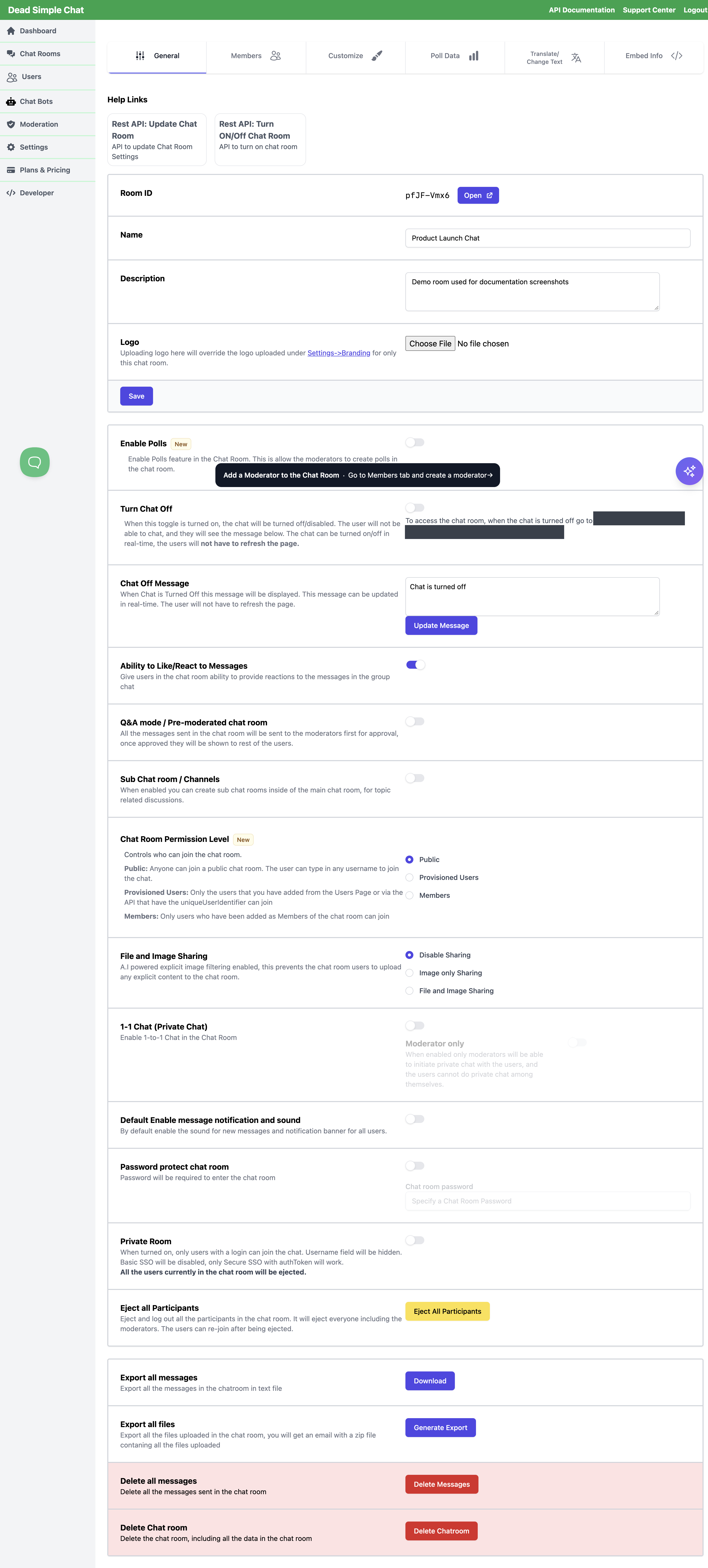 The toggle sits between the reactions setting and Sub Chat room / Channels.
The toggle saves the moment you change it — there is no Save button for it — and it takes effect for messages sent from that point on. Messages already in the room stay where they are.
The setting belongs to one room. Turning it on in one room does nothing to your others. See
Chat Room Settings Reference for the rest of the General
tab, and for setting it with the REST API through the preModeratedChatRoom field.
A pre-moderated room with no moderator is a room where nothing is ever published. Create a moderator before you switch this on — see Creating Moderators — or plan to approve from the Moderation Dashboard yourself.
What each person sees
Three different views of the same held message:
| Who | What they see |
|---|---|
| The person who sent it | Their message, highlighted, with Admin approval pending. underneath it |
| Everyone else in the room | Nothing at all |
| A moderator in the room | The message as normal, with an Approve button beside it |
The sender's copy is a preview for them alone, and it lasts as long as they stay on the page. If they reload before it is approved, it is gone from their view too — they see it again when a moderator releases it.
Two things about that preview can be changed to suit your room:
- The highlight colour is the Chat Un-Approved Message Background Color setting — see Appearance Reference.
- The wording Admin approval pending. and the Approve button label come from the room's Translate/Change Text tab, or from loadTranslation in the SDK.
Approving in the chat room
A moderator signed in to the room sees every held message in place, in the order it was sent, with two buttons on it:
| Button | What it does |
|---|---|
| Approve | Releases the message. It appears for everyone in the room straight away, and the sender's approval pending note disappears. |
| The trash icon | Deletes the message. It is never published and it leaves the room's history. |
There is no reject. A message you do not approve simply stays where it is, visible only to its sender and to moderators, until someone approves or deletes it. Deleting is how you clear the queue of things you will never publish.
Approving from the Moderation Dashboard
You do not have to be in the room. Dashboard -> Moderation gives the account owner the same two actions over the room's whole stored history, which is the easier place to work through a backlog.
On the Messages tab, a message still waiting carries a Pending badge, and the tab header shows a pending approval count for the room. Approve on the message releases it immediately — the room does not wait for the page to refresh. Channel messages are approved the same way from the Channels tab.
The console also lets you delete every message from one person in a single step, ban them, and post into the room as one of your moderators. See Moderation Dashboard.
What is not held
Pre-moderation holds the messages sent into the room and its channels. These go out immediately even while the setting is on:
| A message you post from the Moderation Dashboard | It is published as the moderator you chose, so there is nothing to approve. This is how you answer a question or post house rules without approving your own message. |
| A poll created in the room | The poll and its question appear straight away, so people can start voting. See Polls. |
| Private one-to-one messages | A conversation between two people is not part of the room's message flow, so it is never held. |
| Messages sent with the Send Chat Room Message API | A message injected through the API is published as sent, so review it on your side first if it needs reviewing. |
A message a moderator types inside the room is held like anyone else's. The Approve button is right there on it, so they can release it with one click — or post from the Moderation Dashboard instead, where a message is never held.
Doing it from your own code
| Approve a message | approveMessage — moderators only |
| Approve a channel message | approveChannelMessage |
| Hear that a message was released | messageApproved and channelMessageApproved |
| Hear about it on your server | The chatroom_message_approved and channel_message_approved webhook events |
A held message is still a stored message. It is returned by the message APIs with disapproved set to
true, and it is posted as new_chatroom_message when it is sent, well before anyone approves it —
so a webhook consumer that treats every new_chatroom_message as published will be wrong in a
pre-moderated room. Wait for chatroom_message_approved.
Related
- Moderation Dashboard — approving, deleting and banning from your account
- Creating Moderators — the people who can approve
- Moderation Guide — how the moderation tools fit together
- Profanity Filter — masking words automatically instead of holding messages
- Chat Room Settings Reference — the rest of the General tab