Exporting Messages and Files
A chat room holds two different kinds of content, and each one comes out a different way.
| What you want | What you press | How it arrives |
|---|---|---|
| The transcript — who said what, and when | Download | A plain text file, straight away, in your browser |
| The attachments — every file and image people uploaded | Generate Export | A zip, built in the background and emailed to you |
They are separate actions. Exporting the messages does not give you the attachments, and exporting the files does not give you the transcript. If you want a complete record of a room, run both.
Where the export controls are
Both live in the Dead Simple Chat dashboard, in two places:
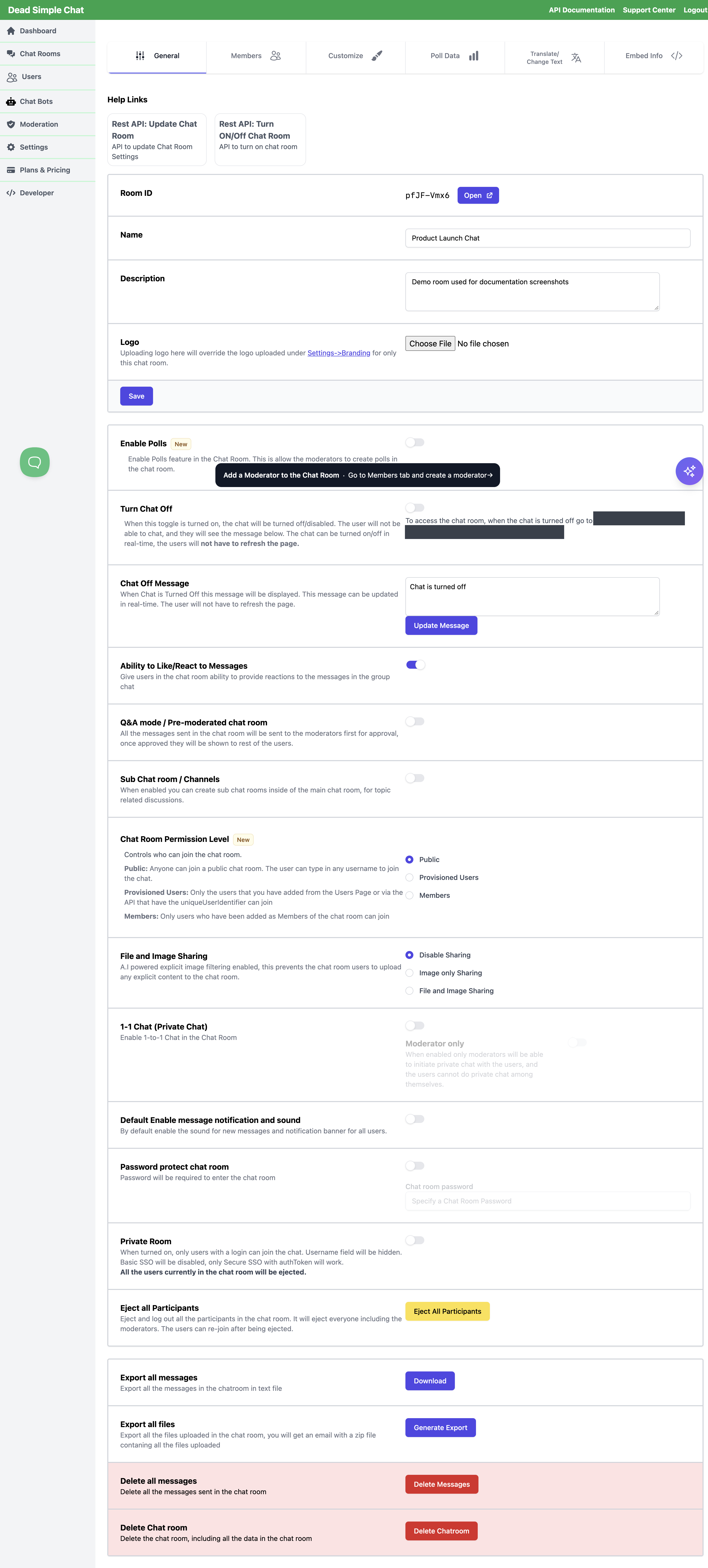
- Chat Rooms, then the Options menu on a room's row — Export all messages and Export all files.
- Inside a room, on the General tab, near the bottom.
Exporting the messages
Press Download. Before anything is generated, a dialog headed Export Messages asks two questions about how the timestamps should be written.
Timezone
| Option | What it means |
|---|---|
| Browser Timezone | The timezone of the computer you are on. It is named in brackets so you can check it before you export. This is what is selected when the dialog opens. |
| UTC | Coordinated Universal Time. |
| Select Timezone | Pick a named timezone from a list. There is a search box to filter it. |
Timestamp Format
| Option | Example |
|---|---|
| 24-hour | 14:30 — the default |
| 12-hour | 2:30 pm |
Press Export and the file downloads as export.txt. Dates are written month-first whichever
format you choose, so a 24-hour timestamp reads 09-15-2021 14:30 and a 12-hour one reads
09-15-2021 02:30 pm.
What the file looks like
Plain text, one entry per message: the sender's username, then the timestamp, then the message indented on the line below.
alice -  09-15-2021 14:30
      Hello everyone

bob -  09-15-2021 14:31
      Hi Alice
What is in the export, and what is not
In it: every message posted in the room's main stream, from the first one to the most recent. There is no date range and no limit — you always get the whole history.
Not in it:
- Attachments. The transcript records the text of each message. A message that carried a file or an image exports as its text only, with no filename and no link, and a message that was nothing but an attachment exports as an empty line. This is what Export all files is for.
- Replies. A reply exports as an ordinary message. The message it was replying to is not quoted or referenced.
- Channel messages. Channels are exported one at a time — see Exporting a channel below.
- One-to-one private conversations. These are not covered by either export.
- Deleted messages. Deleting a message removes it outright, so it cannot appear in an export made afterwards. Export first if you need a record of something you are about to delete.
Messages posted through the API as system messages appear under the username System Message, like any other participant.
Exporting the files
Press Generate Export. Nothing downloads in the browser. You are told "Export generation is in progress, it will be emailed to you", the zip is assembled in the background, and a link to download it is emailed to the address on your account.
Ask for the same room again while one is still being prepared and the second request is absorbed rather than queued — you are told "We are processing your export. Once ready it will be sent to your email." A fresh export of the same room can be started a few hours after the last one.
The zip contains every file and every image uploaded to the room, each in its own folder. The timezone and timestamp choices belong to the message export only; they have no effect here.
A file or image uploaded to a chat room is removed 30 days after it was uploaded. The message it was attached to stays in the room, but the attachment itself no longer is, and it will not appear in an export run after that point. The Available Storage row on Settings -> Account says the same thing.
So an export of a room that has been running for months gives you the last 30 days of attachments, not everything that was ever shared. If you need to keep the files from an event, export them while the event is still recent.
Download the emailed link reasonably soon after it arrives. If the link has stopped working, run Generate Export again and a new one is sent.
Exporting a channel
If the room uses channels, each channel has its own transcript and is exported separately. Open the room, go to the Channels / Sub-Rooms tab and use Export Chats on the channel's row. The same Export Messages dialog appears, with the same timezone and timestamp choices, and the file is named after the channel.
There is no single export that covers a room and all of its channels at once.
Exporting through the REST API
Three endpoints do the same three jobs. All of them take your private key as the auth query
parameter — find it in the dashboard under Developer -> Private Key, and keep it on your server,
never in front-end code.
| Endpoint | What it returns |
|---|---|
| Get Export Messages | The room transcript, as the same export.txt body |
| Get Export Channel Messages | One channel's transcript |
| Get Export files | Starts the zip and emails it, exactly as the dashboard button does |
Timezone and timestamp format
The two message endpoints take the same choices the dialog offers, as query parameters:
| Parameter | Values | If you leave it out |
|---|---|---|
timezone | A named timezone, for example Asia/Kolkata | UTC |
timestampFormat | 24-hour or 12-hour | 24-hour |
curl "https://api.deadsimplechat.com/consumer/api/v1/chatroom/<Room ID>/export/messages?auth=<private key>&timezone=Asia/Kolkata×tampFormat=12-hour"
A timezone name that is not recognised falls back to UTC rather than failing the request, so if the times are not what you expected, check the spelling first.
How often you can call them
Each export endpoint has its own cooldown, per room or per channel:
| Endpoint | Cooldown | What you get inside it |
|---|---|---|
| Export messages | 10 minutes | 429 — "please send the request again after 10 mins" |
| Export channel messages | 10 minutes | 429 — "please send the request again after 10 mins" |
| Export files | 1 hour | 429 — "please send the request again after 1 hr" |
The file export started from the API and the one started from the dashboard are tracked separately, so they do not share a waiting period. The dashboard's Download button for messages has no cooldown at all.
A successful call to the files endpoint answers with the address the zip is going to:
{
    "message": "export generation started, the export will be emailed to user@example.com"
}
Other responses
- Asking for a room that belongs to a different account answers
401with "not authorized to perform export operation on the chat room". - A missing or unrecognised
authkey answers401.
The export endpoints are not available on every plan. If a call comes back 400 with "This endpoint
is not allowed in your current plan, please upgrade your plan to access this api", the dashboard
buttons still work — see pricing or
contact support.
Who can export
Exporting is an account-owner action. The dashboard export controls are reachable only by the account that owns the room, and the API endpoints need that account's private key.
A moderator credential is a chat-room login, not a dashboard login. Moderators can delete and approve messages inside the room, but they cannot export it. If someone needs a transcript, the account owner has to produce it.
Related
- Deleting Messages and Rooms — Delete all messages deletes the room's attachments too, so export the files first.
- Chat Room Settings Reference — every other control on the General tab.
- Plans and Quotas — storage, and what counts against it.
- Get Export Messages, Get Export files — the REST reference pages.