Creating Moderators
A new chat room has no moderator, and several things in a room can only be done by one:
- Approving messages in a pre-moderated chat room
- Deleting other people's messages
- Banning and unbanning people, and banning IP addresses
- Creating polls
So creating a moderator is usually the next thing you do after creating a room. This page covers every way to create one and how each kind signs in. For what a moderator then does, see the Moderation Guide.
The routes
| Route | Creates | Good for |
|---|---|---|
| A room's Members tab | A user with the Moderator role in that room | The usual case: one room, one moderator |
| The Users page | The same, starting from a user you already have | Promoting someone who is already in your account |
| The Moderators tab of the Moderation Dashboard | A username-and-password moderator | Moderating from the dashboard, where you post as a moderator |
| The REST API | Either kind | Provisioning moderators from your own system |
There isn't one. The dashboard sidebar — Dashboard, Chat Rooms, Users, Chat Bots, Moderation, Settings, Plans & Pricing, Developer — has no Moderators entry, and moderators are created in the places listed above.
Some long-standing accounts still show a Moderators entry in the sidebar. That is the old moderator page, and it creates the same username-and-password moderator as the Moderation Dashboard's Moderators tab, which is where the job lives now.
From a room's Members tab
-
Go to Chat Rooms, select the room, and open the Members tab.
-
Select Create User. A modal opens where you fill in the user and add them to this room in one step.
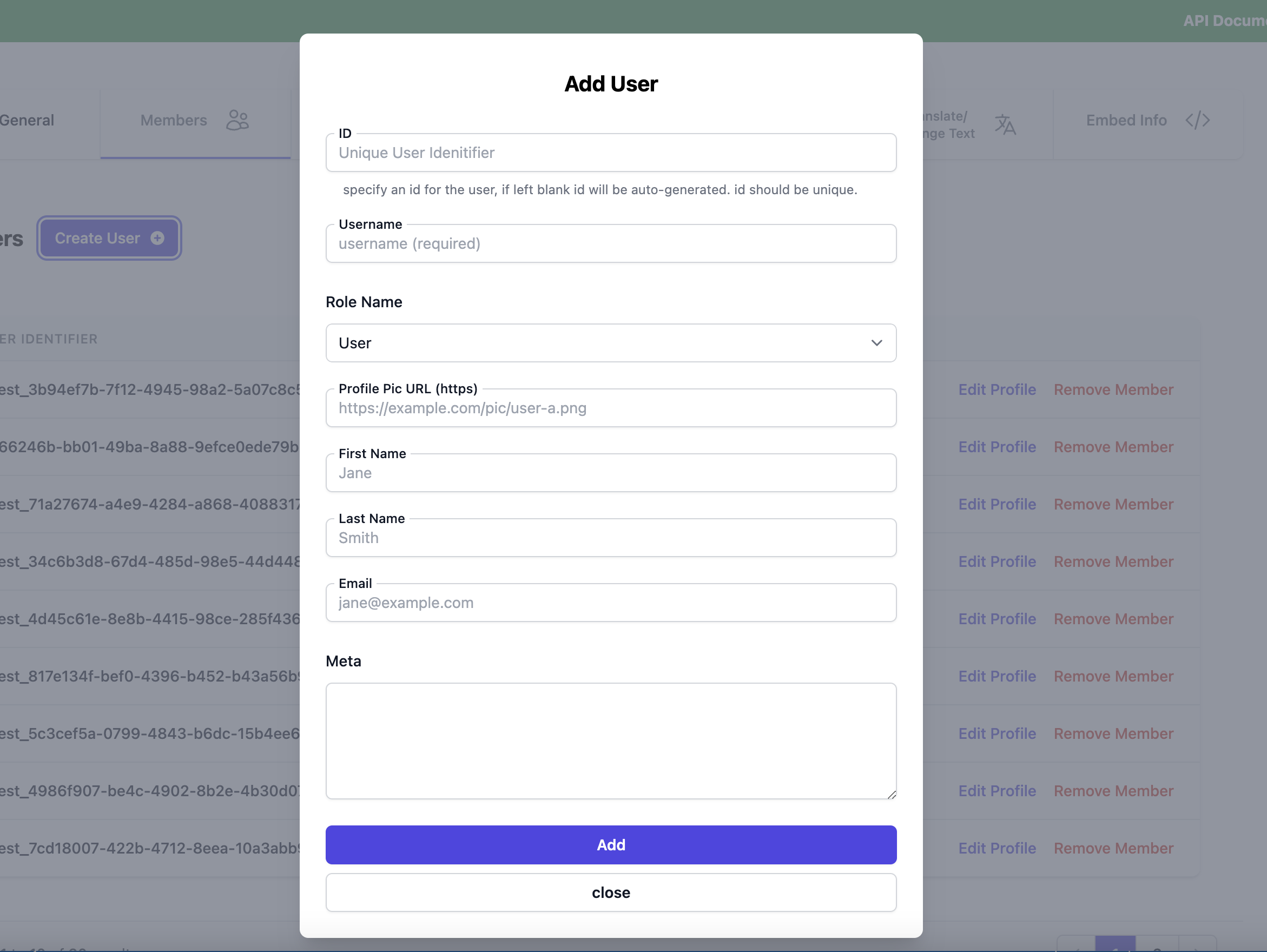
- ID — the
uniqueUserIdentifier. Leave it blank and one is generated. - Username — required. This is the name people in the room see.
- Role Name — set this to Moderator.
- The rest — profile picture, first and last name, email, meta — are optional.
- ID — the
-
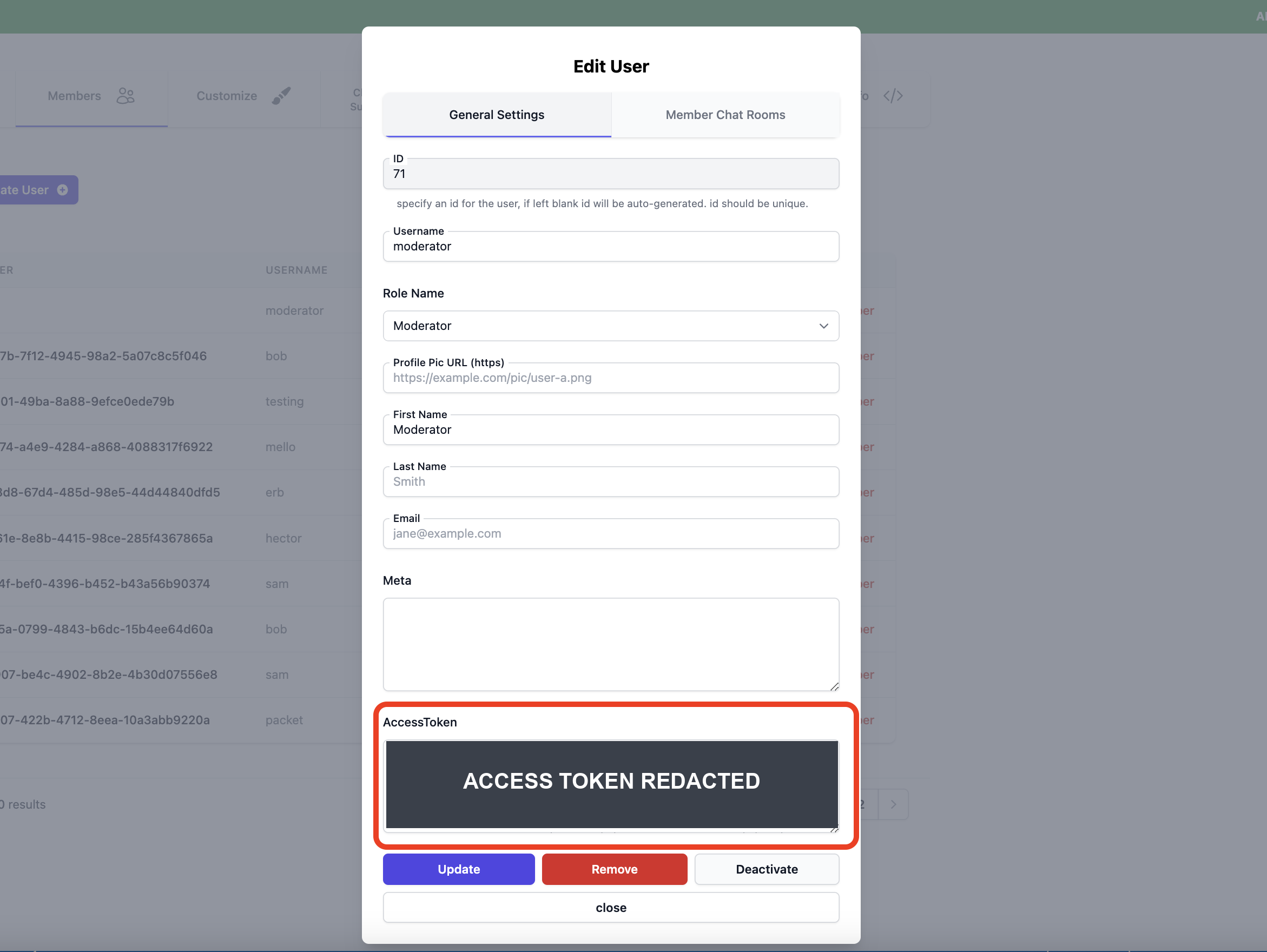
Select Add. The modal reopens on the new user with an AccessToken box at the bottom.
-
Copy the access token. That is how the moderator signs in.
If the Members tab prompts you to enable the New Join Modal, switch it on first — the tab needs it. See Creating and Managing Users and Chat Room Permissions.
Signing the moderator in
Paste the access token into the Access Token field on the room's join screen.
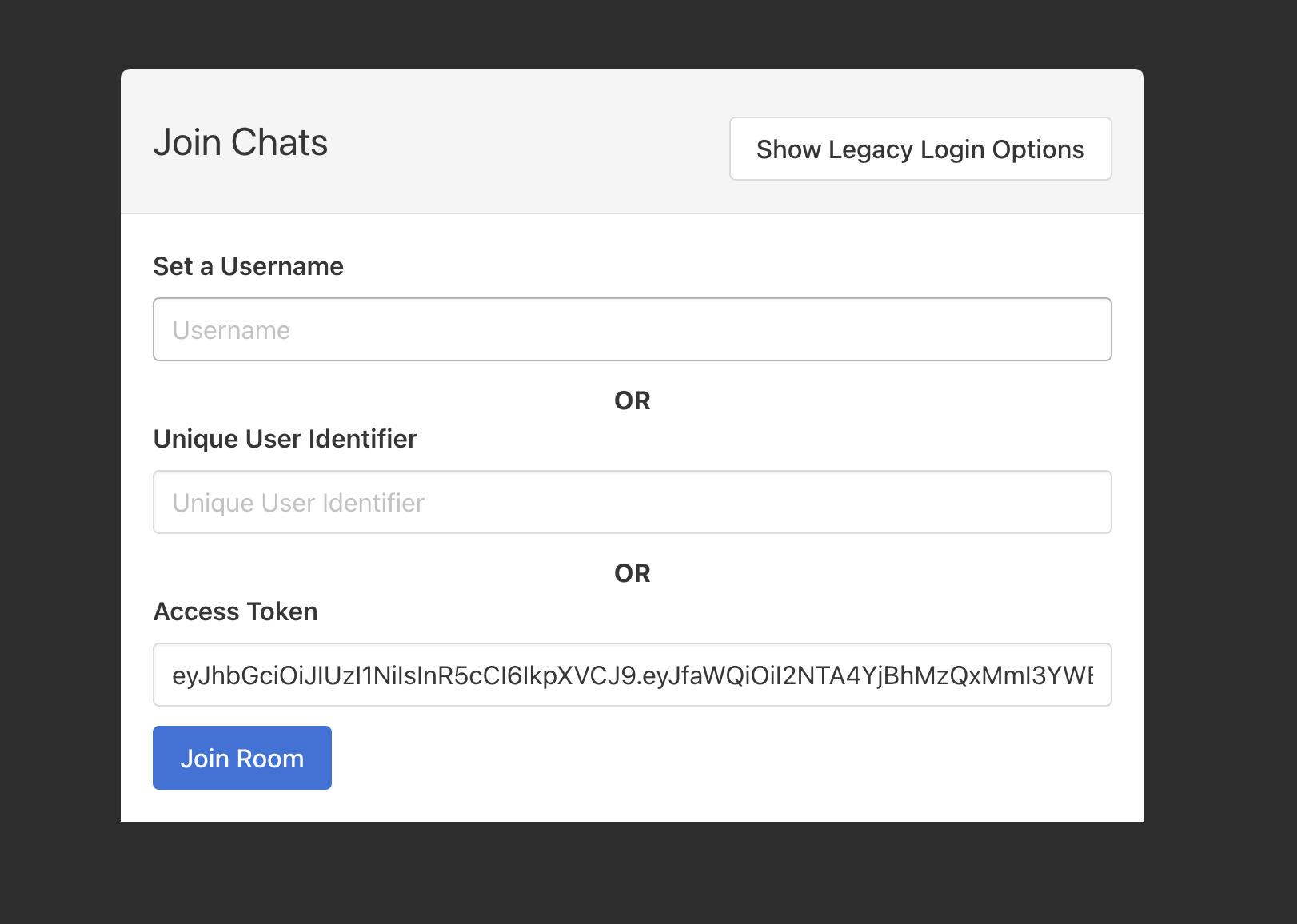
The same token works as the accessToken URL parameter on the room address, and as the accessToken
option on join in the SDK — that last one is how you sign a moderator
in automatically, covered in
Login Moderator via SSO.
Moderators cannot sign in with the uniqueUserIdentifier. That route is refused for them — cannot
login moderator using uniqueUserIdentifier. Please use accessToken to login the moderator — in every
permission level. Use the access token.
You can come back for the token later. Reopen the user with Edit Profile, on the Members tab or the Users page, and the AccessToken box is there again. If a token has gone somewhere it should not, the Invalidate Access Token API withdraws it and signs out anyone using it.
From the Users page
If the person already exists in your account, promote them instead of creating a second user.
- Go to Users and select Edit Profile on the user.
- In the modal, open the Member Chat Rooms tab.
- Find the room under Available Chat Rooms and select Make Member — or, if they are already a member, find the room under Member Chat Rooms.
- Set the Role select for that room to Moderator. The change saves as you make it.
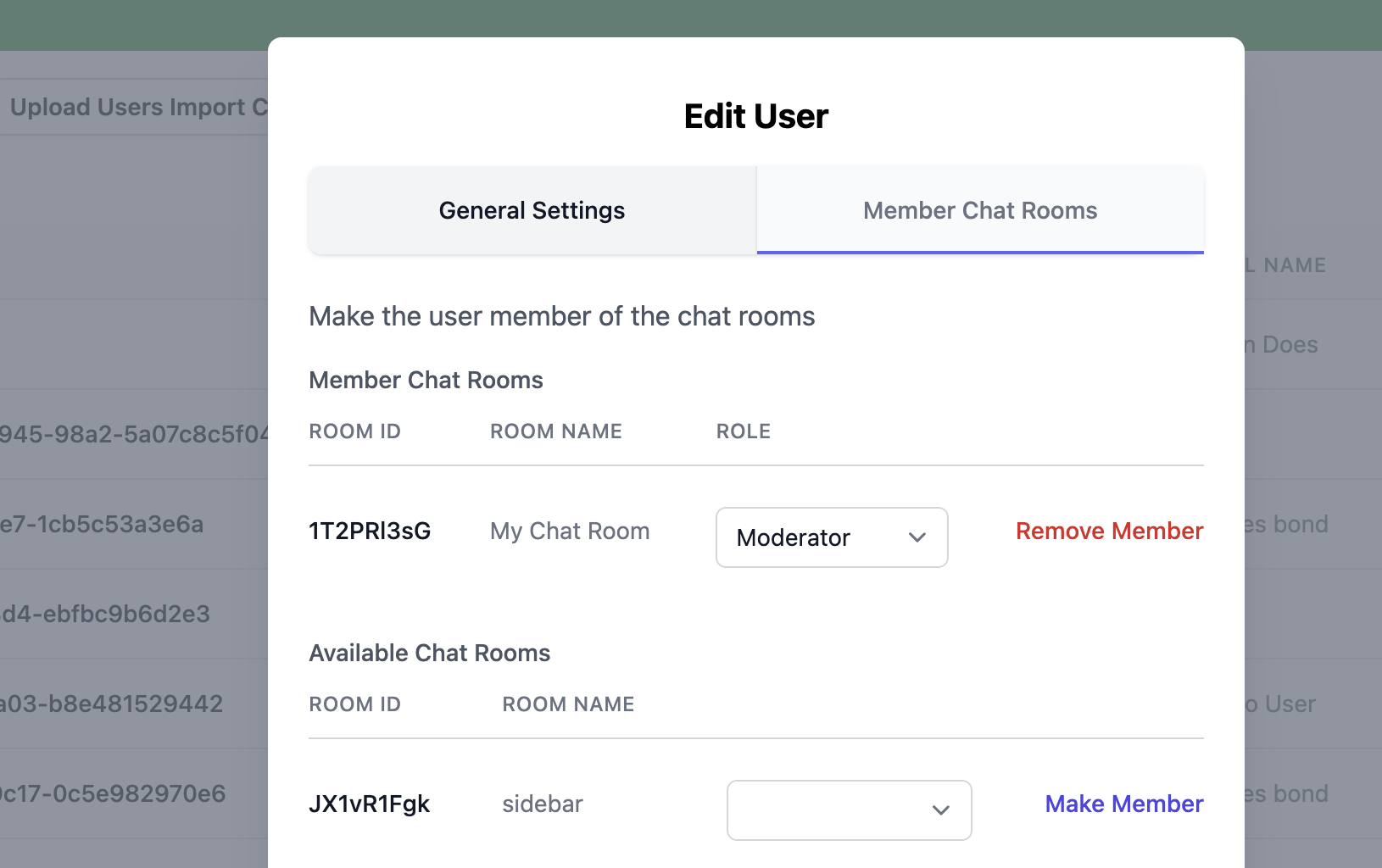
The role is per room, so the same user can be a moderator in one room and an ordinary user in another. They sign in with their access token, exactly as above.
From the Moderation Dashboard's Moderators tab
Dashboard -> Moderation has a Moderators tab. It is account-wide, so it works whether or not you have a room selected.
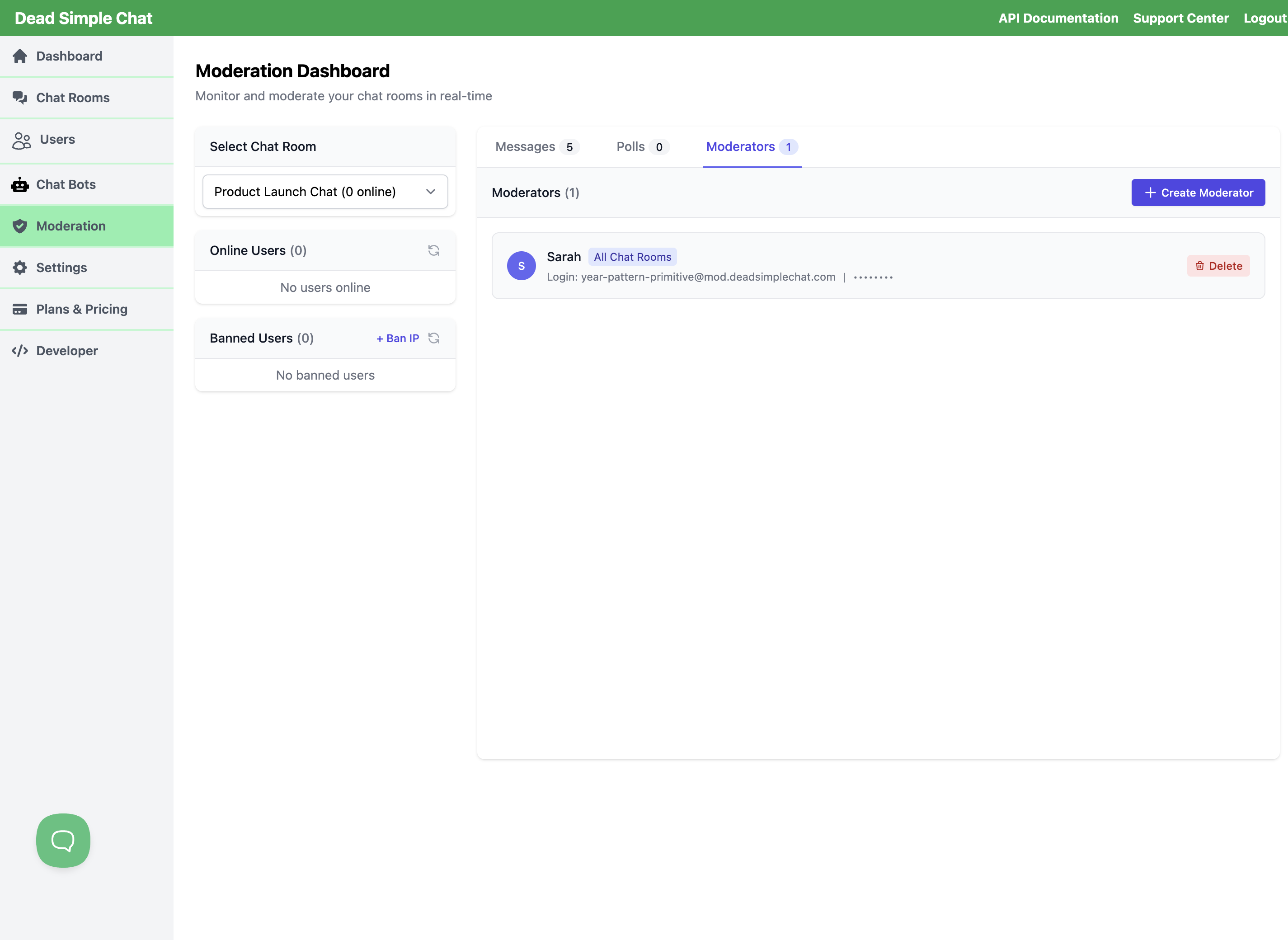
Create Moderator asks for three things:
- Username — the name people in the room see.
- Password — you choose it, so make a note of it.
- Assign to Chat Room — one room, or All Chat Rooms for every room on the account.
Each moderator is then listed with a sign-in address that was generated for it, ending
@mod.deadsimplechat.com, and Delete removes the moderator.
This is the kind of moderator the Moderation Dashboard posts as. Its Send as Moderator selectors — for chat messages, channel messages, polls and direct messages — list the moderators covering the room you are viewing, so a moderator created here shows up there once it is assigned to that room, or to All Chat Rooms. If the console tells you No moderators available, this tab is where you fix it.
The generated address is a login name, not a mailbox. No mail can be delivered to it and nothing is sent from it, so pass the moderator their address and password yourself.
To sign in with them, call join with the email and password, or use the email and password fields on the join screen where they are offered — they can be hidden, see Hide Elements.
With the REST API
Three endpoints, depending on what you are starting from.
| Endpoint | Use it to |
|---|---|
| Make or Update Member | Make an existing user the moderator of a room |
| Create User | Create a user and make them a moderator in one call |
| Create Moderator | Create a username-and-password moderator |
In each case, auth is your private key, from Dashboard -> Developer.
Make an existing user a moderator
Send the user's uniqueUserIdentifier and the role you want them to have in the room:
curl -X POST "https://api.deadsimplechat.com/consumer/api/v2/room/DQWac5hPf/member?auth=YOUR_PRIVATE_API_KEY" \
     -H "Content-Type: application/json" \
     -d '{
         "uniqueUserIdentifier": "6b0b872c-ff10-4a6f-b71d-7ead0743674a",
         "roleName": "moderator"
         }'
The response confirms the membership, with roleName now set to moderator:
{
  "_id": "650afc6137be20bbf6896227",
  "user": {
    "_id": "6508be68820a36add12ed76f",
    "uniqueUserIdentifier": "6b0b872c-ff10-4a6f-b71d-7ead0743674a",
    "username": "zolo",
    "firstName": "",
    "lastName": "",
    "email": "",
    "meta": "",
    "parentCustomerAccount": "5cb71cdd82ba6b00042fb43f",
    "provisioned": true,
    "created": "2023-09-18T21:17:28.723Z",
    "updated": "2023-09-18T21:17:28.723Z",
    "__v": 0
  },
  "chatRoom": {
    "_id": "650afa8aebc9f9b168a40731",
    "roomId": "DQWac5hPf",
    "name": "Test Room"
  },
  "roleName": "moderator",
  "customer": "5cb71cdd82ba6b00042fb43f",
  "created": "2023-09-20T14:06:25.642Z",
  "__v": 0
}
The same call changes a role later: send it again with a different roleName to promote or demote
someone.
Create the user and the role together
Pass membershipDetails with the roomId and roleName:
curl -X POST "https://api.deadsimplechat.com/consumer/api/v2/user?auth=YOUR_PRIVATE_API_KEY" \
     -H "Content-Type: application/json" \
     -d '{
         "uniqueUserIdentifier": "571",
         "username": "john_doe",
         "firstName": "John",
         "lastName": "Doe",
         "email": "johndoe@example.com",
         "externalProfilePicURL": "https://example.com/path/to/profilepic.jpg",
         "membershipDetails": {
             "roleName": "moderator",
             "roomId": "DQWac5hPf"
         }
     }'
{
  "success": true,
  "user": {
    "_id": "650aff80b51822b12d620cc4",
    "uniqueUserIdentifier": "571",
    "username": "john_doe",
    "firstName": "John",
    "lastName": "Doe",
    "email": "johndoe@example.com",
    "profilePic": "https://example.com/path/to/profilepic.jpg",
    "parentCustomerAccount": "5cb71cdd82ba6b00042fb43f",
    "provisioned": true,
    "created": "2023-09-20T14:19:44.690Z",
    "updated": "2023-09-20T14:19:44.690Z",
    "__v": 0
  },
  "membershipDetails": {
    "roleName": "moderator",
    "roomId": "DQWac5hPf"
  }
}
The new user appears on the Users page and on the room's Members tab, and you sign them in with their access token.
Which room a moderator covers
A moderator is tied either to one chat room or to all of them.
- A member with the Moderator role holds that role in that room. Give them the role in each room they should moderate.
- A username-and-password moderator is assigned to one room or to All Chat Rooms when you create it. Assigned to one room, they are refused anywhere else — You are not the moderator of this chatroom.
Related
- Moderation Guide — what a moderator can do once they are in
- Moderation Dashboard — moderating without signing in to the room
- Creating and Managing Users and Chat Room Permissions — users, members and roles
- Chat Room Permission Levels — who is allowed into a room
- SSO using Auth Token — signing users and moderators in automatically