Channels and Sub-Rooms
A channel is a room inside a room. Turn channels on and a single chat room grows a list of named sub-rooms, each with its own message history, and everyone in the room can move between them.
Use channels when one audience needs several conversations — a lobby plus one channel per track at a conference, a general channel plus a help channel, one channel per language. Use separate chat rooms instead when the audiences must not mix: a channel is a division inside one room, not a wall between rooms. Anyone who can join the room can open any of its channels.
Turning channels on
Open the Dead Simple Chat dashboard, go to Chat Rooms, select a room, and stay on the General tab. Switch on Sub Chat room / Channels.
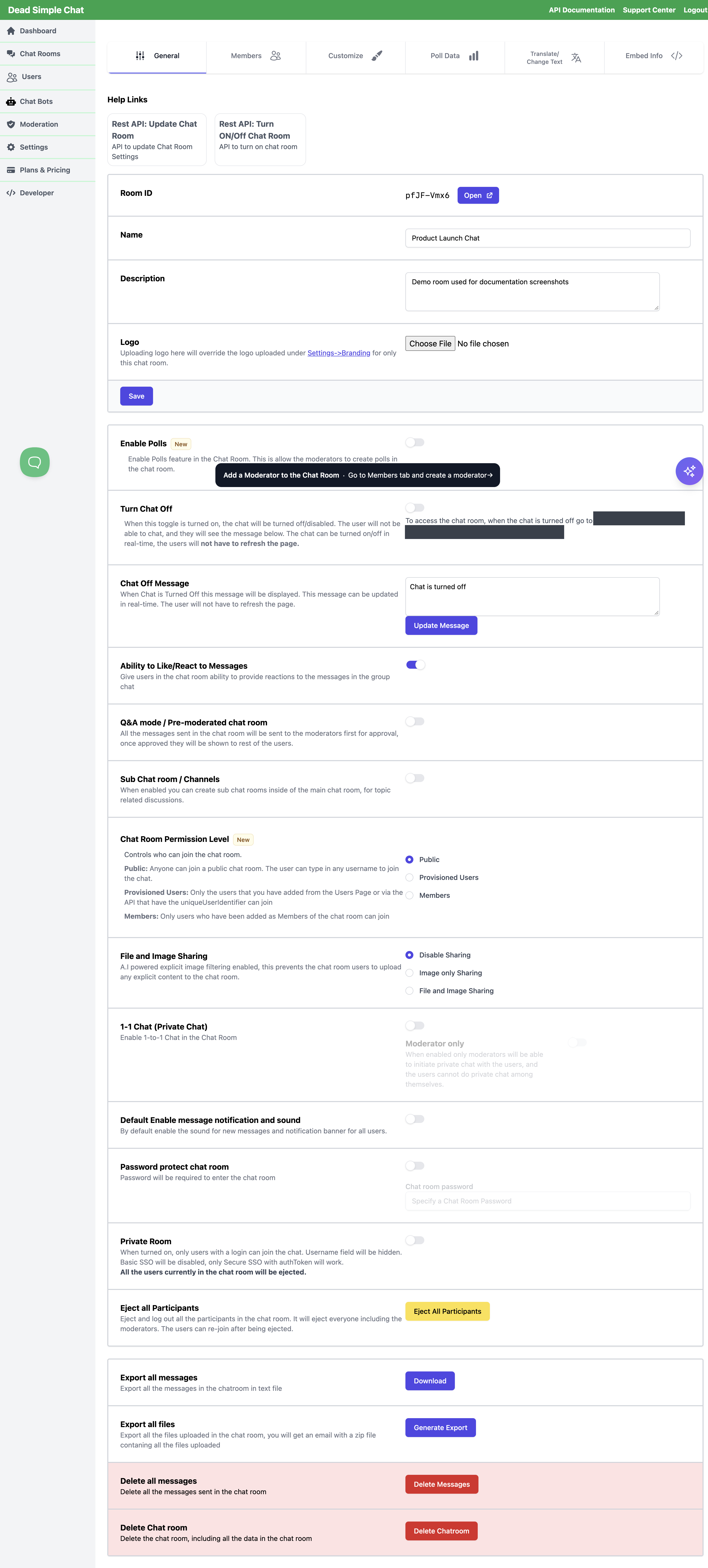
The switch saves itself and then reloads the dashboard page, because the room gains a Channels / Sub-Rooms tab. That tab is where channels are created, and it only exists while the switch is on.
Nothing changes for the people in the room until you create at least one channel. A room with channels switched on but no channels in it looks exactly like an ordinary room.
Creating a channel
Open the Channels / Sub-Rooms tab. Under Create Channel, type a name into the Channel Name box and select Add Channel. The channel appears in the Manage Channels list below, enabled and ready.
Keep names short — they sit in a narrow sidebar — and give each one a name people can tell apart: nothing stops two channels in the same room carrying the same name.
Create your channels before people arrive. Someone already sitting in the room does not pick up a new channel while they are there; it appears for them the next time their chat loads.
Managing channels
Manage Channels lists every channel in the room, one row each.
| Column | What it does |
|---|---|
| Name | An editable box. Change the text, then select Save Changes on that row. |
| Enabled | Unticked, the channel disappears from the sidebar for participants. Its messages are kept, and ticking it again brings the channel back with its history. |
| Notify All Users | Signs everyone up to this channel's unread notifications, whether or not they have opened it. See Notifications across channels. |
| Export Chats | Downloads that channel's messages. You choose a timezone and a 12- or 24-hour timestamp before the file is produced. |
| Save Changes | Saves that row. Each row saves on its own — editing several channels means pressing Save Changes on each of them. |
| Delete Channel | Deletes the channel and every message in it. You are asked to confirm, and it cannot be undone. |
Unticking Enabled is the reversible way to take a channel out of circulation. Delete Channel is not — if you might want the conversation later, export it first.
Notifications across channels
By default a channel is quiet for someone who has never opened it. The settings on this page decide how far that goes.
Show notification for all channels
At the top of the Channels / Sub-Rooms tab, under Default Channel Settings, is a single checkbox: Show notification for all channels. Unlike the General tab, this one has a Save Changes button — tick the box and press it, or the change is not kept.
| Setting | What each participant is signed up to |
|---|---|
| On | Every channel in the room, from the moment they join. Any channel that receives a message they have not read shows an unread badge beside its name. |
| Off | Only the channels they have opened at least once, which are remembered for them, plus any channel you have ticked Notify All Users. A channel they have never opened stays silent. |
Leave it off for a room with many channels, where badging all of them at once is noise. Turn it on for a room with a handful of channels that all matter — a small event, say, where missing the announcements channel is worse than being interrupted.
Notify All Users, per channel
While Show notification for all channels is off, each row in Manage Channels gains a Notify All Users tick box. It is the exception list: everyone is signed up to that one channel from the moment they join, even if they never open it. Use it for the channel nobody should miss — announcements, moderator notices — while the rest of the channels stay quiet.
The column is hidden while Show notification for all channels is on, because at that point everyone is already signed up to everything and per-channel exceptions have nothing left to do.
What a participant actually sees
- The unread badge is the signal that crosses channels. It appears beside the channel's name in the sidebar, and on the menu button on a narrow screen, and it clears when they open that channel.
- The message sound and the desktop notification are for the channel they are looking at, and for private chats. They are not raised for a channel sitting in the background — that is what the badge is for. Each person can silence sound and banners with the bell in the sidebar, and Default Enable message notification and sound on the General tab decides which way that starts out.
Who is signed up to which channels is worked out when someone joins the room. Change these settings, or add a channel, and the people already in the room are unaffected until their chat next loads.
How channels look to participants
With channels on, the sidebar gains a Channels heading and a list:
- The room itself is the first entry, labelled with the chat room's name. This is the main conversation — the one that exists whether or not the room has channels.
- Then every enabled channel, in the order it was created.
Selecting a name switches the chat to it, the current one stays highlighted, and an unread badge sits beside any channel with messages they have not read.
A channel is a full chat, not a stripped-down one. Inside a channel people get the same message box and the same message list as the main room: replies, reactions, the emoji picker, file and image sharing under the room's sharing setting, and — for moderators — approving and deleting messages and banning people. Selecting a username in a channel starts a private chat just as it does in the main room. Channel history loads a page at a time as they scroll up.
Two differences are worth knowing:
- Q&A mode / Pre-moderated chat room covers channels too. Messages sent in a channel wait for a moderator's approval exactly as messages in the main room do, and moderators can approve them from the Moderation Dashboard, which lists the room's channels alongside the main conversation.
- Polls belong to the main conversation. The poll button is not offered inside a channel.
Hiding the sidebar takes channels away from the people in the room, because the channel list is the only way to switch between them. If you need the space back, use Collapse Sidebar instead — see the Hide Elements Reference.
The Channels heading and the unread badge are both relabellable. The room's Translate/Change
Text tab and the SDK's loadTranslation both take a
channels key and an unread key, so "Channels" can read "Tracks", "Rooms" or anything else that
suits.
Sending people straight into a channel
An embed can drop someone into a particular channel instead of the main conversation — one channel per
page of your site, for instance. Fetch the channels with
getActiveChannels, then call
selectChannel with the id you want:
const sdk = new DSChatSDK("<roomId>", "chat-frame", "<public_key>");
await sdk.connect();

const { channels } = await sdk.getActiveChannels();
await sdk.selectChannel(channels[0]._id);
Show a Pre-Selected Channel works through this end to end. Bear in mind that a pre-selected channel is a starting point, not a restriction — people can still switch to any other channel in the room. If they must not, give each audience its own chat room.
The SDK also carries the channel traffic itself:
sendChannelMessage,
getChannelMessages,
replyChannelMessage,
likeChannelMessage,
approveChannelMessage and
deleteChannelMessage, with the
channelMessage and
channelSelected events to listen on.
Channels through the REST API
| What you want | Endpoint |
|---|---|
| Create a channel | Create Channel |
| List a room's channels | Get List of Channels |
| Rename a channel, enable or disable it, change Notify All Users | Update Channel |
| Delete a channel | Delete Channel |
| Read a channel's messages | Get Channel Messages |
| Post into a channel | Send Channel Message |
| Delete one channel message | Delete Channel Message |
| Export a channel's messages | Export Channel Messages |
Four things to know before you use them.
The room has to have channels switched on first. Creating a channel in a room that does not is
refused with "Channels are not enabled for this chatroom, please enable channels by updating this chat
room via the API or from the dashboard." Switch it on with enableChannels on
Update Chat Room, or on the General tab.
The fields are channelName (1 to 50 characters), enabled, notifyAllUsers, and metadata for
up to 1000 characters of your own data.
An update replaces the flags you leave out. On
Update Channel, omitting notifyAllUsers sets it to false and
omitting enabled sets it to true. Send both on every update, even when only the name is changing.
channelName and metadata behave the other way round — leave them out and they are kept.
Show notification for all channels is a dashboard setting.
Get a Chat Room returns it as showNotificationForAllChannels, so you
can read the current state, but neither
Create Chat Room nor
Update Chat Room accepts the field — and an unrecognised field
makes the whole request fail, so do not send it. Set it on the Channels / Sub-Rooms tab.
Webhooks
If you use webhooks, channels raise channel_created, channel_updated and
channel_deleted, and deleting a chat room raises channel_deleted for each of its channels. See
Webhook events for the payloads and the switches that turn them on.
Related
- Chat Room Settings Reference — every other control on the General tab, and how that tab saves.
- Private Chat — the other conversation type in the sidebar.
- File and Image Sharing — the setting that decides what can be uploaded, in channels as well as the main room.
- Moderation Dashboard — moderating channels without joining the room.
- Hide Elements Reference — what hiding the sidebar does to channels.
- Show a Pre-Selected Channel — one channel per page of your site.