Translate and Relabel
Every word the chat interface shows — button labels, headings, placeholder text, the message somebody gets when they are refused entry — can be replaced with your own. One tab does it, and it covers two jobs that turn out to be the same job:
- Translating the room into a language your users read.
- Relabelling individual strings in English, because "Set a username" is not the phrase your users would expect and "Enter your name" is.
Both are per room, both are done in the same table, and you can do one, the other, or both at once.
Where to find it
Open the Dead Simple Chat dashboard, go to Chat Rooms, click a room, and open the Translate/Change Text tab.
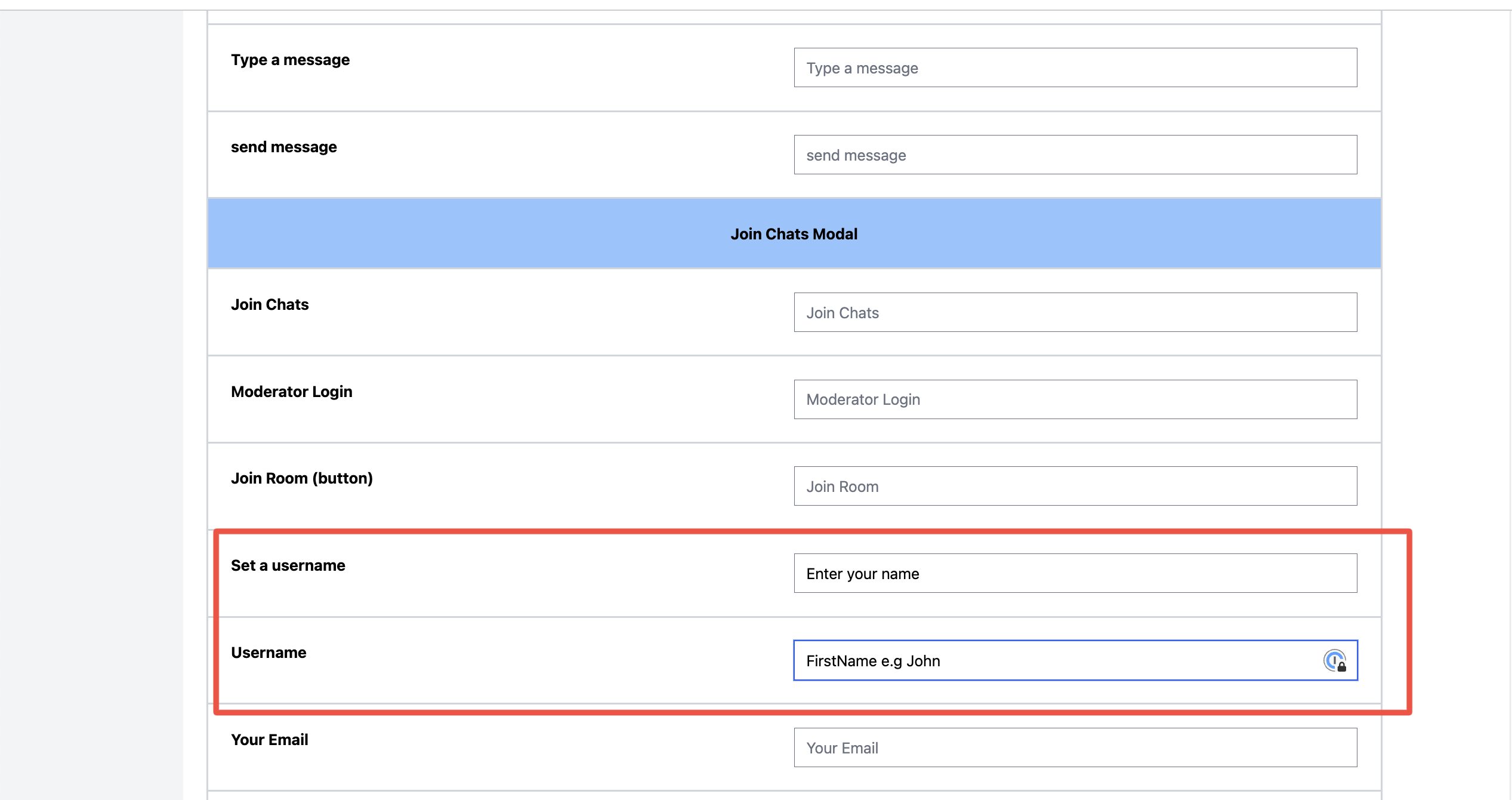 The override table. The original English is on the left, your replacement goes in the box on the right. Here the "Set a username" label is being changed to "Enter your name".
How the table works
The tab is one long two-column table, headed Original Text and Translated Text.
- Left column — the text the room shows today.
- Right column — a box. Whatever you type there replaces it.
- An empty box means no change. The grey text inside each empty box is the original wording, so you can see what you would be replacing. Clear a box and the room goes back to the original.
Nothing saves until you scroll to the bottom and click Save Changes. Beside it, Reset to default clears every override on the room and puts all the original wording back.
Changes apply to people who load the room afterwards. Reload the room in another tab to see them.
Translating a room: Quick Language Select
You do not have to translate 57 strings by hand. The second row of the table is Quick Language Select (optional), a dropdown of supplied languages — Spanish, French and German. Pick one and every box below it is filled in with that language at once.
Because it fills every box, it asks first: "All the fields below will be over-written. Do you want to proceed?" Accept and it fills them; decline and the dropdown goes back to blank and nothing is touched. Leaving the dropdown on its blank entry does nothing at all — it will not clear a language you have already applied.
After it fills the fields you are still in the same table, so:
- Read through and adjust anything that does not suit your audience. The supplied wording is a starting point, not a final answer — product names and tone are yours to fix.
- Click Save Changes. Quick Language Select does not save for you.
For a language that is not in the dropdown, ignore it and type into the boxes directly. There is no difference in the result: the dropdown is a bulk-fill shortcut, not a separate mode, and a room filled in by hand behaves exactly like one filled in from the list.
Relabelling in English
The same table is the supported way to change individual words without translating anything. Leave every other box empty and fill in only the ones you want different. Common ones:
| Original | Often becomes |
|---|---|
| Set a username | Enter your name |
| Type a message | Ask a question |
| Channels | Rooms, Topics, Sessions |
| Join Chats | Join the discussion |
| Online Users | Who's here |
This is also how you soften or brand the messages people see when something goes wrong, which is usually more valuable than restyling a button.
What you can change
The table is grouped, and the groups matter because several of them are strings most people never think to look for.
The chat interface — the first group, above the first coloured heading. The message box placeholder (Type a message), the send button, Channels and unread, Private Chats, Online Users, Load More, Logout, New Message, moderator, download, Banned Users, the autoscroll notice and its RESUME AUTOSCROLL button, the profile controls, and the pre-moderation pair Admin Approval Pending and Approve.
Join Chats Modal — every word on the screen people see before they are in the room: the Join Chats heading, Join Room button, Set a username, Username, Email, Password and Login labels, Already have an account? Login, the Unique User Identifier and Access Token field labels, Show Legacy Join Options, and the validation message You have to set a username to join the chat room. The two notes that only an account owner sees — about being logged into the dashboard, and about opening the page in a private window to log in as a moderator — are editable here too.
Error Messages — the three refusals a restricted room can hand somebody, each with its own heading and body:
- User is not a member — Only members can join this room…
- User not found — User was not found in the account.
- Deactivated Users cannot Join Room — This user has been deactivated hence cannot join room…
These are the messages a Provisioned Users or Members room shows to people it turns away, so they are worth writing in your own words: the stock text explains the situation in the vocabulary of the dashboard rather than the vocabulary of your product. See Chat Room Permission Levels for when each one appears.
Ban User Confirm Popup — the dialog a moderator gets before banning somebody: its heading, its explanation, and both buttons.
User Banned Popup — the Banned heading and the message a banned person sees when they try to come back.
Banned Users List — the moderator's list of banned IPs: Banned IPs, IP Address, Add, Add IP Address, Unblock and Close.
This tab replaces the interface's own text. It does not translate what people type — messages are delivered as written. It also has nothing to do with colours and fonts, which are on the Customize tab, or with removing interface elements outright, which is Hide Elements. If a label is one you would rather nobody saw, hiding the element is tidier than blanking its text.
Reusing it across rooms
Overrides belong to one room. Below the table, Copy Translations to another chat room pushes the whole set to your other rooms: select them in the list (hold Ctrl or Cmd for several) and click Copy Translations to Selected Chat Rooms.
Doing it from code instead
The tab sets one wording for the room. If you need different wording for different visitors — an
English page and a Spanish page sharing a room, or a language switcher — set it from the SDK
instead, with loadTranslation:
sdk.loadTranslation({
    channels: "Sub Chat Rooms",
    typeAMessage: "Escribe un mensaje",
    languageCode: "es"
});
Worth knowing:
- The keys are the rows of this tab.
typeAMessage,channels,setAUsername,errorUserIsNotMemberMessageand the rest — the method's reference page lists them all. - Pass only what you want changed. Keys you leave out keep whatever the room is already set to, so you can layer a handful of per-page overrides on top of a room translated in the dashboard.
languageCodetakes an ISO 639-1 code and sets thelangattribute on the chat page, which is what screen readers and browser translation use to work out what language they are looking at. Set it whenever you switch languages.- Values are length-limited. 500 characters for most strings, and 2,000 for the longer ones — the join-screen help text and field labels, and the three refusal messages.
Dynamically load translations is the worked example: embedding the room, connecting the SDK, and switching language per page or per user.
Which to use
| Situation | Use |
|---|---|
| The room is always in one language | The Translate/Change Text tab |
| One or two labels are worded wrong | The Translate/Change Text tab |
| Different visitors need different languages | loadTranslation |
| Visitors pick their own language | loadTranslation, called again on each switch |
| Several rooms need the same wording | The tab, then Copy Translations to Selected Chat Rooms |
Setting it by describing it
The round button in the bottom-right corner of this tab opens the AI Configuration Assistant, which will fill the table in from a description — "set this room up for German-speaking users" — and show you what it proposes before anything is applied. Everything it writes lands in the same boxes, so you can edit it afterwards like any other override.
Related pages
loadTranslation— the SDK method and its full key list- Dynamically load translations — a language switcher, end to end
- Hide Elements Reference — removing an element instead of rewording it
- Appearance Reference — colours, fonts and the Custom CSS box
- Chat Room Permission Levels — when each refusal message is shown
- How to create a public chat room anyone can join — relabelling the join screen in context
- Quick Start — where this step sits in setting a room up
- Contact support