Chat Room Settings Reference
Every chat room has a General tab, and almost everything about how the room behaves is decided there: who may join, whether people can share files, whether messages are held for approval, whether the chat is open at all. This page lists every control on that tab in the order it appears, says what each one does, what it is set to on a brand new room, and which REST API field changes it.
Where to find it
Open the Dead Simple Chat dashboard, go to Chat Rooms and select a room. You land on the General tab.
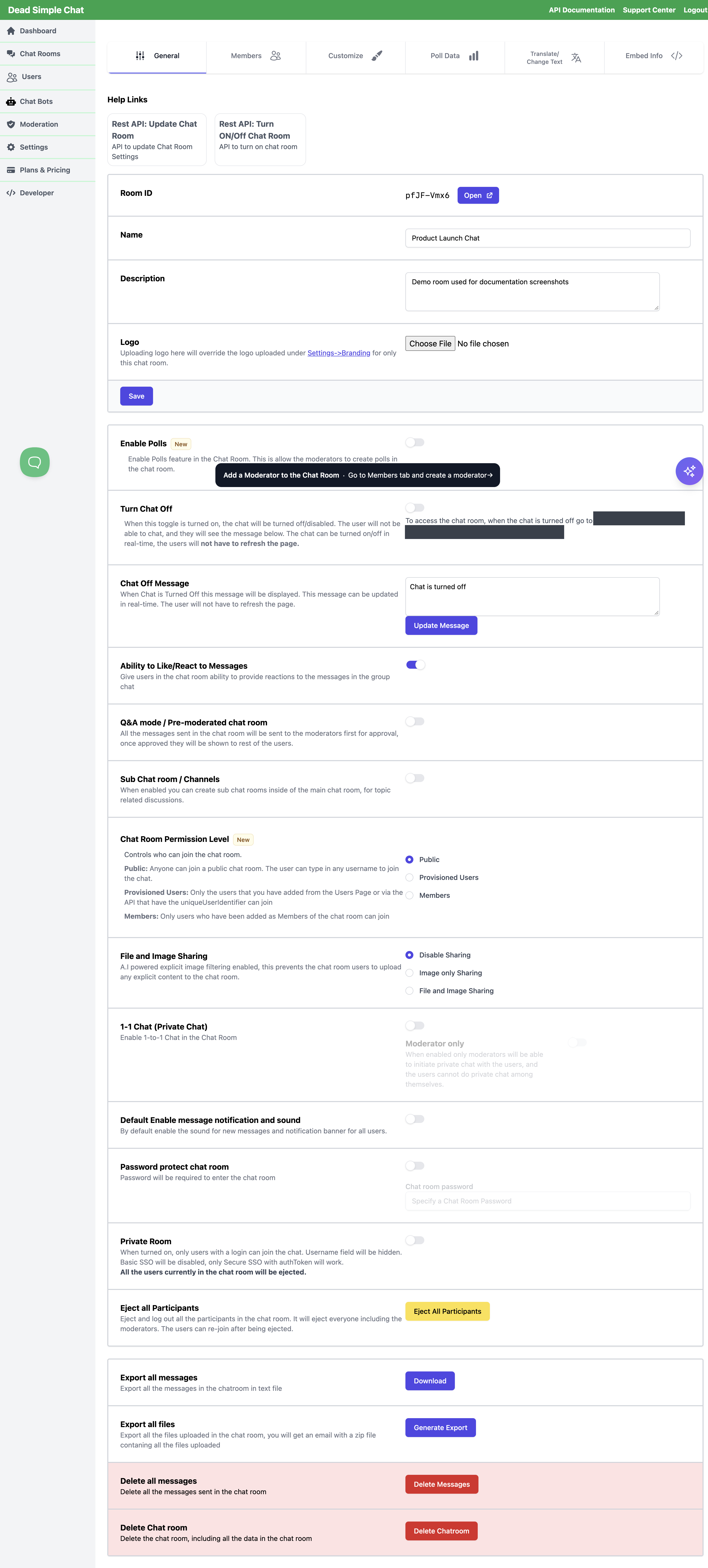
How this tab saves
The tab is in two halves and they save differently.
| Part of the tab | How it saves |
|---|---|
| Name, Description, Logo | Fill them in and press Save. Nothing is stored until you do. |
| Everything below Save | Saves the moment you change it. There is no Save button and no confirmation. |
Two of the self-saving controls behave a little differently again:
- Turn Chat Off and Chat Off Message reach the room immediately. Everyone sitting in the chat sees the change without reloading the page.
- Sub Chat room / Channels reloads the dashboard page after it saves, because switching it on adds a Channels / Sub-Rooms tab to the room.
On the Create Chat Room page you get Name, Description and Logo and nothing else. Every other control on this page appears only once the room exists. Create the room first, then come back to the General tab to configure it.
Setting these through the REST API
Two endpoints cover most of this tab:
- Create Chat Room —
POST /consumer/api/v1/chatroom - Update Chat Room —
PUT /consumer/api/v1/chatroom/:roomId
A few things to know before you use them.
The two endpoints do not accept the same fields. They are close, but not identical, and the
difference is not cosmetic — an unrecognised field is not ignored, it is refused. The request comes
back 400 with a validation error and nothing at all is changed, including the fields that were
valid. The differences are:
| Field | Create | Update |
|---|---|---|
chatRoomPermissionLevel | Accepted | Refused with 400. Change the level from the dashboard instead. |
fileSharingMode | imageSharing, fileAndImageSharing | imageSharing, fileAndImageSharing, "" — but see File and Image Sharing before you rely on "" |
On/off settings are the strings "on" and "off", not true and false. Every toggle on this
tab is a string field in the API:
{
    "enableLikeMessage": "on",
    "enableOneToOneChat": "off"
}
The literal false is accepted as an alternative to "off". The literal true is not accepted —
use "on".
Leave a field out to leave it alone. On update, any field you do not send keeps its current value. You never have to send the whole room back.
The two endpoints also need different levels of API access: updating a room needs a higher level than creating one. If a call comes back with "This endpoint is not allowed in your current plan", that is what it means — see pricing or contact support.
Some controls on this tab have no field on either endpoint — the logo, polls, and Private Room are dashboard-only, and turning the chat off has endpoints of its own. Each entry below says which.
To read a room's current settings back, use Get a Chat Room. It returns most of this tab, but not the polls, Private Room, chat-off or chat-off-message settings, and not the logo.
At a glance
| Control | What it does | Default | REST field |
|---|---|---|---|
| Room ID | The room's identifier, and an Open button. Not editable. | Generated for you | roomId (read-only) |
| Name | The room's name, shown in the chat header. Required. | Empty | name |
| Description | A longer description of the room. | Empty | description |
| Logo | A logo for this room only, overriding your account logo. | None | — (dashboard only) |
| Enable Polls | Lets moderators run polls in this room. See Polls. | Off | — (dashboard only) |
| Turn Chat Off | Closes the chat without deleting anything. | Off (chat is open) | Turn Off Chat / Turn On Chat |
| Chat Off Message | What people see while the chat is off. | Chat is turned off | Chat Off Message, body field message |
| Ability to Like/React to Messages | Lets people react to messages. | On for rooms created in the dashboard; off for rooms created through the API | enableLikeMessage |
| Q&A mode / Pre-moderated chat room | Holds every message for moderator approval. | Off | preModeratedChatRoom |
| Sub Chat room / Channels | Adds channels inside the room. | Off | enableChannels |
| Chat Room Permission Level | Who is allowed to join. See Chat Room Permission Levels. | Public | chatRoomPermissionLevel — create only |
| File and Image Sharing | Whether people can upload images, any file, or nothing. | Disable Sharing | fileSharingMode |
| 1-1 Chat (Private Chat) | Lets people open a private conversation with each other. | Off | enableOneToOneChat |
| Moderator only | Restricts starting a private chat to moderators. | Off | moderatorOnlyOneToOneChat |
| Default Enable message notification and sound | Turns notification banners and sound on for everyone by default. | Off | defaultNotificationEnabled |
| Password protect chat room + Chat room password | Requires a password to enter. | Off, no password | passwordProtected, roomPassword |
| Private Room | Removes the join form, so only people who arrive already signed in can take part. | Off | — (dashboard only) |
| Eject all Participants | Sends everyone currently in the room back to the join screen. | — (an action) | Eject All |
| Export all messages | Downloads the transcript as a text file. | — (an action) | Get Export Messages |
| Export all files | Emails you a zip of every uploaded file. | — (an action) | Get Export files |
| Delete all messages | Deletes the transcript and the uploaded files. | — (an action) | Delete Chat Room Messages |
| Delete Chat room | Deletes the room and everything in it. | — (an action) | Delete a Chat Room |
The rest of this page goes through them one at a time.
Room ID
The room's identifier, shown at the top of the tab with an Open button beside it that opens the room in a new tab.
You cannot change it. It is the last part of the room's URL — https://deadsimplechat.com/<Room ID> —
and it is the roomId you put in the path of every REST call about this room.
Name
What it does: names the room. It appears in the chat room header and in your list of rooms on the dashboard.
Required. The room will not save without one. Up to 100 characters.
Default: empty — you set it when you create the room.
REST field: name, on both create and
update.
Description
What it does: holds a longer description of what the room is for. Up to 500 characters.
Default: empty.
REST field: description, on both create and update.
Logo
What it does: sets a logo for this one room, replacing the account-wide logo from Settings -> Branding wherever that logo would have appeared. Choose an image file and press Save.
Once a logo is uploaded the tab grows an Uploaded Logo row showing the current image with a Remove Logo button. Removing it puts the room back on your account logo.
Default: none. The room uses the account logo from Settings -> Branding, if you have set one.
REST field: none. The room logo is uploaded and removed from the dashboard only — neither the create nor the update endpoint takes it.
Enable Polls
What it does: lets moderators of this room post polls into it — a question with a set of choices, a live tally and an expiry. While the switch is off, the poll button does not appear for moderators and polls cannot be created for the room at all.
Full detail is in Polls — how to create one, who can vote, and where to read the results.
Default: off.
REST field: none. Polls are switched on from the dashboard only, and Get a Chat Room does not report whether they are on.
Polls are not available on every plan. If the switch is covered by an upgrade prompt, your current plan does not include them — see pricing or contact support.
Turn Chat Off
What it does: closes the room. Everyone in it stops being able to chat and sees your Chat Off Message instead. Nothing is deleted and no setting is lost — turn the switch back off and the room resumes with its history intact.
The change is immediate for people already in the room. They do not have to reload the page.
Default: off — a new room is open.
The bypass link. A closed room shows the chat-off message to you as well, which makes it awkward to set the room up while it is closed. Directly under the switch the tab prints a link that gets you in anyway:
https://deadsimplechat.com/<Room ID>?bypassOff=<room _id>
<Room ID> is the room identifier from the top of the tab. <room _id> is the room's other
identifier — the long hexadecimal string in the dashboard URL while you are editing the room. Over the
API it is the _id field, which Get a Chat Room returns and
Create Chat Room hands back in its response. You do not have to
assemble the link yourself: the tab prints the finished one and you can copy it straight out of the
page.
Two things to know about it:
- It is per-room, and it is not a secret. Anybody who has the link can open the room while the chat is off. Treat it as an operator convenience, not as access control.
- It only bypasses the chat-off state. It does not bypass the room password, the permission level, or a ban.
REST fields: the switch has no field on the create or update endpoint. Use the dedicated
endpoints instead — Turn Off Chat and
Turn On Chat, both POST with no body.
Chat Off Message
What it does: sets the text people see while the chat is off. It has its own Update Message button — press it after editing, and the new text reaches everyone currently looking at the closed room straight away, without a reload.
You can edit it whether the chat is currently off or on, so you can write the message in advance.
Default: Chat is turned off. Up to 1000 characters.
REST field: Chat Off Message, a POST whose body field is
message:
{
    "message": "The Q&A session starts at 3pm. See you then."
}
Ability to Like/React to Messages
What it does: gives everyone in the room the ability to react to individual messages.
Default: this one differs by how the room was made. A room you create on the dashboard's Create Chat Room page starts with reactions on. A room you create through Create Chat Room starts with them off unless you send the field.
REST field: enableLikeMessage, on both create and update. Values "on" and "off".
Q&A mode / Pre-moderated chat room
What it does: holds every message a participant sends. Nothing appears in the room until a moderator approves it, and then everyone sees it. This is the setting to use for a moderated Q&A, a public-facing room where an unvetted message would be a problem, or an event where you want to pick which questions get asked.
Moderators approve the queued messages in the room itself, or from the Messages tab of the Moderation Dashboard. There is no reject — a message is either approved or deleted.
Which messages skip the queue depends on where they are sent from. A message posted from the Moderation Dashboard goes straight into the room, which is how you answer a question or post a notice while the room is pre-moderated. A message a moderator types in the room is queued like anyone else's, so approve your own with the button already beside it, or post from the console instead. See Q&A mode and pre-moderation.
Default: off.
REST field: preModeratedChatRoom, on both create and update. Values "on" and "off".
Sub Chat room / Channels
What it does: turns one room into several. With channels on, the room gets named sub-rooms for separate topics and people can move between them.
Switching it on saves and then reloads the dashboard page, because the room gains a Channels / Sub-Rooms tab where you create and name the channels. Nothing changes for participants until you create at least one channel.
Default: off.
REST field: enableChannels, on both create and update. Values "on" and "off". Creating the
channels themselves is a separate call — see
Create Channel.
Chat Room Permission Level
What it does: decides who is allowed to join the room, and therefore what the join screen offers people. Three radio buttons:
| Level | Who can join |
|---|---|
| Public | Anyone. They type a username and they are in. |
| Provisioned Users | Only people who already exist as users in your account. |
| Members | Only people you have added as a member of this particular room. |
This is the room's main access control, and it is the setting the server checks when a join arrives — including a join that arrives from a URL rather than from the join screen. It is explained in full, with the join screens, the refusal messages and which SSO route works at each level, in Chat Room Permission Levels.
Default: Public.
REST field: chatRoomPermissionLevel, with the values public, provisioned_users and
members.
This is the field that differs between the two endpoints.
Create Chat Room accepts it.
Update Chat Room does not — send it there and the whole
request is refused with a 400 validation error, so any other fields in the same body are not
applied either. To change the level of a room that already exists, use this tab.
The permission levels belong to the newer join screen. If the setting is dimmed behind a Switch to New Join Modal to Use this Feature button, your account is still on the older join screen — follow that button, and see Creating and Managing Users and Chat Room Permissions.
File and Image Sharing
What it does: decides what participants may upload. Three radio buttons:
| Option | What participants can upload |
|---|---|
| Disable Sharing | Nothing. There is no upload button. |
| Image only Sharing | Images only. A non-image upload is refused with "Only image upload is allowed". |
| File and Image Sharing | Images and other files. |
Images are screened before they are accepted. Whichever of the two sharing options you pick, an uploaded image is checked for explicit content and refused if it fails, with "This image might contain explicit content, hence it cannot be uploaded". The screening applies to images. A non-image file uploaded under File and Image Sharing is not screened, so if you accept arbitrary files, assume you are accepting arbitrary content.
Default: Disable Sharing.
REST field: fileSharingMode, and the accepted values are not the same on the two endpoints:
| Endpoint | Accepted values |
|---|---|
| Create | imageSharing, fileAndImageSharing. Omit the field for no sharing — that is the default anyway. |
| Update | imageSharing, fileAndImageSharing, "". |
Any other value is refused with a 400 — including "" on create, which is one of the two places the
two endpoints differ.
The update endpoint accepts fileSharingMode: "" and answers 200, but the room keeps whichever
sharing mode it already had. To switch sharing off, use the Disable Sharing radio button on this
tab.
Switching between the two sharing modes works normally through the API, and you can confirm any change by reading the room back with Get a Chat Room.
1-1 Chat (Private Chat)
What it does: lets people in the room open a one-to-one conversation with someone else in it, alongside the group chat.
Default: off.
REST field: enableOneToOneChat, on both create and update. Values "on" and "off".
Moderator only
What it does: restricts who may start a private chat. With this on, only moderators can open one; participants cannot start private chats with each other, and can only reply to a moderator who has started one with them. Use it for a support or help desk room, where you want a private channel to staff but not a side channel between strangers.
This control sits underneath 1-1 Chat and is greyed out until 1-1 Chat is on — it has no effect on its own, since with 1-1 chat off nobody can start a private conversation anyway.
Default: off.
REST field: moderatorOnlyOneToOneChat, on both create and update. Values "on" and "off".
The API does not stop you setting it while enableOneToOneChat is off; the value is stored and takes
effect when you turn 1-1 chat on.
Default Enable message notification and sound
What it does: decides what notifications are set to for someone arriving in the room for the first time. With it on, new-message sound and the notification banner start switched on for everyone; with it off they start switched off. Either way it is only a starting point — each person can change it for themselves in the room, and their own choice wins from then on.
Turn it on for a room people watch in a background tab and need to be pulled back to. Leave it off for a busy public room, where sound on by default is usually unwelcome.
Default: off.
REST field: defaultNotificationEnabled, on both create and update. Values "on" and "off".
Password protect chat room
What it does: requires a password before anyone can enter the room. Turn the switch on and a Chat room password box appears below it — the box is greyed out until the switch is on.
The password is checked for everybody, moderators included, and it is checked exactly as typed, so it is case-sensitive. Someone who gets it wrong is told "room password is invalid".
If the switch is on and no password has been set, nobody can get into the room — the room asks for a password, and there is nothing anyone can type that will match. If a room has stopped letting people in, check this pair first.
Password protection is a shared secret, not identity. It tells you somebody knew the password, not who they are. If you need to know who is in the room, use Chat Room Permission Level.
Default: off, with no password.
REST fields: passwordProtected and roomPassword (up to 100 characters), on both create and
update.
Switching protection on. Send both fields together. passwordProtected: "on" on its own is
refused with a 400 and "Please specify a password for the password protected room" — which is the
API enforcing the rule in the caution above.
{
    "passwordProtected": "on",
    "roomPassword": "amber-harbour-19"
}
Switching protection off. Use the literal false, not the string "off":
{
    "passwordProtected": false
}
passwordProtected: "off" on its own is refused with the same "Please specify a password" error,
because the request is read as switching protection on without a password. If you would rather use the
string form, send roomPassword alongside it and it goes through.
Private Room
What it does: removes the join form. On a normal room the join screen offers boxes for a username, a unique user identifier and an access token; with Private Room on, that whole form is gone, so there is nothing for a visitor who arrives at the room URL to fill in. The only people who take part are the ones who arrive already identified — that is, through SSO Using Auth Token or SSO Using Unique User Identifier, where your application puts the credential in the URL or passes it through the SDK.
Turning it on ejects everyone who is in the room at that moment. They are returned to the join screen — which, with Private Room now on, has no form on it. Anyone who needs to come back has to be sent in again by your application. Turn it on before an event, not during one.
Default: off.
REST field: none. Private Room is a dashboard-only setting, and Get a Chat Room does not report it.
Private Room is not available on every plan. If the switch is covered by an upgrade prompt, your current plan does not include it — see pricing or contact support.
How it interacts with Chat Room Permission Level
These two settings look like they do the same job, and they do not. You usually want both.
Private Room works on the join screen. It takes the form away, so nobody can type their way in.
Chat Room Permission Level works on the join itself, wherever the join came from — including a link that carries the credential in the URL and never shows a join screen at all.
That distinction matters for one specific case. Basic SSO — a link of the form
https://deadsimplechat.com/<Room ID>?username=Someone — is answered by the permission level, not
by Private Room. Where Basic SSO is available to your account at all, such a link is accepted while
the level is Public, and refused at Provisioned Users and Members. So on a Public
room, turning Private Room on takes the username box off the join screen but does not by itself stop
such a link from putting someone in under a name of their choosing. A link carrying a unique user
identifier likewise keeps working, subject to the permission level.
So: if your reason for turning Private Room on is that only people your application has authenticated may take part, set Chat Room Permission Level to Provisioned Users or Members as well. The permission level is the setting that decides it.
Which SSO route works at which level is tabulated in Chat Room Permission Levels.
Eject all Participants
What it does: clears the room. Press it, confirm the "Are you sure you want to eject all participants from the chatRoom?" prompt, and everyone currently in the room is signed out of it and returned to the join screen. You get an All Participants Ejected confirmation.
Be precise about what this does and does not do, because the name oversells it.
It does:
- Remove everybody who is in the room right now, including moderators. There is no way to exempt yourself — if you are in the room in another tab, you are ejected too.
- Sign each of them out of the room, so they are back at the join screen rather than still sitting in the chat.
It does not:
- Stop anyone coming back. Everyone it ejected can rejoin immediately, by exactly the means they used the first time. It is not a ban and it does not invalidate anybody's access token or membership.
- Stop new people joining.
- Delete any messages, or change any setting on this tab.
- Remove anyone from the room's members, or change anyone's role.
So it is a way of resetting who is connected — after an event, before a session starts, or to force everyone to pick up a setting you have just changed. It is not a way of shutting a room. If you want people out and kept out, use Turn Chat Off, or change Chat Room Permission Level, or ban the individuals concerned from the Moderation Dashboard, and then eject.
REST field: Eject All, a POST with no body.
Eject All is not available on every plan. If the button is covered by an upgrade prompt, your current plan does not include it — see pricing or contact support.
Export all messages
What it does: downloads the room's transcript as a plain text file, export.txt, one entry per
message with the sender's username and a timestamp.
Pressing Download opens a small dialog with two choices before the file is generated.
Timezone
The timestamps in the file are written in the timezone you pick here.
| Option | What it means |
|---|---|
| Browser Timezone | The timezone of the computer you are on, named in brackets so you can check it. This is the default. |
| UTC | Coordinated Universal Time. |
| Select Timezone | Pick from a list of named timezones, with a search box to filter it. |
Timestamp Format
| Option | Example |
|---|---|
| 24-hour | 14:30 — the default |
| 12-hour | 2:30 pm |
Dates are written month-first either way, so a 24-hour timestamp reads 09-15-2021 14:30 and a
12-hour one reads 09-15-2021 02:30 pm.
REST equivalent: Get Export Messages. It takes the same two choices as query parameters:
| Parameter | Values | Default if omitted |
|---|---|---|
timezone | A named timezone, for example Asia/Kolkata | UTC |
timestampFormat | 24-hour or 12-hour | 24-hour |
https://api.deadsimplechat.com/consumer/api/v1/chatroom/<Room ID>/export/messages?auth=<private key>&timezone=Asia/Kolkata×tampFormat=12-hour
An unrecognised timezone name falls back to UTC rather than failing, so check the spelling if the
times are not what you expect. The API export is also rate limited to one per room per ten minutes —
call it again inside that window and it answers 429 with "please send the request again after 10
mins". The dashboard Download button is not rate limited.
If the room uses channels, each channel's messages are exported separately — see Get Channel Export.
Export all files
What it does: collects every file that has been uploaded to the room into a zip and emails it to you. Press Generate Export and you get "Export generation is in progress, it will be emailed to you" — the zip is built in the background, so nothing downloads in the browser.
Ask for the same room twice and the second request is absorbed rather than queued: you are told "We are processing your export. Once ready it will be sent to your email." A fresh export of the same room can be started a few hours after the last one.
The timezone and timestamp choices above belong to the message export only. They do not apply here.
REST equivalent: Get Export files.
Delete all messages
What it does: deletes the room's transcript. You are taken to a confirmation page — "Are you sure you want to delete all the messages in the chatroom … This action is irreversible." — and nothing happens until you press Yes, delete all messages.
It also deletes every file that was uploaded to the room, which the label does not say. If you want to keep the attachments, run Export all files first and wait for the email before you delete.
The room itself survives: the settings on this tab, its members, its moderators and its channels are all untouched, and people in the room stay in it.
REST equivalent: Delete Chat Room Messages.
Delete Chat room
What it does: deletes the room and everything in it — messages, uploaded files, private conversations, members and channels. You are taken to a confirmation page — "Are you sure you want to delete this chatroom forever … This action is irreversible." — and nothing happens until you press Yes, delete the chatroom.
There is no undo and no recycle bin. The Room ID is gone with the room, so any link, embed or integration pointing at it stops working.
REST equivalent: Delete a Chat Room.
Changing these settings by asking
You do not have to work through this tab by hand. The AI Configuration Assistant sets a room up from a plain-English description — "hold every message for approval and let people share images" — and proposes the matching settings for you to review before anything is applied. It can set most of the controls on this page, including the ones with no REST field.
If you use a screen reader
The on/off switches on this tab do not report their state. Each one is announced as switched off whether it is on or off, and toggling one does not announce that anything changed.
The switches themselves work correctly — activating one saves the new value the same as it does for anybody else. What you cannot do is trust what you are told the current state is.
The practical consequence, and the way round it:
- Do not read the current state from the switch. Read it from Get a Chat Room, which returns these settings as plain values you can inspect. That covers the reactions, pre-moderation, channels, file sharing, 1-1 chat, moderator-only, notification and password settings.
- Four settings are not in that response — polls, Private Room, the chat-off state and the chat-off message. For those, check the room itself: open the room and see whether the chat is off and what message it shows, and whether a moderator has the poll button.
- Be careful about toggling twice. Because no state is announced, it is easy to activate a switch, hear nothing, and activate it again — which puts it back where it started. Change a switch once, then confirm the value through the API before changing it again.
- Or set the room up by describing it. The AI Configuration Assistant reaches every switch and radio group on this tab, including the four settings the API cannot read back, and it shows you the changes it proposes before anything is applied — so you get a readable statement of what is about to be on and off.
The radio button groups — Chat Room Permission Level and File and Image Sharing — are ordinary radio buttons and do report which option is selected. So does the Chat room password box.
Related
- Chat Room Permission Levels — who can join, in full.
- Polls — running polls once you have switched them on.
- AI Configuration Assistant — configure a room by describing it.
- Moderation Dashboard — approving pre-moderated messages, banning people, and moderating without joining the room.
- Creating Moderators — several settings on this tab only matter once the room has a moderator.
- Create Chat Room and Update Chat Room — the two REST endpoints for this tab.