Deleting Messages and Rooms
There are three things you can delete, and they differ by how much they take with them.
| Action | What it removes | Where |
|---|---|---|
| Delete one message | That message, and anything attached to it | In the chat room, or Dashboard -> Moderation |
| Delete all messages | The room's transcript and every file uploaded to it | The room's General tab, or the Options menu on Chat Rooms |
| Delete Chat room | The room and everything in it | The same two places |
None of it can be undone. There is no trash, no recycle bin, no retention window and no restore. Once the confirmation is accepted, the content is gone.
Delete all messages removes the room's transcript and every file and image that was ever uploaded to that room. The button says "Delete all the messages sent in the chat room", and the confirmation page talks only about messages — neither of them mentions the attachments, but the attachments go too.
If you want to keep the files, run Export all files first and wait for the email to arrive before you delete anything. See Exporting Messages and Files.
Deleting one message
A moderator in the chat room removes a single message with the small bin icon that appears on it. There is no confirmation — one press and the message is gone. The message disappears from the room for everyone straight away, and nothing is left behind in its place: there is no "this message was deleted" marker.
Deleting a message also cleans up what was attached to it:
- An attached file or image is deleted with the message. This is the way to get rid of one specific image without touching the rest of the room.
- An attached poll is closed. The poll stops accepting votes. See Polls.
The same single-message delete is available from Dashboard -> Moderation, where it asks you to confirm first — "Are you sure you want to delete this message?" — and it works for channel messages as well.
The Moderation Dashboard also has Del All, which clears every message one named person has posted in the room. That one clears message text only; it does not remove their attachments or close their polls. To get rid of a particular image or poll, delete the message that carried it.
Through code: deleteMessage and deleteChannelMessage in the JavaScript SDK, or the Delete Chat Room Message and Delete Channel Message REST endpoints. All of them behave the same way as the bin icon, attachment cleanup included. The SDK methods do not grant permission by themselves — the person the SDK is acting for still has to be a moderator.
If you send webhooks, a deleted message produces chatroom_message_deleted, or
channel_message_deleted for a channel. See the webhook event reference.
Deleting all messages in a room
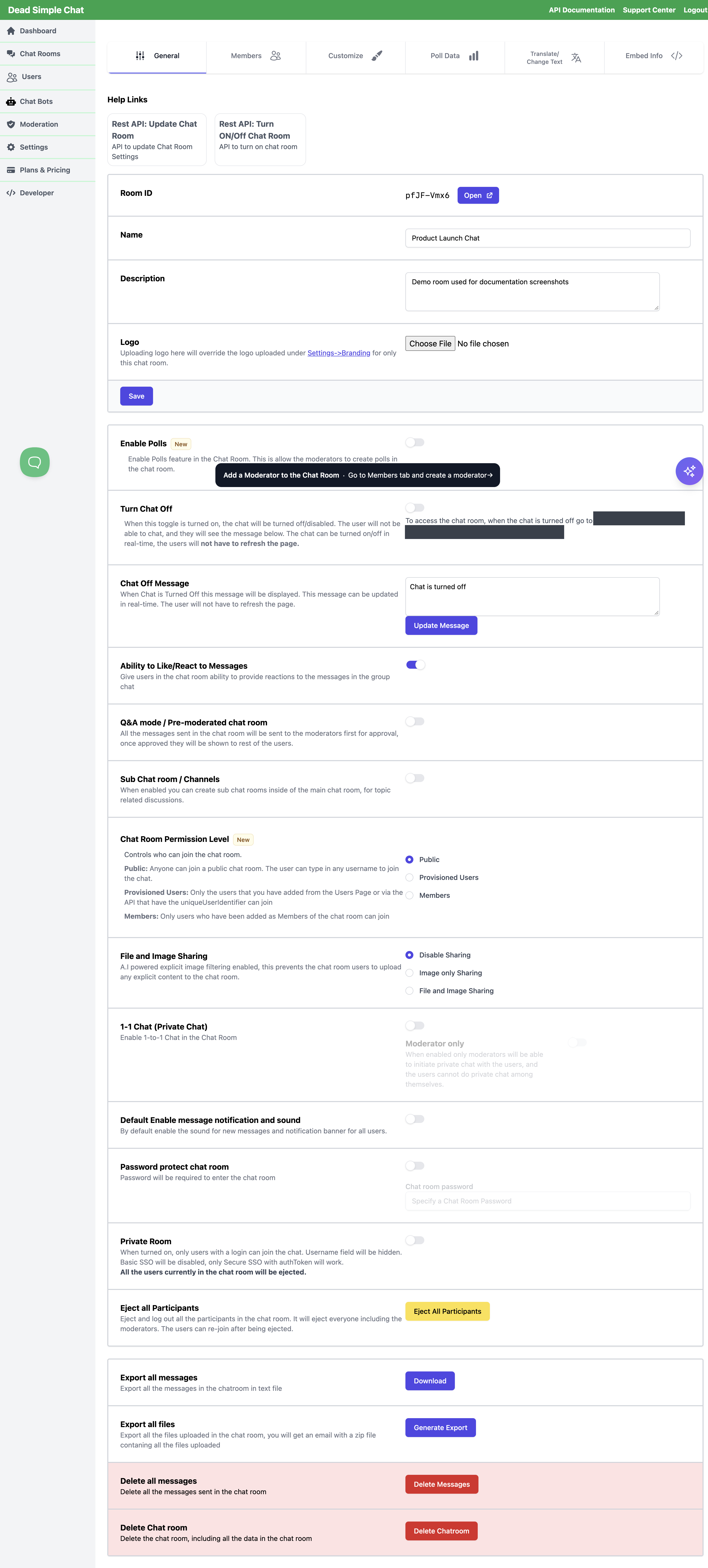
Open the dashboard, go to Chat Rooms, and either use Delete All messages on the room's Options menu or open the room and use Delete Messages at the bottom of the General tab.
You are taken to a confirmation page — "Are you sure you want to delete all the messages in the chatroom: <Room ID> This action is irreversible." — and nothing happens until you press Yes, delete all messages. No, Cancel. takes you back.
What it removes
- Every message in the room's main stream.
- Every file and image uploaded to the room, including ones posted inside its channels. They are removed from storage, and the space they were using is returned to your account.
What survives
- The room itself, its Room ID, and every setting on the General and Customize tabs.
- Its members, its moderators and its channels.
- The text of messages posted inside channels, and one-to-one private conversations. The dashboard action clears the main transcript; it does not clear those.
- Anyone sitting in the room stays in it.
So this is the way to reset a room and reuse it — for a recurring event, a new session, or a demo room you want to hand over clean — without rebuilding it or reissuing its embed code.
Through the REST API: Delete Chat Room Messages. Used with no options it goes further than the dashboard button does — it removes the channel messages and the one-to-one conversations as well. Two optional query parameters hold those back:
| Parameter | Effect |
|---|---|
doNotDeleteChannelMessages | Leaves the messages posted in the room's channels alone |
doNotDeletePrivateMessages | Leaves the one-to-one private conversations alone |
Either way, export anything you need to keep before you call it.
Deleting a chat room
Same two places: Delete Chat Room on the Options menu, or Delete Chatroom at the bottom of the General tab. The confirmation page reads "Are you sure you want to delete this chatroom forever: <Room ID> This action is irreversible.", and the buttons are Yes, delete the chatroom. and No, Cancel.
This removes the room and its contents together: the messages, the channels and everything posted in them, the one-to-one conversations, every uploaded file, and the room's translations and appearance settings.
Two consequences worth thinking about before you press it:
- The Room ID goes with the room. Every embed code, direct link, SDK integration and API call that names that Room ID stops working. If what you actually want is a room that nobody can post in, use Turn Chat Off on the General tab instead — it closes the chat and keeps everything. See the Chat Room Settings Reference.
- It frees a chat room slot. Your plan allows a certain number of chat rooms, and the count is taken live, so the slot is available again immediately. See Plans and Quotas.
Through the REST API: Delete a Chat Room, which does the same thing.
Deleting a room sends a channel_deleted webhook for each of its channels, followed by one
chatroom_deleted for the room — though chatroom_deleted has no switch on the Settings ->
Webhooks page and is off unless support turns it on for you. See
webhook events.
What is irreversible, exactly
All of it. Every delete on this page removes the content outright rather than hiding it, so:
- No undo button, no trash and no recycle bin anywhere in the dashboard.
- No support request can bring a deleted message, file or room back for you.
- A message deleted today cannot appear in an export made tomorrow. Exports are made from what is still there.
The only protection is the one you arrange yourself: export before you delete. Messages download in seconds; the file export is emailed, so start it early and wait for the email before you delete anything.
Related
- Exporting Messages and Files — do this first.
- Moderation Dashboard — deleting individual messages, and clearing one person's messages, without joining the room.
- Chat Room Settings Reference — Turn Chat Off and Eject all Participants, the non-destructive alternatives.
- Plans and Quotas — what deleting gives back.
- Delete Chat Room Messages and Delete a Chat Room — the REST reference pages.